
What Finance settings covers
The seventeen screens behind the gear, the five groups they sit in, and which of them are documented elsewhere.
Finance settings hold the decisions the whole organisation works from: who you are on a document, what tax you charge, how documents are numbered, what a customer sees in the portal, and which modules Finance offers at all. They apply to everybody, not just to you.
Five groups, seventeen screens
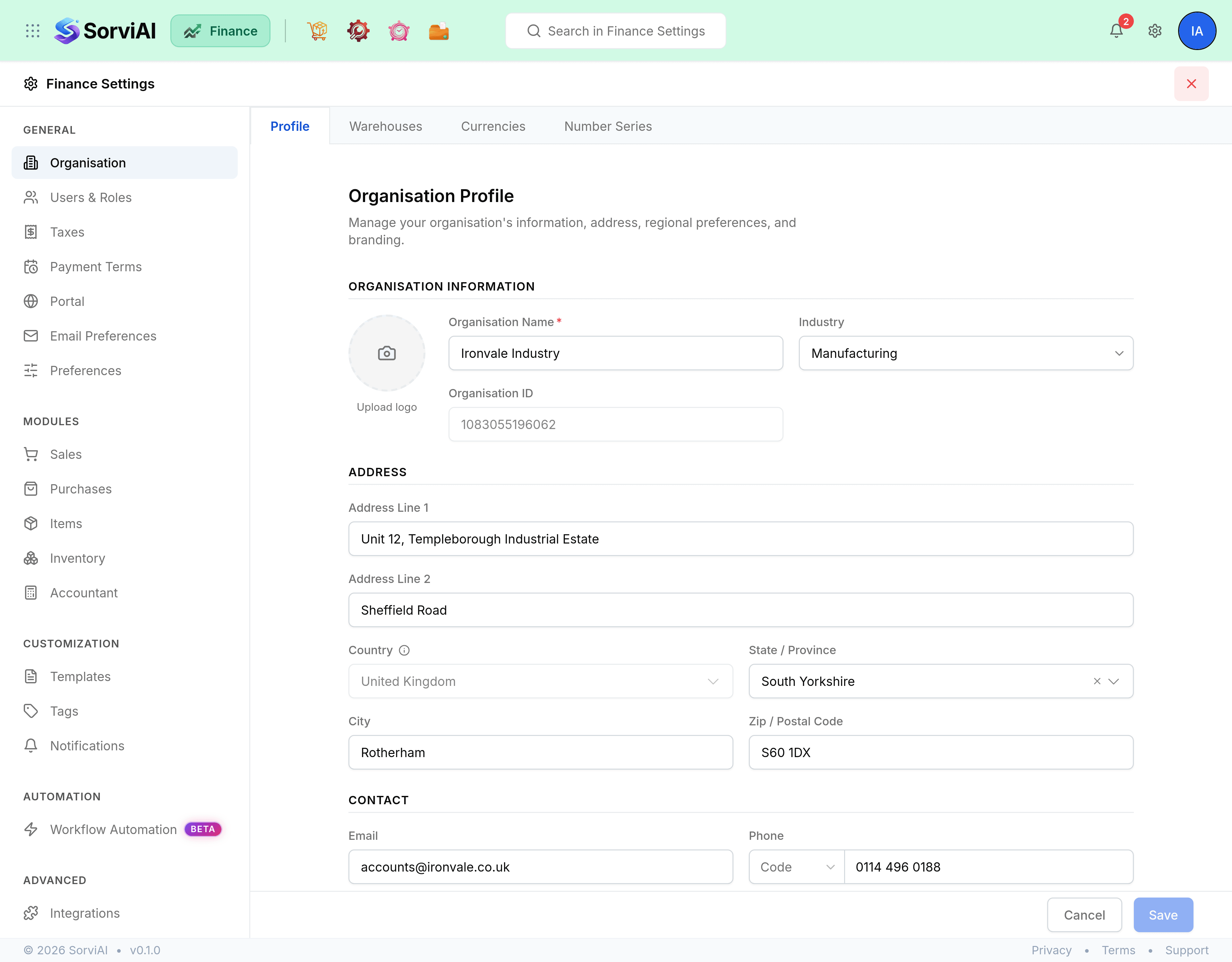
General is the organisation: who you are, who gets in, and what every document inherits.
- OrganisationYour profile, warehouses, currencies and document numbering.
- Users and RolesWho has access to Finance, and what each role may do.
- TaxesTax rates, your registration, and how you file.
- Payment TermsThe due-date rules every document offers.
- PortalThe self-service site your customers and vendors sign in to.
- Email PreferencesThe addresses Finance sends from, and how they are authenticated.
- PreferencesWhich modules Finance offers, and the workspace defaults.
Modules is one screen per part of Finance, and each of those screens is documented beside the records it configures rather than here.
- Module settingsSales, Purchases, Items, Inventory and Accountant, and where each tab is written up.
Customization, Automation and Advanced are what you change once the basics are in place.
- TemplatesThe PDF layout and the covering email for every document type.
- TagsThe labels you file contacts, items and transactions under.
- NotificationsHow and when Finance tells you something happened.
- Workflow AutomationRules that fire an email or a notification when a record changes.
- IntegrationsYour shipping carrier accounts and your payment provider.
Opening, saving and closing
The gear at the right of the Finance header opens settings from wherever you are. It is labelled Finance Settings, and it remembers the screen you came from, so the cross at the top right puts you back there rather than on the Finance overview.
Screens are down the left, grouped; tabs run along the top of the pane. Every screen saves the same way, from the bar at the foot: Save stays greyed out until something actually differs from what is stored, so a disabled button means nothing has changed yet, and Cancel puts the screen back.
Your rail may be shorter than this one
Two things decide what you see, and they work independently.
- Your role
- Settings are granted per section. A role given Taxes and nothing else opens the gear and finds Taxes. Some screens, Organisation among them, stay visible to everybody and read-only, which is how anybody can check the company address without being able to change it.
- Your enabled modules
- A tab that configures a module the organisation has switched off is removed, and a screen whose every tab has gone is removed with it. Turning quotes off takes the Quotes tab out of Sales settings.
A screen that opens with every control greyed out is the first of those, and a tab that has vanished since you last used it is usually the second.