
Stop, Expire and Delete
Three ways for a profile to stop generating, and one behaviour that catches everybody: missed cycles are never backfilled.
Nothing catches up on its own.
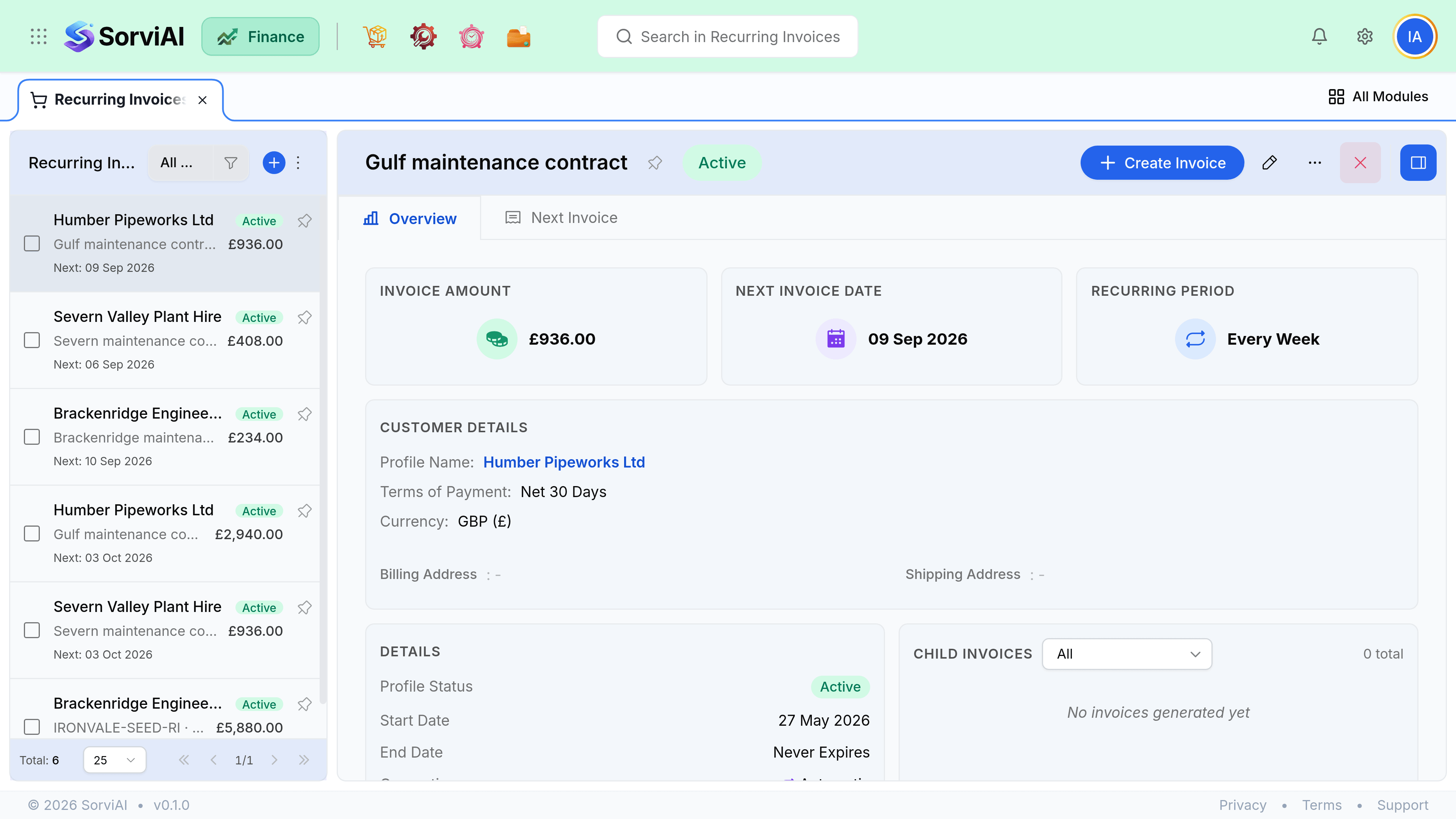
The three ways to stop
A profile is Active, Stopped or Expired. There is no pause, and nothing resumes on its own.
| Action | What happens | Reversible |
|---|---|---|
| Stop | Generation ends. The profile and its history stay. | Yes. Make it active again. |
| Expire | Reached its end date. Stops on its own. | Yes. Extend or clear the end date. |
| Delete | Removes the profile. Generated invoices are untouched. | No. |
Stopping suits a customer taking a break. Every invoice already generated stays exactly where it is, because those are real invoices and stopping a template cannot unbill anyone. There is no customer-level hold that reaches the schedule either: if you want generation to end, stop the profile.
Missed cycles are not backfilled
Check the last generated date on the profile
It is on the profile list, and it is the fastest way to spot a gap.
Compare it to the cycle
A monthly profile whose last generation was three months ago has missed two cycles.
Raise the missing invoices by hand
Duplicate a previous generated invoice and date it correctly, so the revenue lands in the right period.
Then resume
Resuming picks up from the next cycle date, not from the gap.
Editing a running profile
A profile can be edited at any time and the change applies from the next cycle. Nothing already generated is touched, which is correct: an invoice the customer has already paid should not silently change because you updated a template.
- Changing lines or prices affects future cycles only.
- Changing the frequency resets the next cycle date from the new setting, so check it after saving.
- Changing the customer is refused. Create a new profile instead, because the currency and terms would all shift.
- Switching between draft and auto-send takes effect from the next cycle.