
Export and Share
Three formats for three different readers.
Last reviewed
The export honours your current filters and column choices, so set the view up before you export rather than trimming afterwards.
Highlights of exporting
- Three formats and a print option, all behind the three-dot menu beside Run Report.
- The export is what is on screen: filters, columns and comparison periods all carry.
- A dialog stands between the menu and the file, asking for a name and offering a password.
- An export is a snapshot, and re-running it later may not match.
The export menu
There is no Export button. The menu hides behind the three-dot control to the right of Run Report, which is the first thing worth knowing here because it is easy to miss.
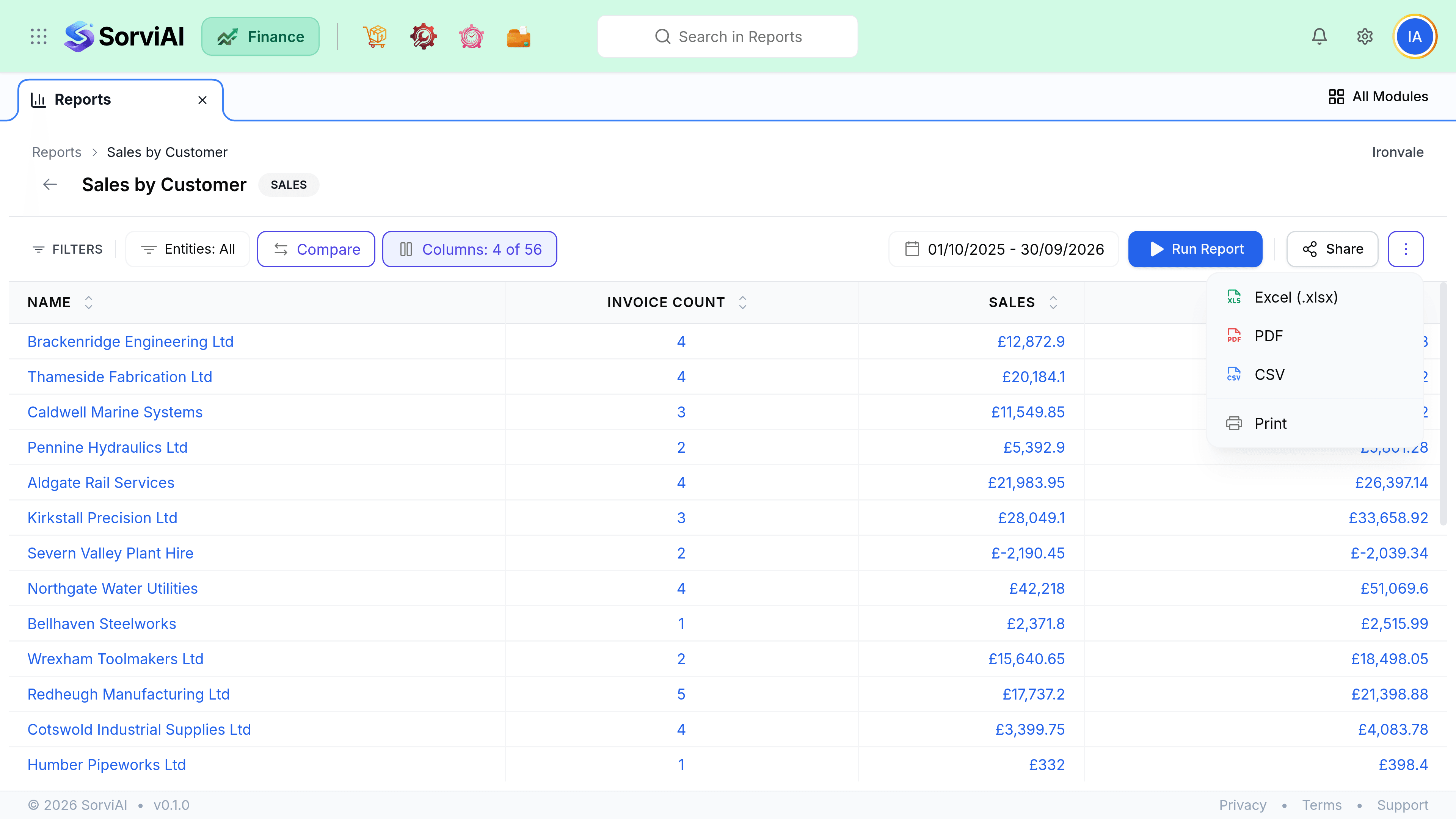
The dialog each format opens
Choosing Excel, PDF or CSV does not download anything yet. Each opens a small dialog first, and only Print goes straight out.
| Field | What it does |
|---|---|
| File NameRequired | Prefilled with the report's name, so Sales by Customer arrives as Sales by Customer.pdf. Worth changing to something carrying the period, because the file itself does not |
| Password (optional) | Empty means no password. Setting one encrypts the file, which is the honest answer for anything going outside the business |
| Use current view | On by default, meaning the columns you ticked. Turn it off for the report's full set. Excel and CSV only: the PDF dialog does not offer it |
Choosing a format
| Format | Best for | Keeps formatting |
|---|---|---|
| Sending to a bank, a lender or your accountant | Yes | |
| Excel (.xlsx) | Further analysis with formulas intact | Partly |
| CSV | Importing into another system | No |
What travels with the export
- The date range is printed on the report, so the recipient can see what period they are looking at.
- Filters and grouping are applied. A filtered report exports filtered.
- A comparison period exports as extra columns, which can be wide in PDF.
- Columns you added in the picker travel too, including the foreign-currency pairs.
The month-end pack
For most businesses the pack an accountant asks for is the same every month. What you can actually produce is narrower than the standard list, so agree the substitutes with them before the first close rather than at it.
Lock the period first
Anything posted after you export changes the numbers you sent. Locking is what stops that quietly happening.
Run what is available on the same date range
The usual pack of Profit and Loss, Balance Sheet and Trial Balance is not built yet, so the closest set today is General Ledger and Account Type Summary for the period, plus Receivable Summary and Payable Summary as at the period end. Your accountant will want to know that is what they are getting.
Export each as PDF
One format, one date range, one folder. A pack with two different periods in it is the thing that gets queried.
Keep the files
They are your record of what you reported, and they will not regenerate identically after a backdated entry.