
Templates
The PDF layout a document prints with and the email it travels in, chosen per document type, with one of each marked default.
Templates are what a customer actually receives. The PDF template is the document's layout; the email template is the covering message it arrives in. They are chosen per document type, so an invoice and a purchase order can look nothing alike.
Go to SettingsFinanceTemplates. Two tabs: PDF Templates and Email Templates. Both open on two rows of choices above the gallery: a category (Sales, Purchases, Inventory or Accounting), then a document type within it.
Choosing a document type first
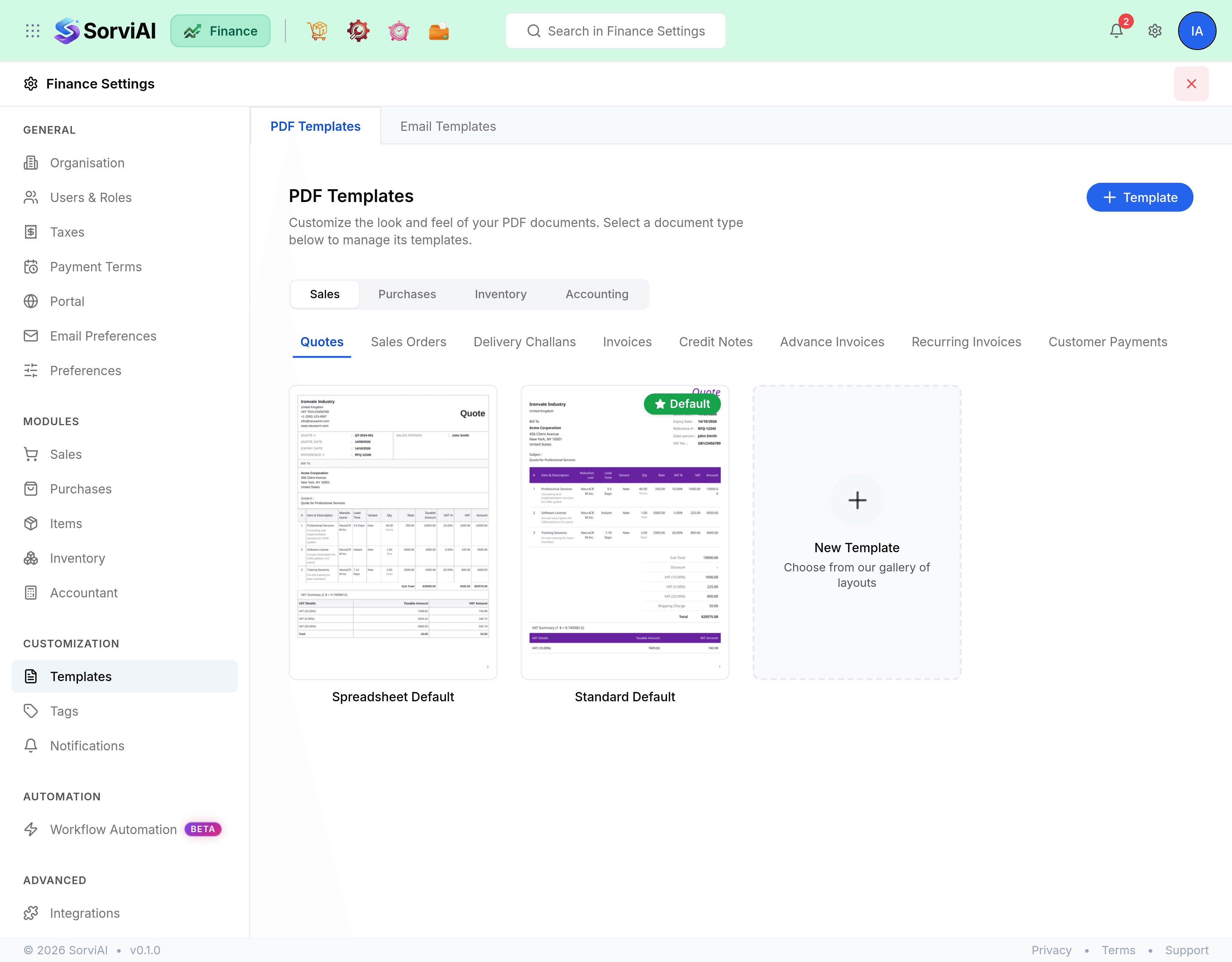
Choose the category, then the document type within it, and the gallery below shows the templates that exist for it. Nothing here is workspace-wide: a change to the invoice gallery changes invoices and nothing else.
What you can do with a template
- Edit
- Opens the template in the editor, where its layout, colours and columns are set.
- Preview
- Renders the template so you can read it before committing it to a customer.
- Set as default
- Makes it the template new documents of that type use. The badge moves to it.
- New Template
- Starts another one for the same document type, which is how a second brand or a customer-specific layout is handled.
The seeded template that ships with Finance cannot be deleted. Yours can, once it is not the default.
Email templates
The same gallery, for the message rather than the document. An email template carries the covering text with the document's own values substituted in, so an invoice email can name the invoice number, the amount and the due date without you typing them.