
Navigating Finance
The tab bar, the All Modules menu, the search bar and the two layouts Finance can wear.
Finance opens on the Overview dashboard with a single tab and one button that reaches everything else. Learn those two, and every module afterwards works the same way.
Highlights
- All Modules is the full menu, and the button sits at the right of the tab bar.
- Star a module to pin it as a tab you can return to in one click.
- Cmd+K, or Ctrl+K, puts the cursor in the search bar from anywhere.
- Twenty-seven record types are searchable by name or by number, in one box.
- Two layouts, Modern and Classic, switched in the profile menu.
- Every list remembers how you left it: the view you chose and the widths you dragged.
The screen Finance opens on
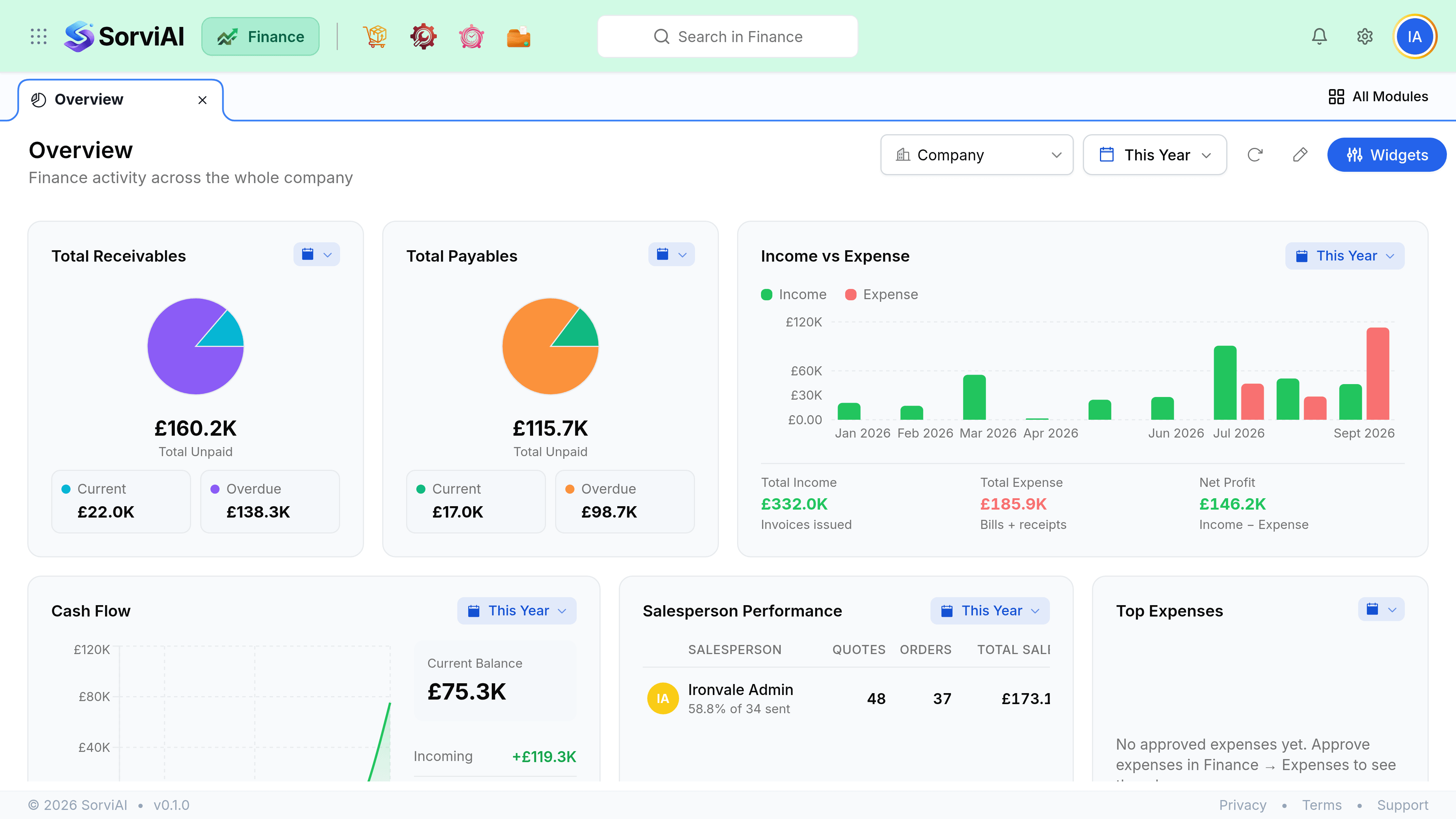
All Modules
All Modules opens the full Finance menu, grouped exactly as the product is organised, with a search box across the top for finding a screen by name.
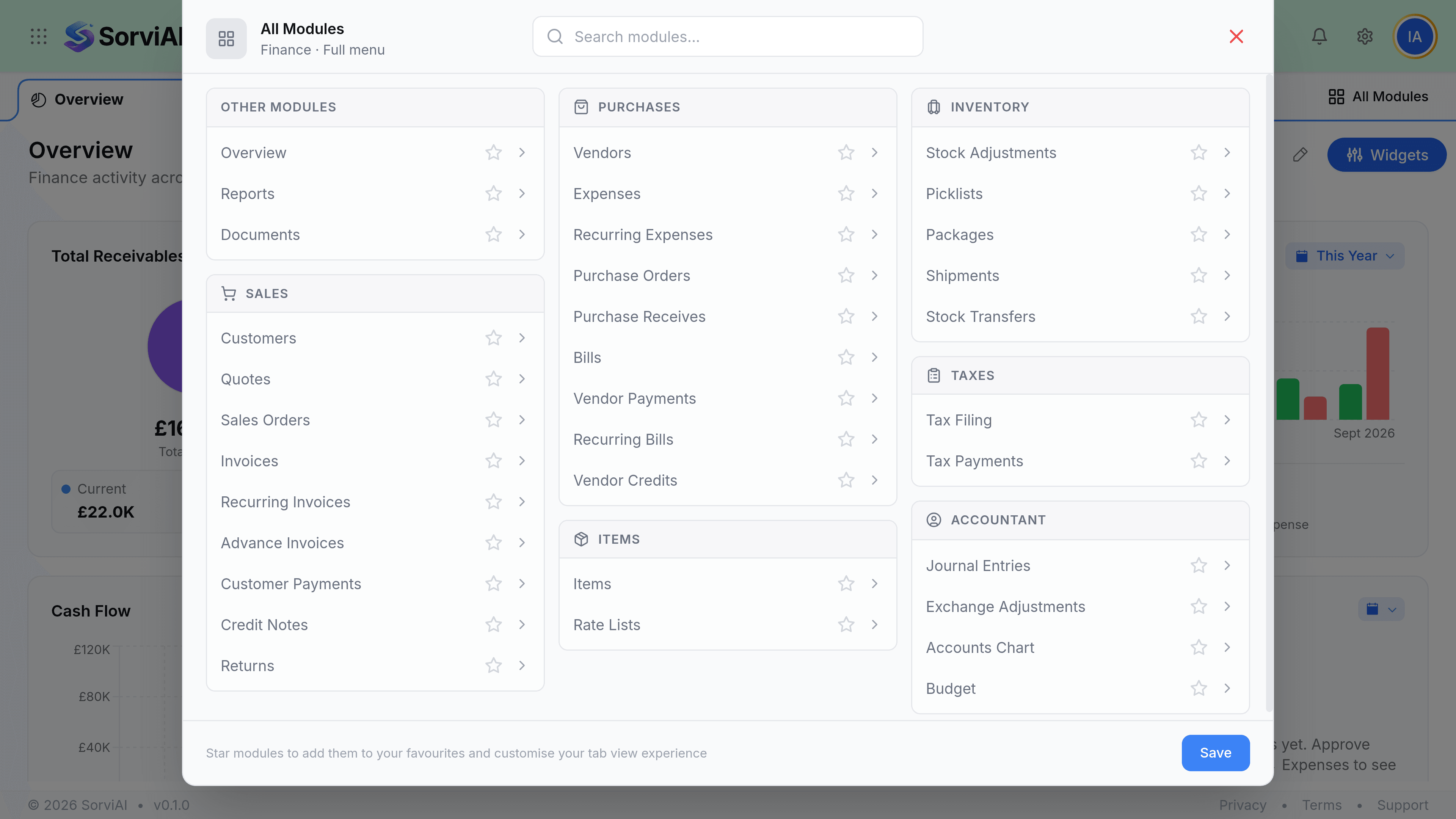
| Group | Screens |
|---|---|
| Other Modules | Overview, Reports, Documents |
| Sales | Nine, from Customers through to Returns |
| Purchases | Nine, from Vendors through to Vendor Credits |
| Items | Items and Rate Lists |
| Inventory | Stock Adjustments, Picklists, Packages, Shipments, Stock Transfers |
| Taxes | Tax Filing and Tax Payments |
| Accountant | Journal Entries, Exchange Adjustments, Accounts Chart, Budget |
Two layouts
Finance ships two navigation shapes and remembers which you chose. Both reach the same screens.
Modern
the default
- YesA tab bar across the top
- YesAll Modules for the full menu
- YesStarred modules become tabs
- NoA permanent list of every module on screen
Classic
- YesA left sidebar listing every module
- YesGroups expand in place
- YesDrag a module to reorder it
- NoTabs across the top
Both live under your avatar at the top right, beside the light and dark theme switch. The choice is remembered in your browser rather than on your account.
The search bar
The search bar sits in the header on every screen, and its placeholder tells you where you are: Search in Finance on the dashboard, Search in Invoices once you are on the invoice list. What it searches does not change with the screen.
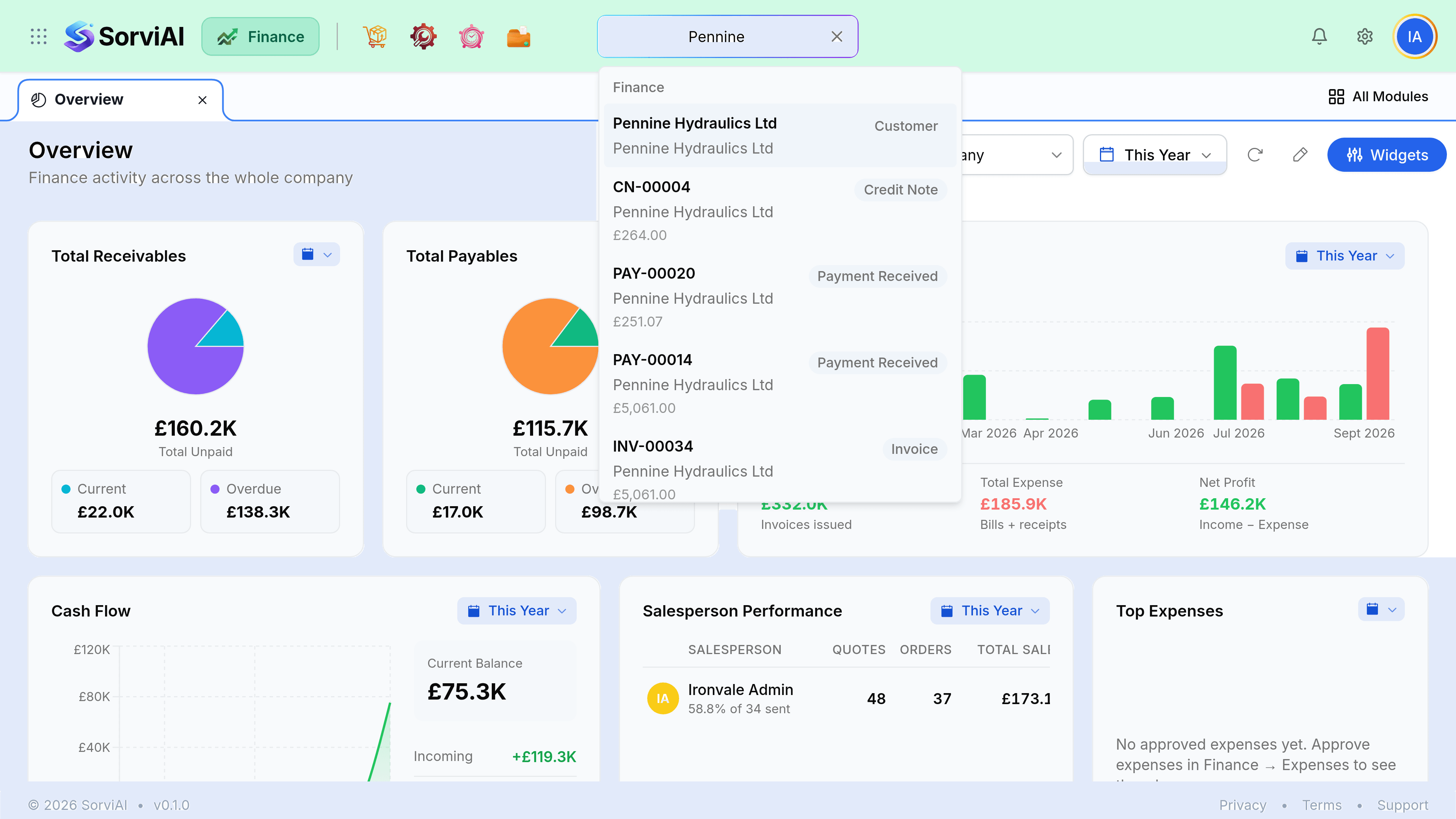
Press Cmd+K, or Ctrl+K
Focus lands in the search bar from wherever you were. Escape gives it back.
Type a name or a number
Part of either will do. A customer name finds the contact and the documents raised against them at the same time.
Select a result
It opens the record itself, not a filtered list containing it.
| What you can search for | Examples |
|---|---|
| Contacts | Customers and vendors, by name |
| Sales documents | Quotes, sales orders, invoices, recurring and advance invoices, credit notes |
| Purchase documents | Purchase orders, purchase receives, bills, recurring bills, vendor credits |
| Money | Customer payments, vendor payments, expenses, recurring expenses |
| Accounting | Chart of accounts, journal entries you posted by hand, currency adjustments |
| Stock | Items, adjustments, transfers, packages, shipments, returns, pricebooks |
List screens
Every module opens on a list, and every list works the same way: filter it, sort it by clicking a column, search within it, and open a row.
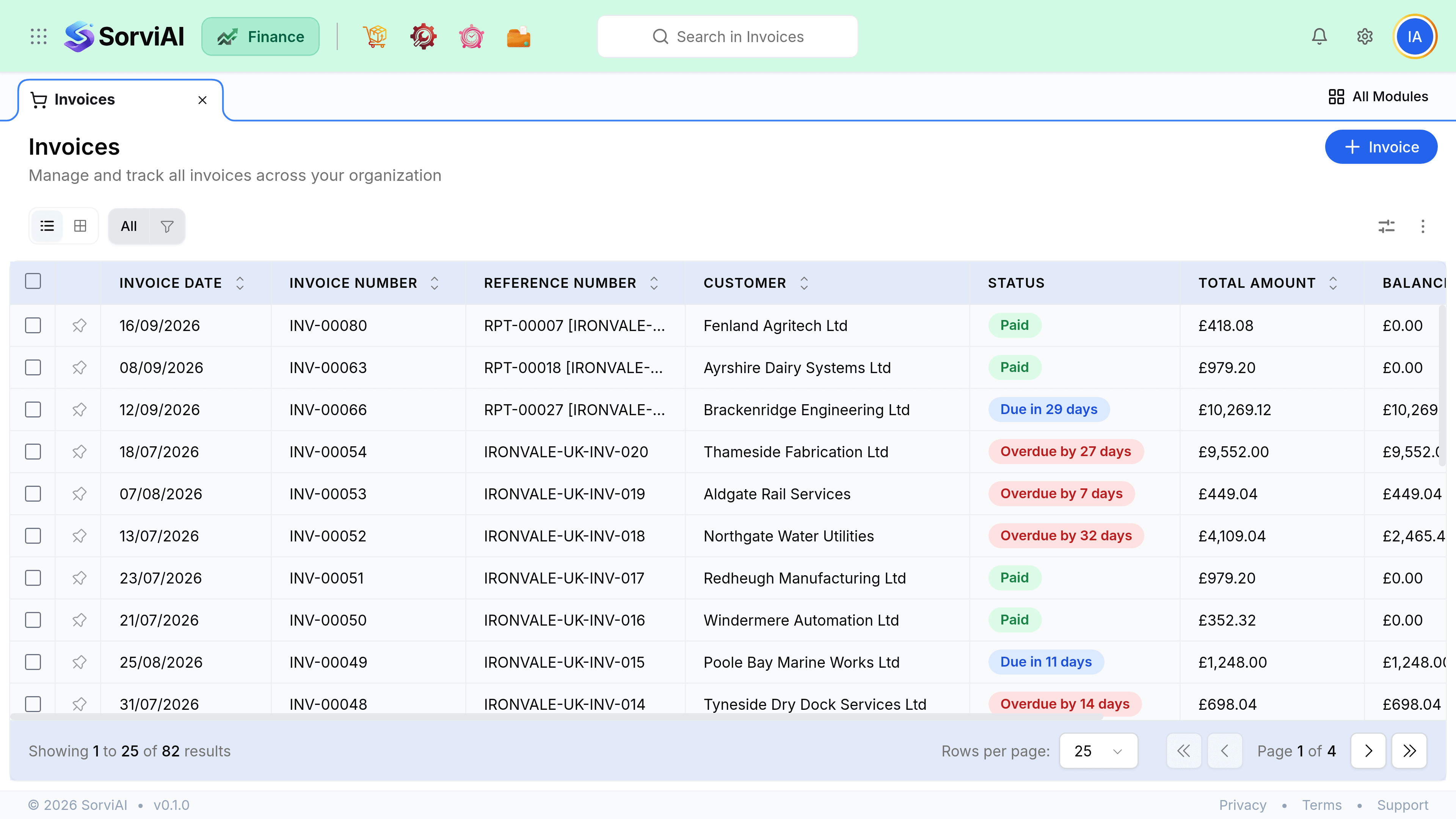
- The view you chose
- List or grid, remembered per module. Picklists can stay in grid while Invoices stays in list.
- The widths you dragged
- Drag a column edge and that width is kept for that list, on that browser.
- Where you were
- Come back from a record and the list is as you left it rather than reset to the first page.
Moving between apps
Finance is one app in the SorviAI suite. The grid at the far left of the header opens the App Center, which is also where you land when you sign in.
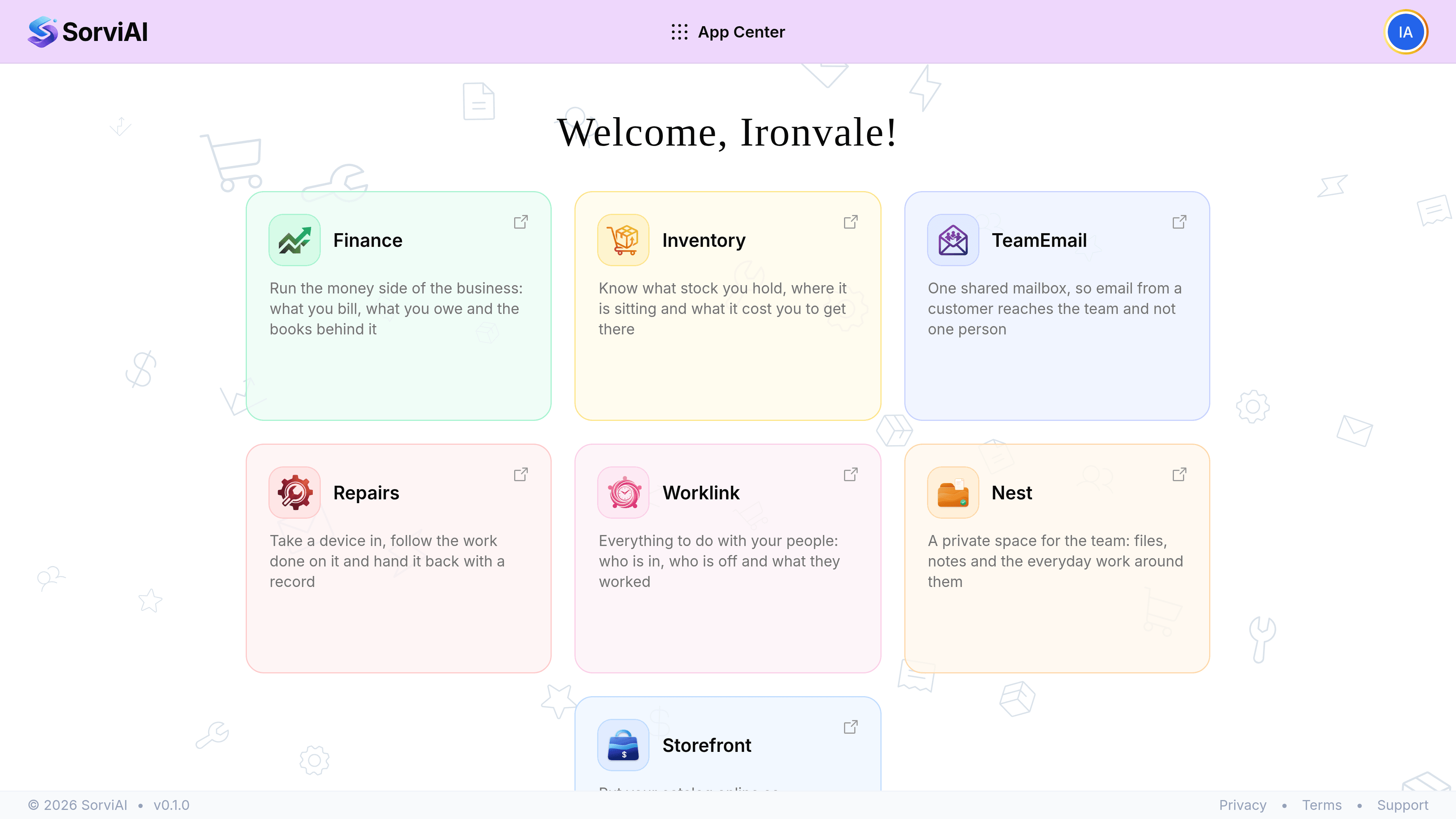
Records are shared rather than copied: a customer, an item or a document created in Finance is the same record in Inventory, not a second copy of it.