
Create a Sales Order
An order can start from an accepted quote or from nothing.
Either way the work is the same: confirm what you are supplying, say where it goes and when, then confirm the order so the warehouse can see it.
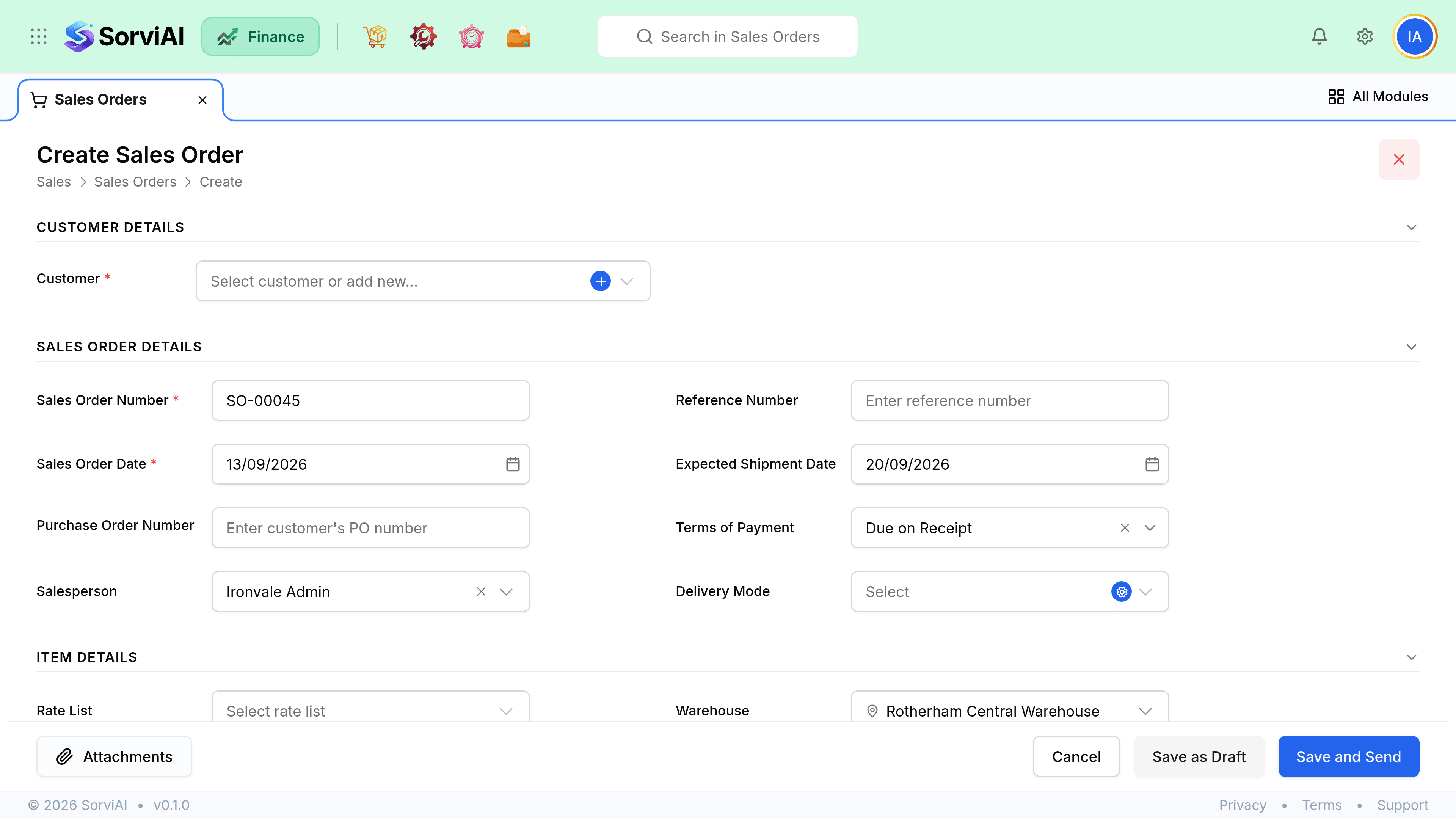
Raise the order
Start from a quote or from scratch
Converting an accepted quote copies the customer, lines, prices and discounts exactly. Starting fresh is the same form with nothing filled in.
Pick the customer
Currency, tax treatment, payment terms and rate list arrive with them, as on any sales document.
Add the lines
Each line can carry its own expected delivery date, which is what feeds the fulfilment queue when parts of an order land at different times.
Set the shipping address
Chosen per order, so one customer can receive at several sites. Add a new address from the form itself if the site is new.
Confirm the order
Confirmation is what makes the order visible to fulfilment. A draft order is invisible to the warehouse.
Field reference
| Field | Required | What it does |
|---|---|---|
| Customer | Yes | Sets currency, tax treatment, payment terms and rate list. |
| Order number | Auto | From your numbering series. Editable until the order is confirmed. |
| Order date | Yes | The date of commitment. Posts nothing. |
| Expected delivery date | No | Per order, or per line when they differ. Drives the fulfilment queue order. |
| Shipping address | Yes for goods | Prints on packages, shipments and delivery notes. |
| Reference | No | Their purchase order number. Carries through to the invoice. |
| Delivery method | No | Carrier or collection. Appears on the package and shipment. |
Lines and quantities
Order lines are the contract with your warehouse as well as with your customer. The quantity on a line is the maximum that can ever be shipped or invoiced against it, which is why editing the line up is the fix for an under-ordered line rather than over-shipping.
- A line shows ordered, shipped and invoiced quantities side by side once fulfilment starts.
- Reducing a line below what has already shipped is refused.
- Adding a line to a confirmed order is allowed and re-opens the order if it had closed.
- A service line with no stock behind it can sit happily on the same order as goods.