
Allocate and Reallocate
Allocation is the forgiving part of this module.
Moving a payment from the wrong invoice to the right one is a normal edit that leaves the payment itself untouched, so your cash position never wobbles while you correct the matching.
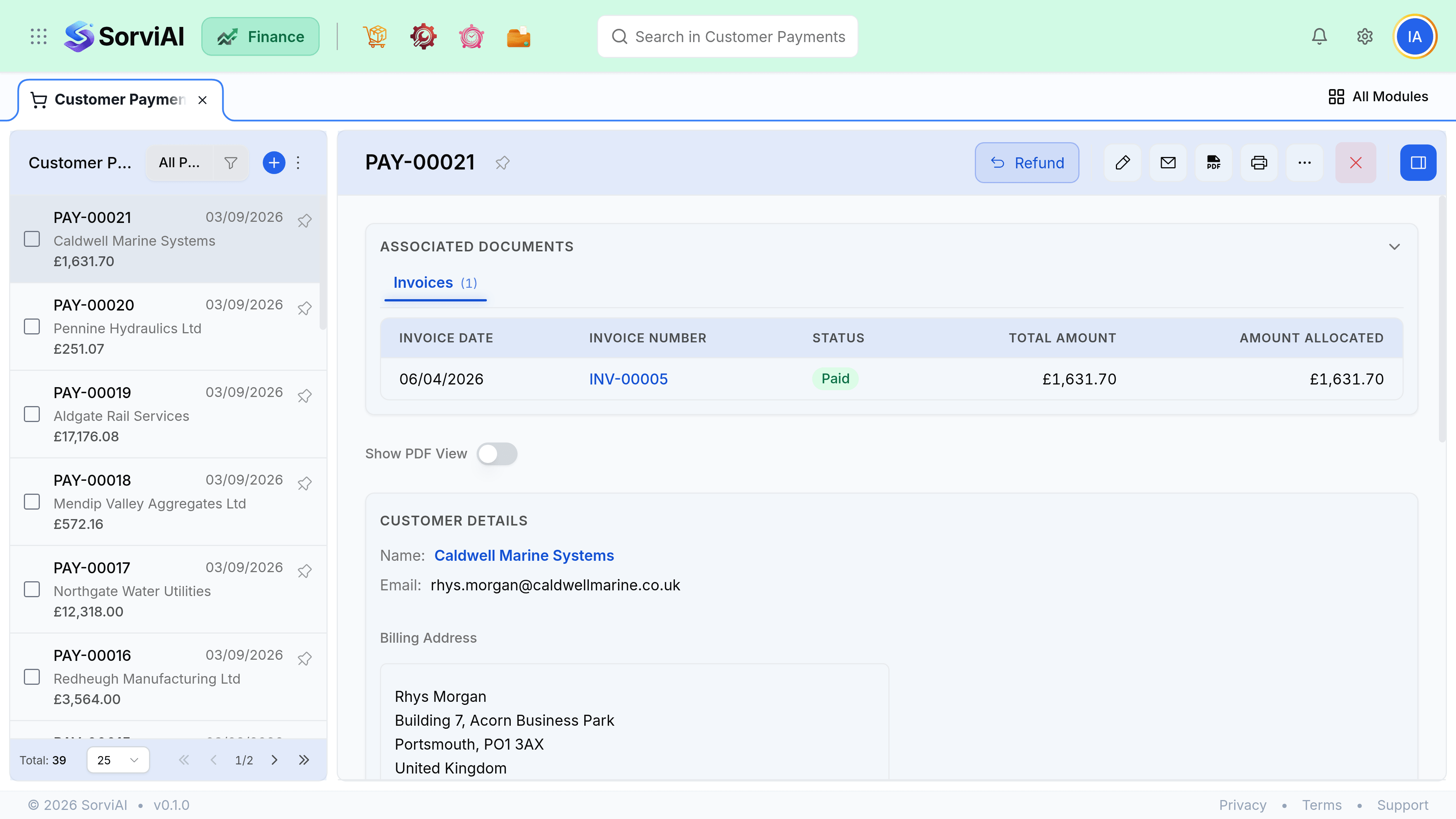
Allocate an existing payment
Open the payment
From the customer payments list, or from the customer's transactions tab.
Tick the invoices it settles
Open invoices are listed oldest first, with their outstanding balances.
Split the amount if it does not fit
Type a partial amount against an invoice. The remainder stays available for the next one.
Save
Any invoice reaching zero moves to Paid. Anything left over stays unapplied.
Fixing a mistake
| Problem | Fix |
|---|---|
| Allocated to the wrong invoice | Edit the allocation. The payment stays as it is. |
| Amount recorded wrongly | Edit the payment amount, then re-check the allocation. |
| Customer overpaid | Leave the excess unapplied. It settles their next invoice. |
| Allocated to the wrong customer | Delete the payment and record it again. Allocation cannot cross customers. |
| Payment never actually cleared | Delete the payment. Its invoices return to unpaid. |
Auto-allocation
When a payment exactly matches one open invoice, it is allocated for you. When it does not, nothing is guessed, because a wrong automatic allocation is far more expensive to unpick than a missing one is to add.
- Oldest first is the default order when you allocate by hand. It is what most customers assume you have done.
- A payment matching an invoice to the penny is matched automatically, including one paid through the portal.
- Partial payments are never guessed at. You decide which invoice they belong to.
Applying credits at the same time
An invoice can be settled by a payment, a credit note and an advance together. Apply the credits first and take payment for the remainder, which is usually what the customer has actually done.