
Create a Quote
Writing a quote takes four decisions: who it is for, what is on it, how long it stands, and how it reaches them.
Everything else on the form has a sensible default you can leave alone.
Write it
Open the form
Go to SalesQuotesNew.
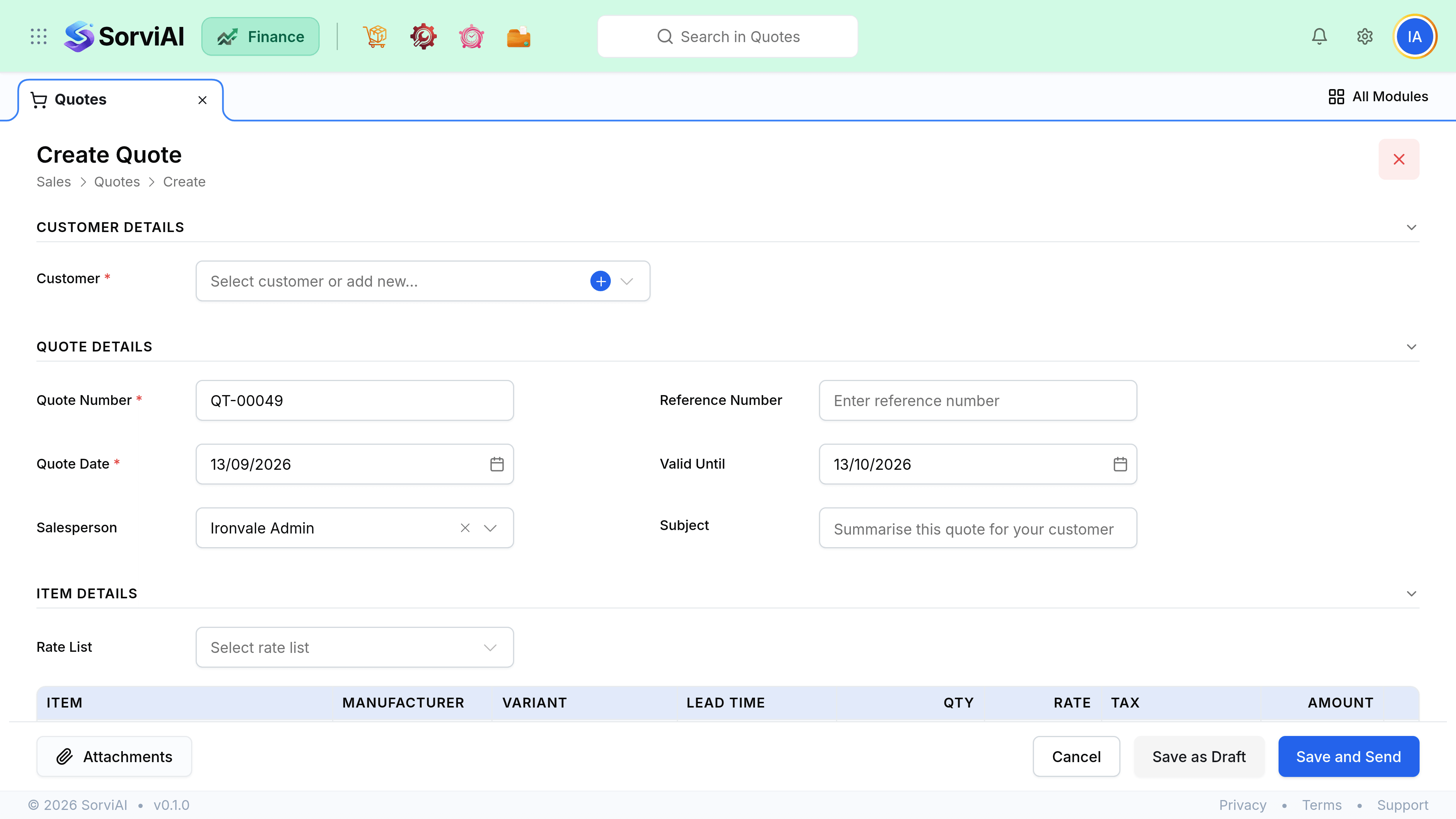
Pick the customer
Currency, tax treatment and any rate list come across immediately, so the prices you see are the prices they will see.
Add the lines
Items, one-off descriptions, or a mix. Variants are searchable in their own right, so you can quote a single size without going through the parent product.
Set the validity date
This is what makes a quote expire. Leaving it blank means the offer never lapses, which is rarely what you want.
Save as draft, or save and send
A draft is invisible to the customer. Sending moves it to Sent and starts the clock on the validity date.
Field reference
| Field | Required | What it does |
|---|---|---|
| Customer | Yes | Sets currency, tax treatment and rate list for the whole quote. |
| Quote number | Auto | From your numbering series. Editable until the quote is sent. |
| Quote date | Yes | The date of the offer. Does not affect any accounting period, because nothing posts. |
| Valid until | No | The expiry date. Blank means it never expires. |
| Reference | No | Their enquiry number. Carries through to the order and the invoice. |
| Rate list | No | Overrides item prices for this quote. Inherited from the customer if they have one. |
| Notes | No | Shown to the customer on the PDF and in the portal. |
| Terms | No | Printed at the foot of the quote. |
Lines, discounts and tax
A quote line behaves exactly as it will on the eventual invoice, which is the point. If the discount arithmetic looks wrong on the quote, it will look wrong on the invoice too, so fix it here.
- A line discount is per line. A document discount applies to the subtotal and is split across lines proportionally.
- Tax inclusive or exclusive is set per document and shown in the summary panel. Switching it changes the totals, not the line prices.
- A line with no item is a one-off description. It carries no stock and no item defaults, so set its tax rate by hand.
- Reordering lines by dragging changes only the PDF, never the totals.
Send it
Choose Save and Send to email the PDF to the primary contact, or Share link to send the portal URL yourself. The portal link is the better option when you want the customer to be able to accept it without replying to an email.