
Other Actions in Quotes
Everything in the quote row menu that is not conversion: duplicating, revising, marking the outcome, extending an expiry, and the bulk actions that save you doing any of it forty times.
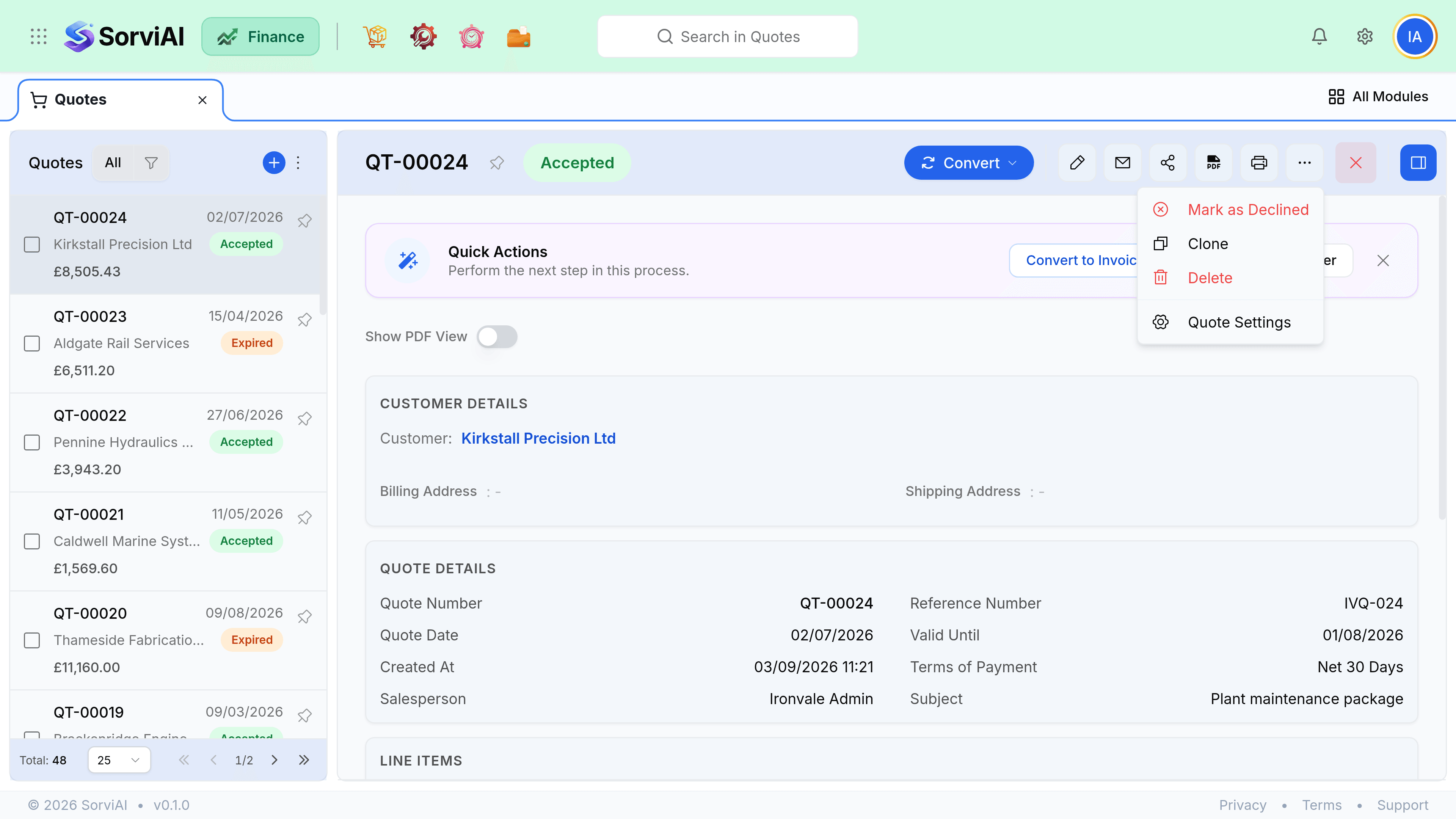
Duplicate and revise
Duplicating copies every line into a new draft with a new number. It is the correct way to revise an offer the customer has already seen, because it leaves the original standing.
- Duplicate when the customer has seen it. Both versions survive the negotiation and nobody argues about what was offered.
- Edit in place when they have not. A sent quote is still editable because nothing posted.
- Duplicating to a different customer is allowed only if the currency matches, since prices would otherwise be meaningless.
- The reference field is copied, so clear it if it belonged to the original enquiry.
Marking the outcome
Record what happened even when the answer was no. A quotes list full of documents stuck on Sent tells you nothing about your win rate, and it is the sort of data that cannot be reconstructed later.
| Action | What it does | Reversible |
|---|---|---|
| Mark as accepted | Unlocks conversion. | Yes, back to Sent. |
| Mark as declined | Closes the quote, keeps it for history. | Yes, back to Sent. |
| Mark as sent | For a quote you sent outside SorviAI Finance. | Yes, back to Draft. |
| Extend validity | Moves the expiry date, bringing an expired quote back. | Yes. |
| Delete | Removes it entirely. Drafts only. | No. |
Sharing and printing
The PDF and the portal link show the same document, but only the portal link lets the customer accept it without replying. Prefer the link, and attach the PDF only when someone insists on a file.
- Download PDF uses your quote template, including your logo and terms.
- Share link produces a portal URL you can paste anywhere. It works without the recipient having a login.
- Print is the same PDF, straight to your printer.
- The activity timeline on the quote records every send with a timestamp and delivery result.
Bulk actions
Select rows in the quotes list and the bulk bar appears. Bulk actions skip rows they cannot apply to rather than failing the whole batch, and tell you afterwards which were skipped.
- Bulk send emails each quote to its own primary contact.
- Bulk mark declined is how you clear a stale pipeline at quarter end.
- Bulk extend validity moves several expiry dates to the same new date.
- Bulk export gives you CSV of exactly the columns and filters currently on screen.