
Receive Goods
Count first, then type.
The form pre-fills the ordered quantity, which is convenient and is also the single most reliable way for a wrong number to enter your stock figures.
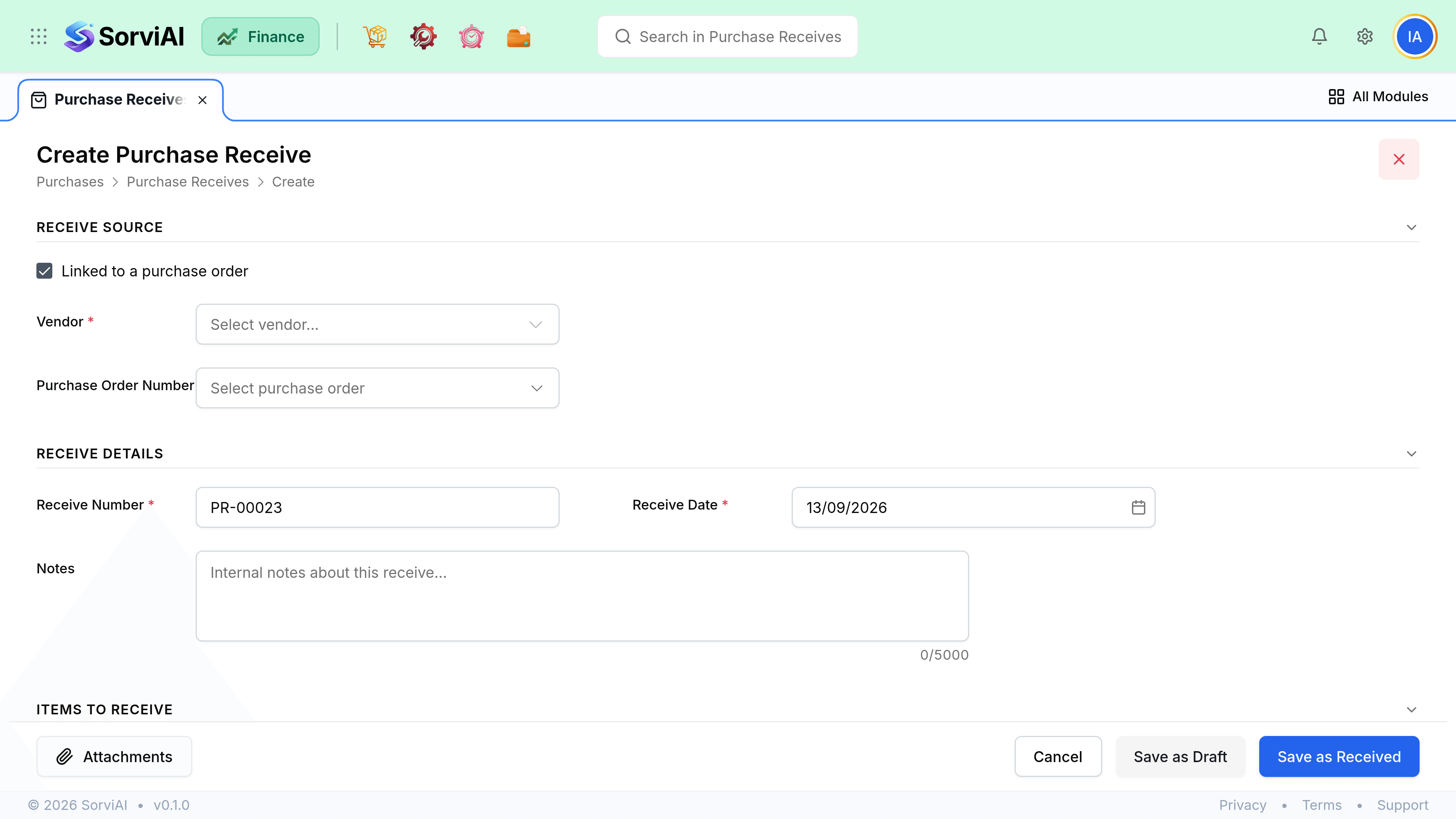
Record a receive
Open the purchase order
Receiving always happens against an order, so quantities can be compared to what was agreed.
Enter what actually arrived
Count first, then type. Defaults are pre-filled with the ordered quantity, which is a trap if you accept it without checking.
Confirm the location
Which warehouse or site the stock lands in. It defaults to the order's delivery location.
Note shortages or damage
Receive the good units and record the rest as short. Do not receive damaged goods as sellable stock.
Record the vendor delivery note number
Optional and worth doing. It is what you will quote when querying a shortage.
Save
Stock on hand increases at this point, and the order updates its outstanding balance.
Locations and batches
- The location is where the stock becomes available. Getting it wrong means the count is right and the shelf is empty.
- One receive can land into one location. Split a delivery across sites with two receives.
- A variant is received in its own right, since it is a full item with its own stock.
- Receiving a non-stocked line records the arrival without moving any stock figure.
Partial receives
Orders rarely arrive in one piece. Each receive records what turned up, and the order tracks the outstanding balance until it is complete or you close it short. There is no limit to how many receives one order can have.