
Welcome to Finance
Every module in SorviAI Finance, and what each one is for.

Work through SorviAI Finance one module at a time. Each guide below covers a single job and stops when that job is done.
Modules
Finance holds nine modules. Six of them are groups of related screens; Overview, Reports and Documents are single screens. All Modules, at the right of the tab bar, opens the lot.
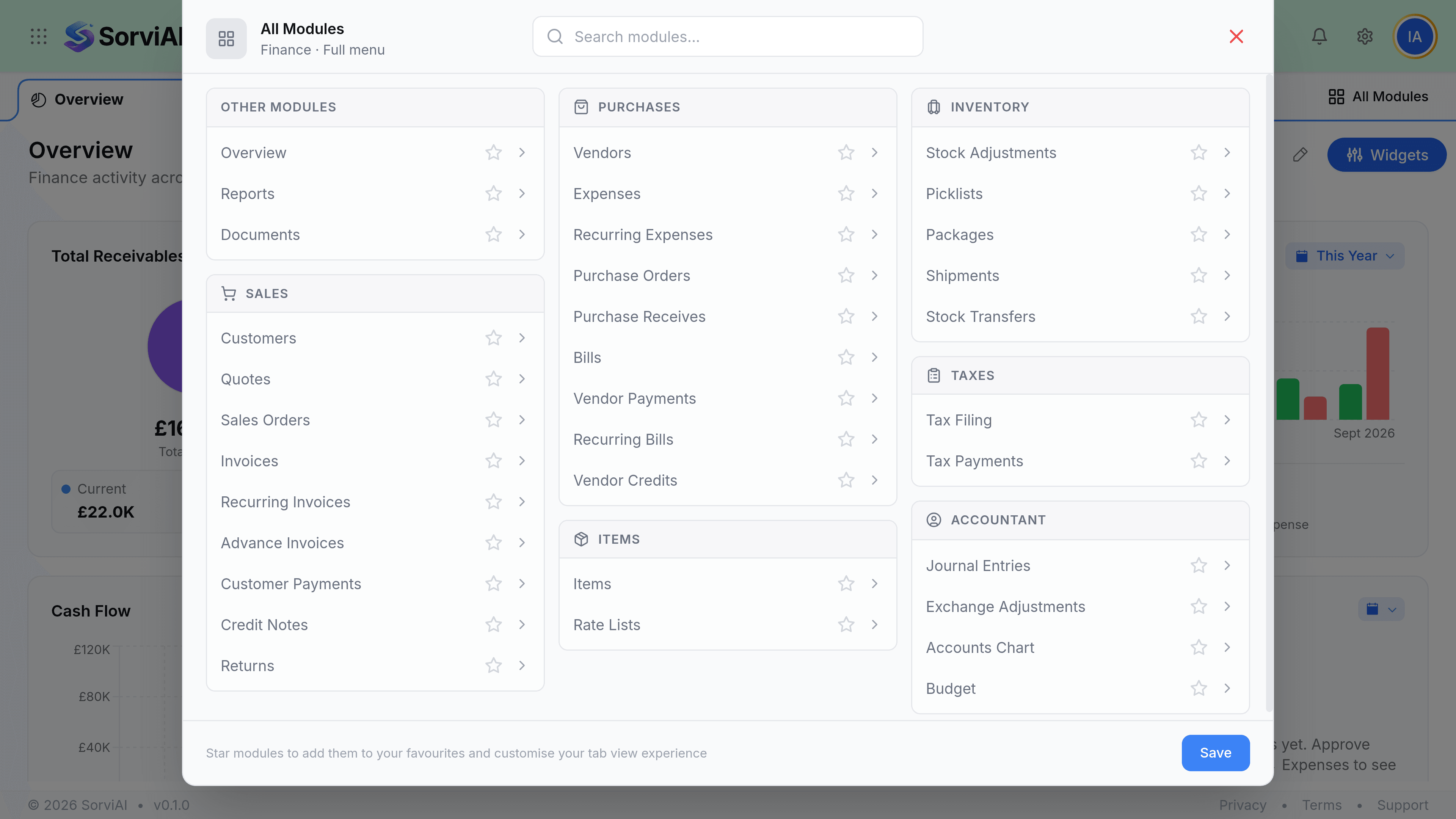
- CustomersWho you sell to, and the balances and history attached to each of them.
- InvoicesThe request for payment, and the eight guides around raising and chasing one.
- Customer PaymentsRecording money in and settling it against the invoices it pays.
- ItemsThe goods and services every document line is built from, variants included.
- VendorsWho you buy from, with their open bills and payment terms in one place.
- BillsWhat you owe, from entering the vendor invoice through to paying it.
- ExpensesCosts with no purchase order behind them, and the receipts that support them.
- ReportsSixty-nine reports in thirteen categories, fifty-five of which are built.
The rest of the menu
The four remaining groups are the ones you reach for less often, but each is the only route to the job it does.
- InventoryStock adjustments, picklists, packages, shipments and stock transfers.
- TaxesPreparing a return, submitting it, and recording what you pay against it.
- AccountantJournal entries, the accounts chart, budgets and exchange revaluation.
- DocumentsEvery file attached anywhere in Finance, listed against the record it came from.
Bringing your existing records across
There is one import in Finance and it is for items: Items then Import, which walks a CSV through column mapping and a preview before it writes anything.
Quick navigation guide
- How Finance worksThe two document chains everything else hangs off, and what reaches the ledger.
- Access FinanceSigning in, moving between apps, and why your modules may differ from a colleague's.
- Navigating FinanceThe tab bar, All Modules, the search bar and the two layouts.
- The Overview dashboardThe first screen Finance opens on, and what each tile is counting.
Set up your organisation
These four are the settings worth doing before anything else, and each card opens its guide. Settings is itself permission-gated, so the screens they describe are open to administrators and to anyone granted settings access.
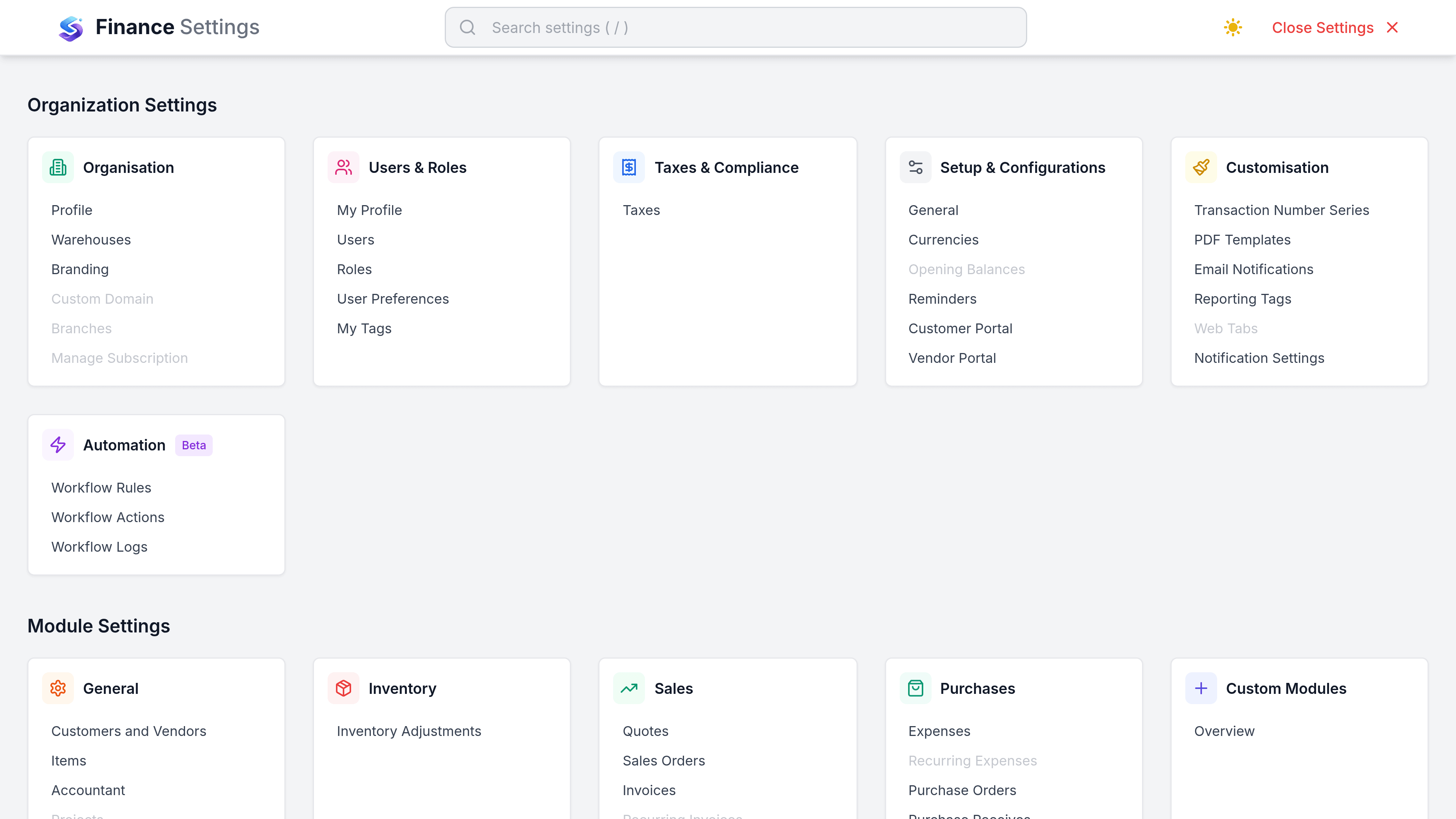
- Organisation profileCompany details, your logo, warehouses, currencies and number series.
- Users and rolesWho has access, and which modules each role can open.
- TaxesTax rates and VAT settings, before you raise anything with tax on it.
- TemplatesHow your invoices and emails look when a customer receives them.