
Welcome to Inventory
Every module in SorviAI Inventory, and what each one is for.

Work through SorviAI Inventory one module at a time. Each guide below covers a single job and stops when that job is done.
Modules
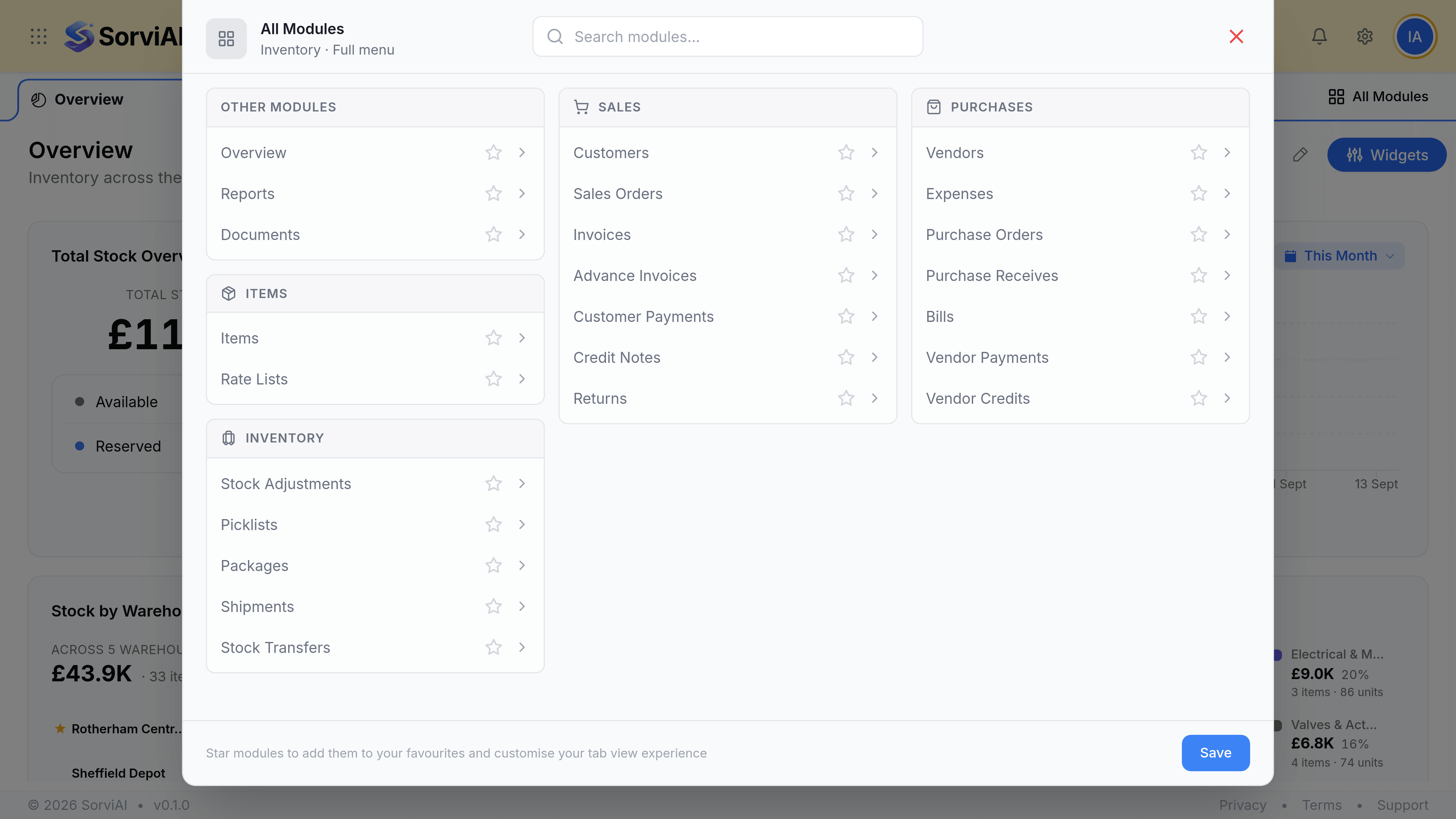
Inventory holds seven modules. Four are groups of related screens; Overview, Reports and Documents are single screens. All Modules, at the right of the tab bar, opens the lot.
- ItemsThe record every quantity is counted against, variants included.
- Stock AdjustmentsCorrecting what the system thinks you hold, with a reason that explains it.
- Purchase ReceivesWhat actually turned up, and the document that increases your stock.
- ShipmentsWhat left the building, and the moment stock comes off your count.
- Sales OrdersWhat the customer committed to, and the stock it reserves.
- PackagesWhat went into the box, recorded before any of it ships.
- CustomersWho you ship to, and the addresses the warehouse works from.
- ReportsStock summary, valuation, warehouse and transfer reads.
The rest of the menu
These are the screens you reach for less often, but each is the only route to the job it does.
- PicklistsWhat to pull off the shelf for an order, and in what order to walk it.
- Stock TransfersMoving stock between warehouses without selling any of it.
- Sales ReturnsGoods coming back, and the stock they put back on the shelf.
- Rate ListsPrices that override an item default, per customer or per vendor.
- VendorsWho you buy from, their lead times, and what you have on order.
- DocumentsEvery file attached anywhere in Inventory, against the record it came from.
Bringing your existing stock across
There is one import in Inventory and it is for items: Items then Import, which walks a CSV through column mapping and a preview before it writes anything. Opening stock comes across on the same import, as a quantity and a rate per item.
Quick navigation guide
- How Inventory worksThe three chains that change a count, and what each one leaves behind.
- Access InventorySigning in, moving between apps, and why your modules may differ.
- Navigating InventoryThe tab bar, All Modules, the search bar and the two layouts.
- The Inventory dashboardThe first screen Inventory opens on, and what each widget is counting.
Set up your organisation
These four are the settings worth doing before anything else, and each card opens its guide. Settings is itself permission-gated, so the screens they describe are open to administrators and to anyone granted settings access.
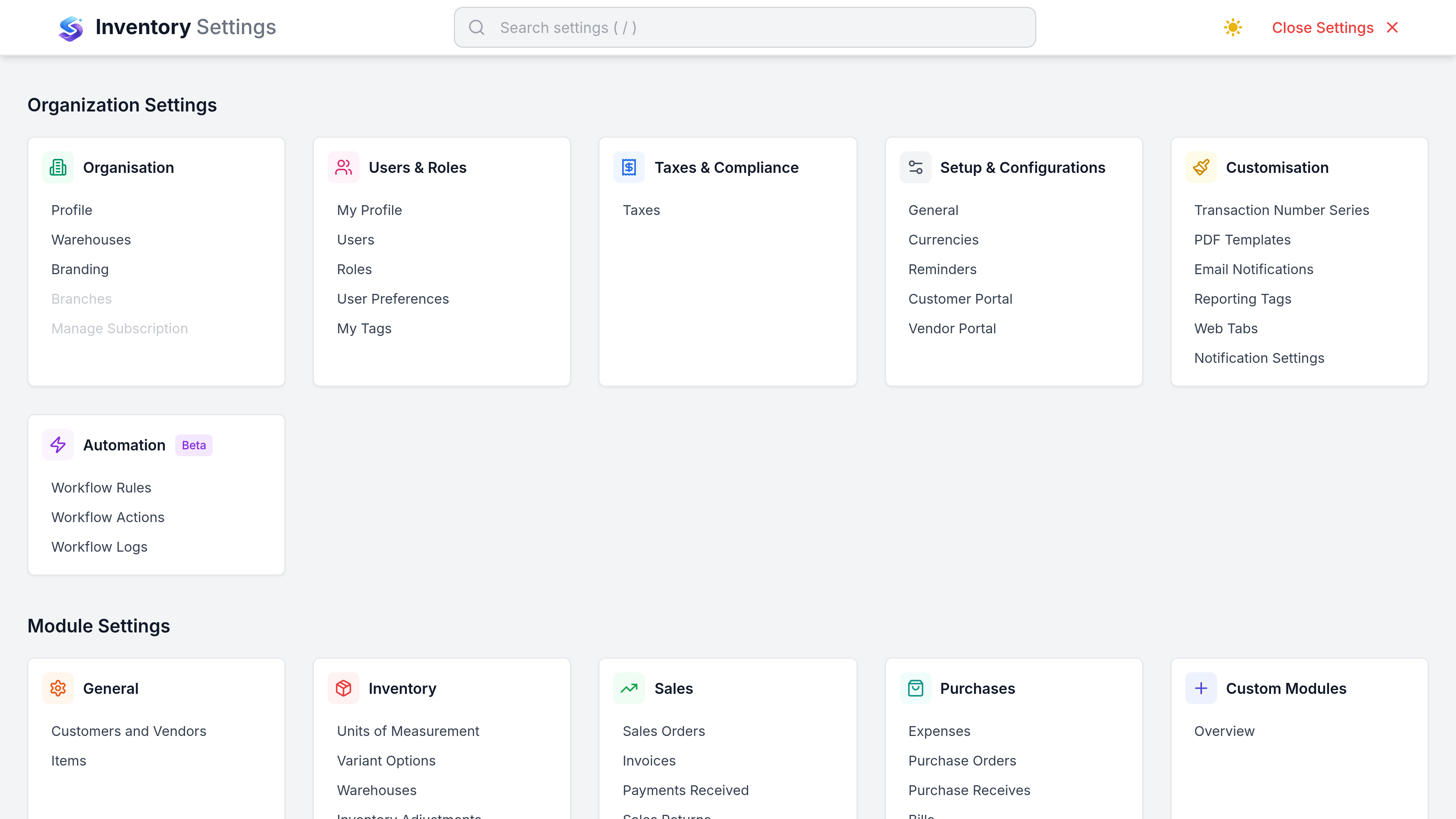
- Organisation profileCompany details, your logo, warehouses, currencies and number series.
- Inventory preferencesAdjustments, variant options, warehouses, stock updates, packages, shipments and transfers.
- ItemsItem defaults and the units of measure your stock is counted in.
- Users and rolesWho has access, and which modules each role can open.