
Customise Your Dashboard
Turn widgets on and off, rearrange them, and make the screen answer your question first.
The default arrangement suits a stock controller. A buyer and a warehouse manager want different things at the top.
Choose which widgets appear
Select Widgets at the top right
The Manage Widgets panel opens, listing everything available under Stock and Charts.
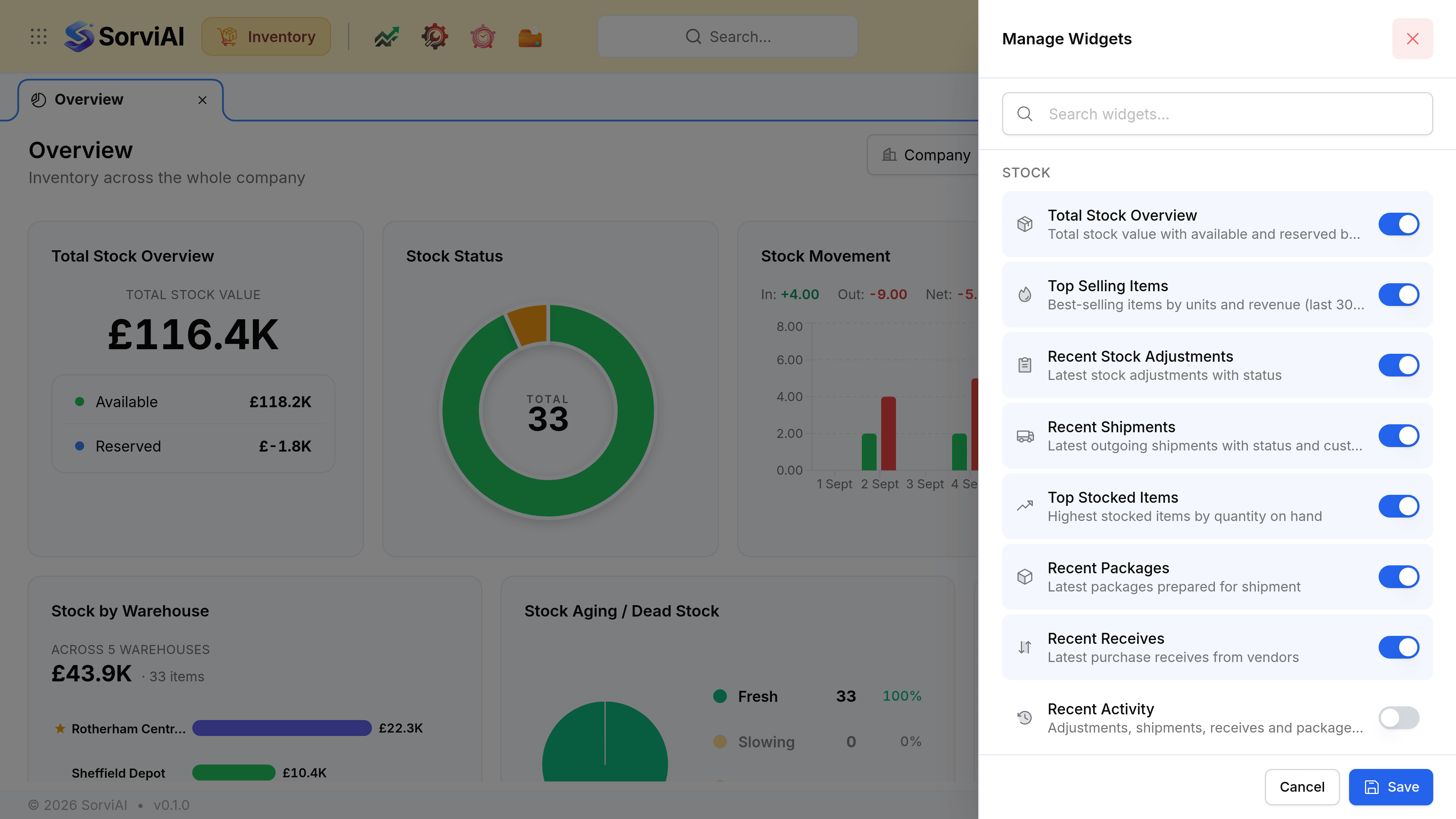
Toggle the ones you want
Each row carries a one-line description of what the widget counts, which is faster than turning it on to find out.
Select Save
The panel does not apply anything until you do. Cancel leaves the dashboard as it was.
Rearrange what is on screen
Drag a widget by its header
The others move out of the way and the layout reflows around it.
Drag a corner to resize it
Each widget has a minimum and a maximum, so a chart cannot be squeezed to unreadable.
Arrangements worth trying
- Buying
- Stock Status and Stock Aging at the top, Top Vendors and Recent Receives below. What to order, and from whom.
- Dispatch
- Recent Packages and Recent Shipments first. What is on the bench and what has gone.
- Stock control
- The default. Value, then health, then movement.