
Generate a Picklist
Raise it from confirmed sales orders, choose how it is grouped, and give it to whoever is walking the aisles.
A picklist is generated rather than typed, because everything on it is already known: the customer committed to the lines and the depot holds them.
Generate one
Go to Picklists and select Picklist
A draft sales order has reserved nothing, so there is nothing to pick against it. Confirm the order first.
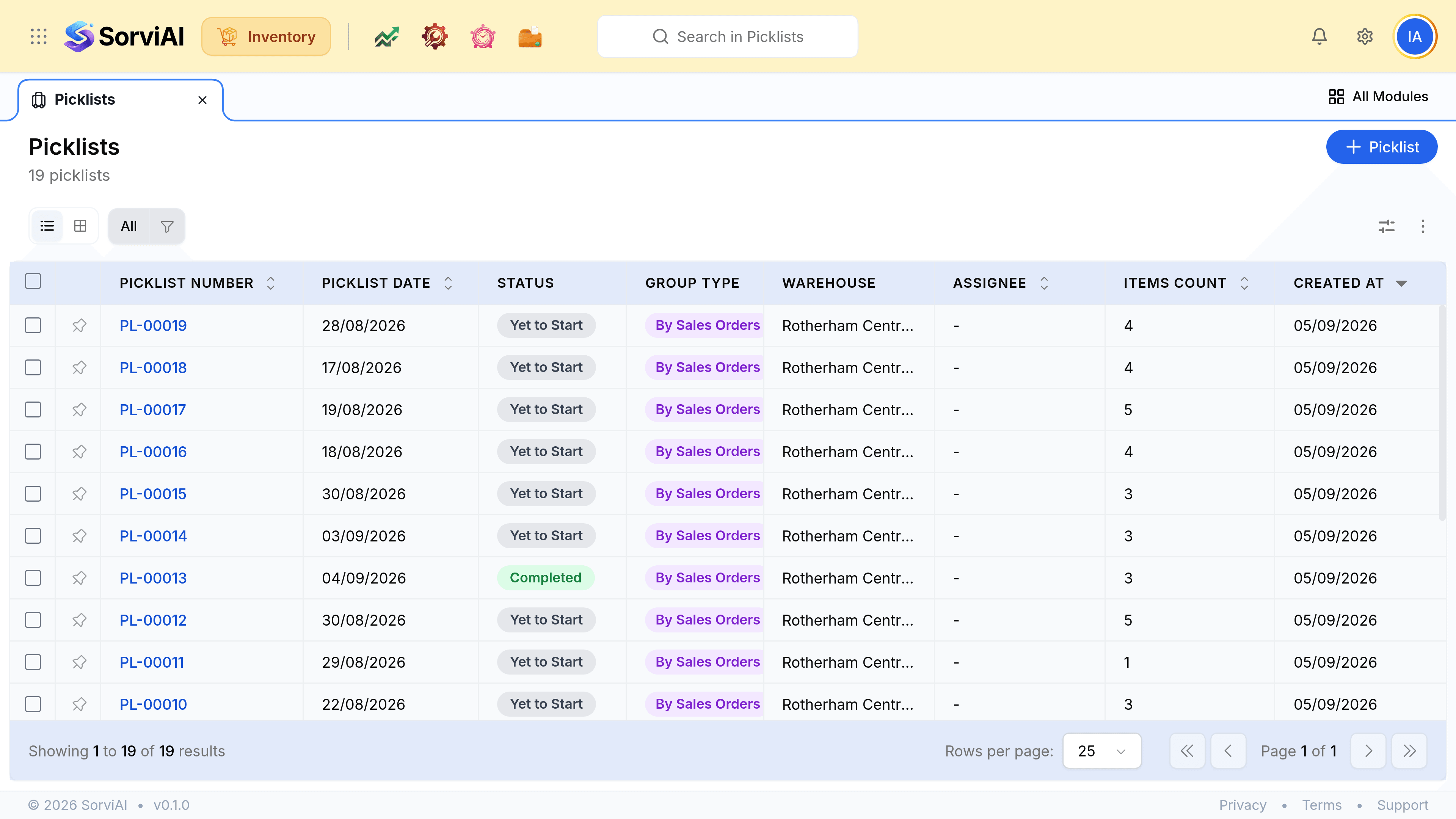
Choose the group type
By Sales Orders keeps each customer's goods together. By Item groups the walk by what is being picked, which suits a batch of small orders going out at once.
Choose the warehouse
A picker sent to the wrong depot is the failure this field prevents. On a single-depot business it fills itself in.
Add a note to the picker, and assign it
The note is the only place that says where in the building the stock sits. The assignee is who is doing the walk, which stops two people setting off after the same units.
Variants are picked, parents are not
Every line resolves to a variant, with its own SKU, because a parent product is a grouping label and nobody can take one off a shelf. A picklist naming a bore and a length is one somebody can actually walk.