
Access Inventory
Signing in to your organisation, moving between apps, and why your modules may not match a colleague's.
Inventory is one app inside your organisation's SorviAI workspace. What you can open in it is decided by your role, and roles are set per app.
Highlights
- Your organisation has its own address, and you sign in there rather than at a shared one.
- One sign-in covers every app you have been given access to.
- Roles are scoped to one app. An Inventory role says nothing about Finance or Repairs.
- The menu is filtered to your permissions, which is why two people see different modules.
- Settings is gated separately from the modules it configures.
Signing in
Your workspace has an address of its own: your organisation's name followed by the SorviAI domain. Sign in there with the email address you were invited on.
Open your organisation's address
The sign-in card names the workspace you are about to enter, so you can tell at a glance that you are in the right one. Login to a different one is there if you are not.
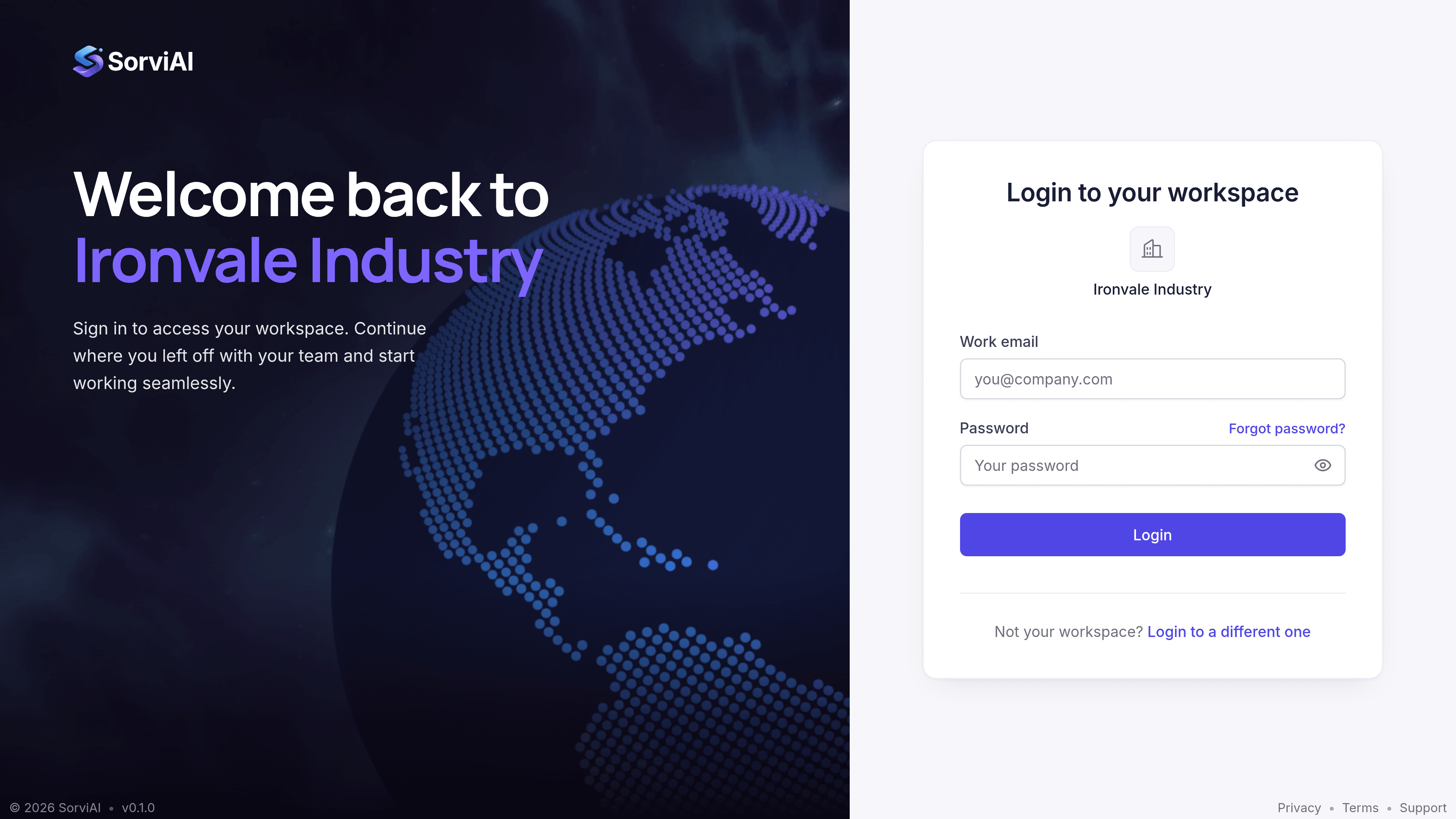
Sign in with your email address and password
Use the address your invitation was sent to. Forgot password? emails you a reset link.
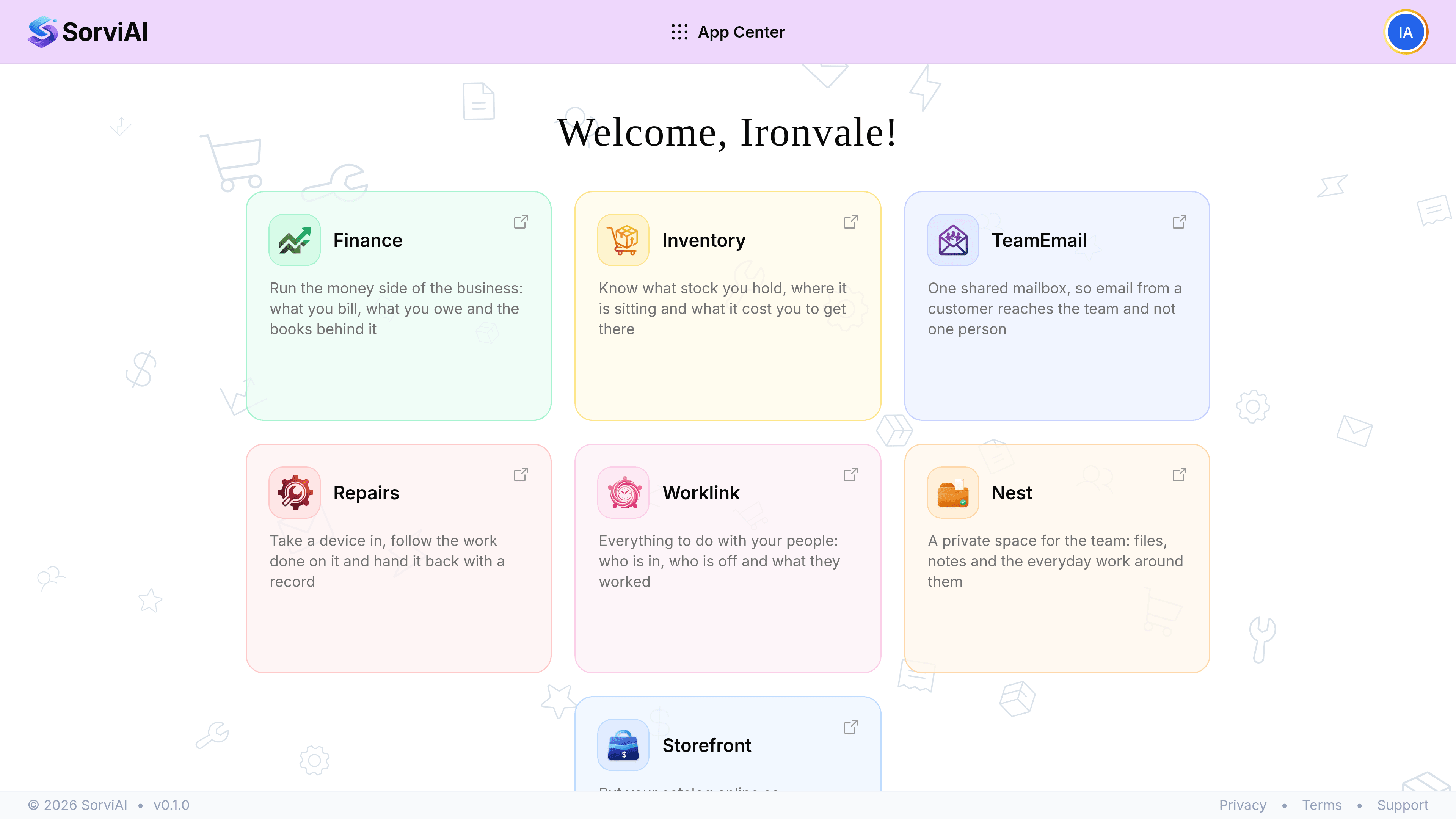
Open Inventory from the App Center
Signing in lands you there. Only the apps your workspace has, and that you have been granted, are shown.
Why your menu differs from a colleague's
Every module except Overview, Reports and Documents is filtered by what your role allows. Nothing announces this: a module you cannot open is simply absent, rather than present and refusing you. A group such as Purchases disappears entirely when your role holds none of the screens inside it.
| What you see | What it means |
|---|---|
| A module is missing entirely | Your role does not hold its permissions. Only an administrator can change that |
| A module is there but a record will not save | You can view but not create or edit. They are separate permissions |
| Settings is missing | Settings has its own permission, separate from the modules it configures |
| Everything is there | You are an administrator, or your role has the full set |
Who administers what
- Platform administrator
- Manages the whole workspace and every app in it, including the admin console.
- Inventory administrator
- Manages roles and users inside Inventory only. Cannot reach another app's settings.
- Everybody else
- Sees and edits exactly what their role allows, and nothing beyond it.
When you cannot get in
| Symptom | Where the problem usually is |
|---|---|
| The address is not found | The workspace name is misspelled. Check the invitation |
| The password is rejected | Use Forgot password to have a reset link emailed to you |
| Sign-in stops responding after several tries | Repeated attempts from one connection are rate-limited for a minute. Your account is not locked |
| You sign in but Inventory is not offered | Your account exists but has not been granted the Inventory app |
| Inventory opens with almost nothing in All Modules | You have the app but your role holds few permissions |