Workflow Automation
Rules that send an email alert or raise a notification when a record is created, edited, or reaches a date, and the log that shows whether they fired.
A workflow rule watches one module and does something when a record in it changes. Today that something is an email alert or an in-app notification, so think of this as automated telling rather than automated doing.
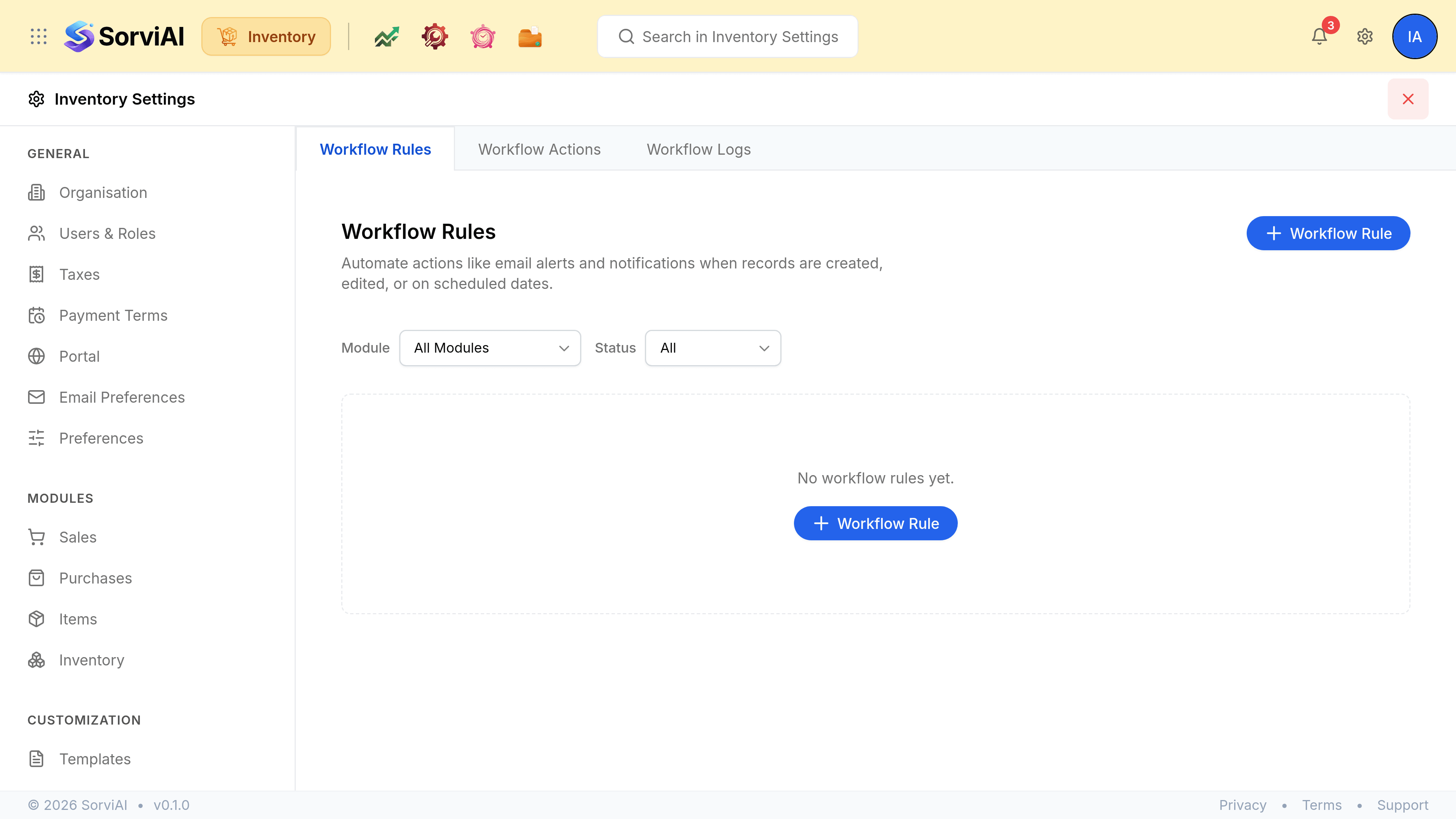
Go to SettingsWorkflow Automation. Three tabs: Workflow Rules, Workflow Actions and Workflow Logs.
The three tabs
- Workflow Rules
- The rules themselves: which module, what triggers them, and what they do. Each rule is active or inactive.
- Workflow Actions
- The reusable things a rule can fire, split into Email Alerts and In-app Notifications. Build these first, then point rules at them.
- Workflow Logs
- Execution history: which rule ran, when, and whether the email got through.
Building a rule
A rule is a module, a trigger, optional criteria, and an action. The module is chosen when the rule is created.
Triggers come in two kinds.
- Event Based
- Fires when a record is Created, Edited, or Created or Edited. An edit trigger can be narrowed to particular fields, and to the first edit only.
- Date Based
- Fires relative to a date on the record, a number of days before or after it, at an hour you set and on a frequency you choose.
Criteria narrow it further: a rule can be limited to records matching conditions you build, so an alert fires on shipments to one carrier rather than on all of them. The builder writes the rule back to you in plain words as you go, beginning Execute when.
Checking a rule actually ran
Workflow Logs is the answer to "did it send?". Each entry carries the rule, the module, the execution time, a Success or Failure status, and the email alert it tried to send.