
Create a Rate List
Name it after the agreement, choose which side it applies to, and set either one percentage or every rate.
A rate list needs three decisions before any prices go into it: which side of the business it applies to, whether it is a blanket adjustment or a list of exact rates, and what it is called.
Create one
Go to Rate Lists and start a new one
Rate lists only appear once they are enabled under item preferences. If the module is missing, that switch is the first place to look.
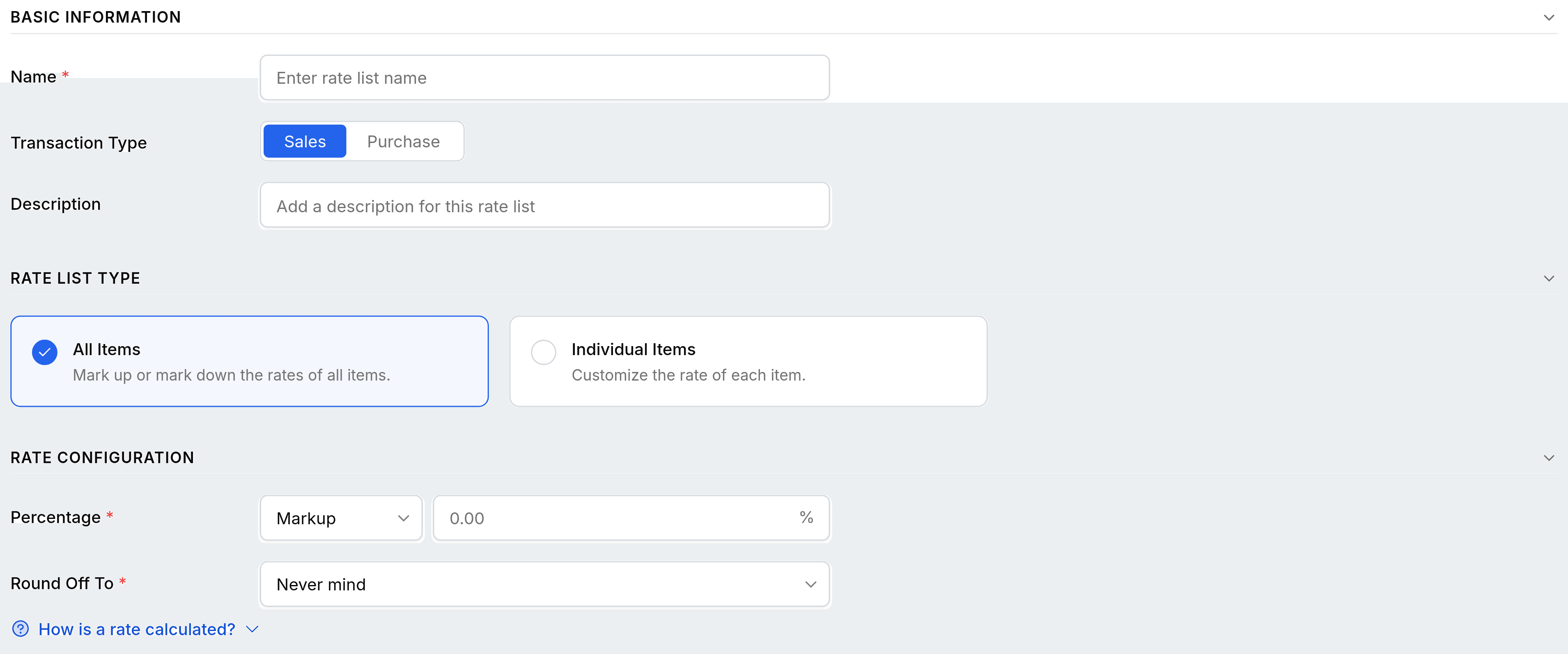
Name it, and set the Transaction Type
Sales fills the rate on orders and invoices; Purchase fills it on purchase orders and bills. One list does one side.
Choose All Items or Individual Items
All Items marks the whole catalogue up or down by one figure. Individual Items names the items and their exact rates, and shows on the list screen as Unit Pricing.
Set the percentage and the rounding
For an All Items list, choose Markup or Markdown and enter the figure. Round Off To decides how the resulting rate is tidied; leave it alone unless your pricing has a convention.
Save
Nothing is priced differently until the list is attached to a contact or chosen on a document.
Markup against markdown
Both are a percentage away from the item's own rate, in opposite directions, and the list screen shows which in its Details column.
| Direction | What it does | Typical use |
|---|---|---|
| Markdown | Reduces the rate by the percentage | A trade discount, a framework agreement, a collection discount |
| Markup | Increases the rate by the percentage | A carriage uplift for a distant region, a small-order surcharge |