
Users and Roles
Inviting somebody into Inventory, building the role that decides what they may open, and the custom fields on a user preference.
Access to Inventory is granted in two pieces: a user is somebody who can sign in, and a role is the list of things they may do once they are in. Access Inventory explains how roles behave across apps; this page is the screen that edits them.
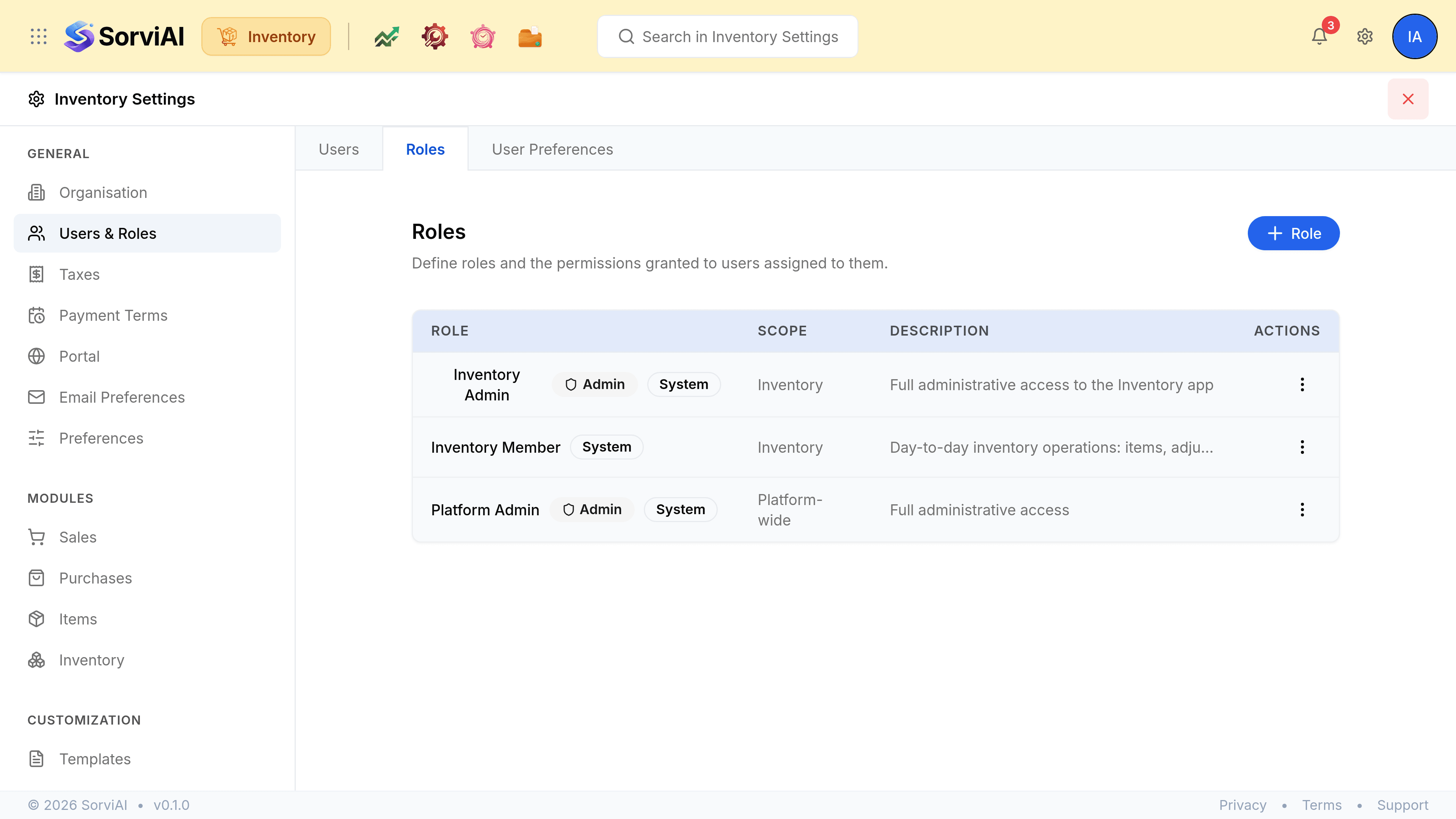
Go to SettingsUsers & Roles. Three tabs: Users, Roles and User Preferences.
Users
The people who can open Inventory, with the role each of them holds.
Go to Settings, Users & Roles.
Select Invite User.
Enter their first name, last name and work email address.
Choose a role.
The roles offered are the ones on the Roles tab. Somebody invited with no role signs in and finds an empty menu.
Select Invite User to send the invitation.
They join the workspace by following the link in the email.
The three-dot menu on a row edits the person's name and role, or makes them inactive. An inactive user keeps their history and stops being able to sign in.
Roles
A role has a name, a description, and a permission for everything the app can do.
| Field | What it does |
|---|---|
| Role nameRequired | What the role is called, such as Warehouse Supervisor. It is what the Users tab offers when somebody is invited. |
| Description | What the role is for, in your own words. It shows on the Roles list. |
| Permissions | One row per module, set to No Access or to the actions the role may take. Full access and No access set every row at once. |
| Reports | Which reports the role may run, granted the same way. All reports is the shortcut. |
| Settings | Which settings sections the role may change. All settings is the shortcut. |
System roles are marked as such on the list and are not editable. Build your own beside them rather than trying to bend one.
User Preferences
Custom fields on the user preference record, added the same way custom fields are added anywhere in Inventory. It is a field-customisation screen, not a second place to manage people.