
Create an Item
Five decisions make an item, and only one of them is awkward to change once you have transacted it.
Creating an item asks what kind of thing it is, what to call it, what it costs and sells for, which accounts it posts to, and whether you count it. Everything else on the form has a sensible default you can come back to.
Create an item
Open the form
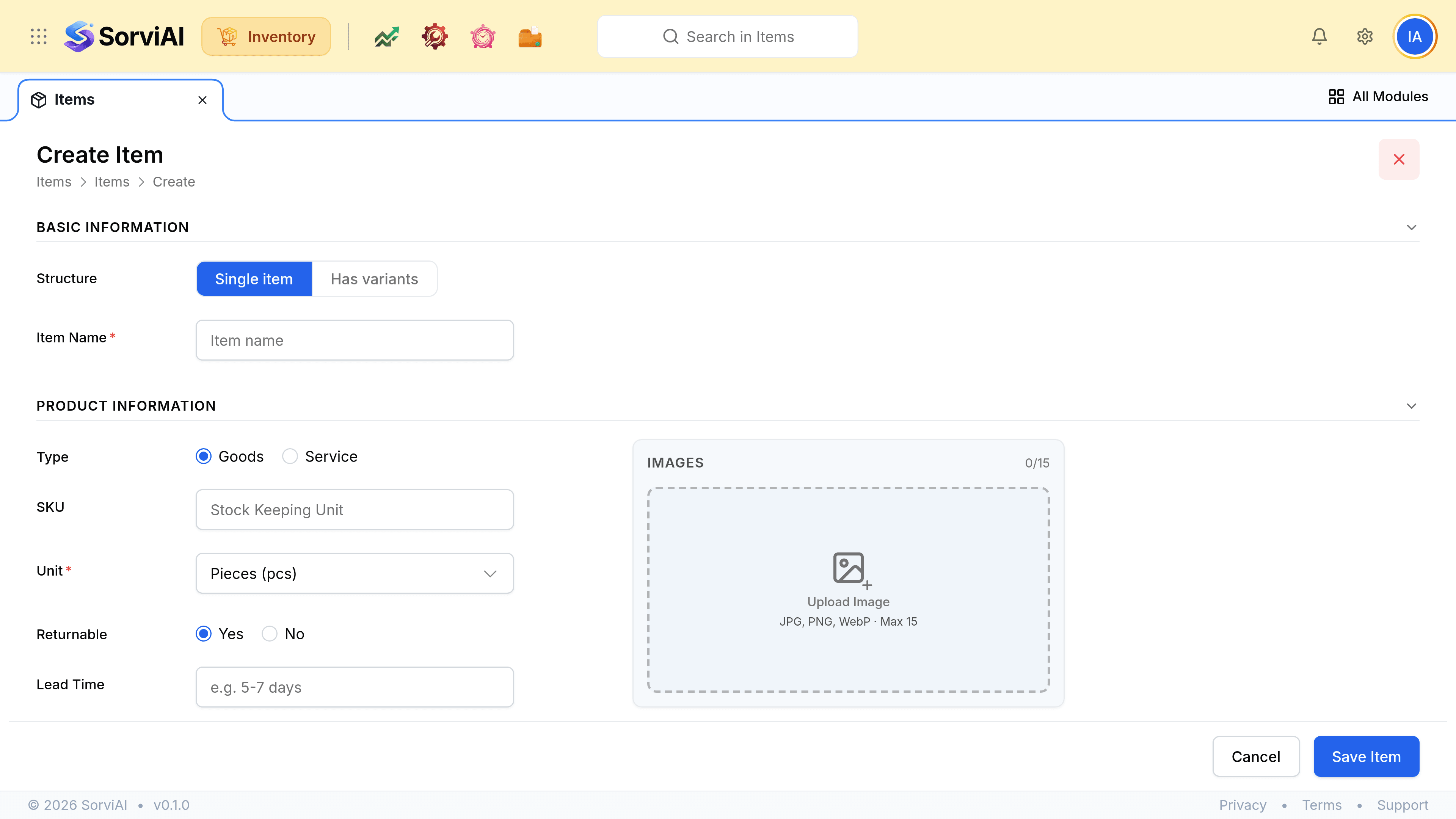
Go to ItemsItem. Set Structure to Single item unless this product comes in sizes or bores; variants have their own guide.
Choose goods or service, and name it
Only goods can be counted. The name prints on documents; the SKU is what your warehouse, your scanner and your imports match on, so make it meaningful and keep it unique.
Enter the prices and pick the accounts
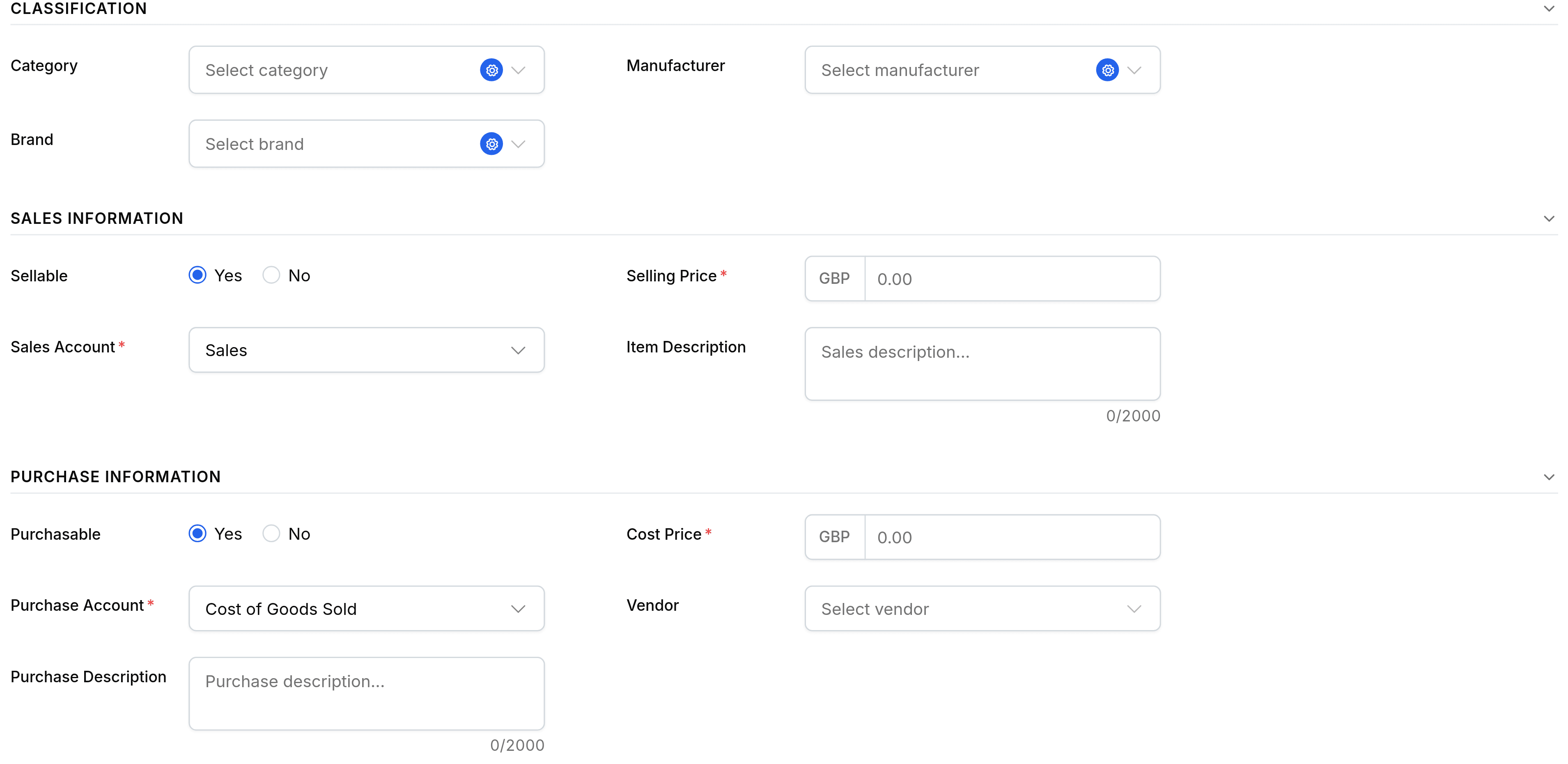
Sellable and Purchasable gate the two sections independently, so an item can be one, the other, or both. Each wants a price and an account.
Set the tax rate
There is one Tax field, not two. It is the default on sales and purchase documents alike, and either can override it on the day.
Decide on stock tracking, then save
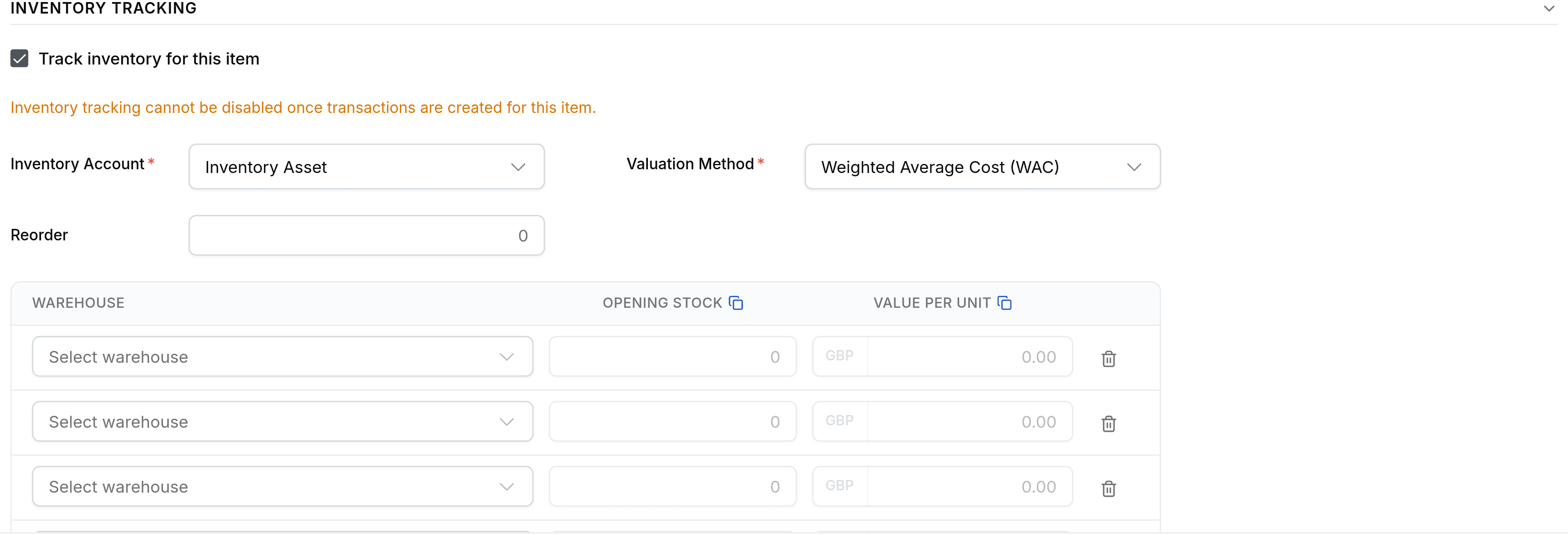
Only goods offer it. Opening stock is entered per depot, with the value each unit is held at. Select Save Item to finish.
Field reference
The form groups its fields the way documents use them: what identifies the item, what a sale needs, what a purchase needs, and what counting needs.
Basic and product information
| Field | What it does |
|---|---|
| Structure | Single item or Has variants. Decides whether the form asks for one record or a grid of them. |
| NameRequired | Printed on documents and shown in every picker. |
| Type | Goods or Service. Defaults to Goods, and decides whether stock can be tracked. |
| SKU | A code used by search, imports and your warehouse. Optional, but unique across the catalogue when set. |
| UnitRequired | Pieces, box, kilogram. Shown on the document line and beside every stock figure. |
| Returnable | Whether it may come back on a sales return. |
| Lead time | How long it takes to arrive, as a note to whoever is ordering. |
| Images | Up to fifteen, JPG, PNG or WebP. |
Other details and classification
Identifiers and groupings. Nothing here is required, and nothing here changes how a document behaves.
| Field | What it does |
|---|---|
| MPN, UPC, EAN, ISBN | Trade identifiers, for matching against a supplier catalogue or a scanner. |
| HSN/SAC code | The goods or service code your customs and tax paperwork needs. |
| Country of origin | An ISO country code, carried onto customs paperwork. |
| Dimensions and weight | Measured in the units set under item preferences, not per item. |
| Category, manufacturer, brand | Groupings used for filtering and reporting. |
Sales, purchase and tax
| Field | What it does |
|---|---|
| Sellable | Turns the sales fields on. An item that is not sellable never reaches an order or an invoice. |
| Selling priceRequired | When sellable. The default rate on sales orders and invoices. |
| Sales accountRequired | When sellable. Where revenue from this item posts. |
| Purchasable | Turns the purchase fields on. |
| Cost priceRequired | When purchasable. The default rate on purchase orders and bills. |
| Purchase accountRequired | When purchasable. Defaults to Cost of Goods Sold. Tracked goods post to stock instead. |
| Preferred vendor | Fills in first when you raise a purchase order for this item. |
| Tax | One rate, applied as the default on sales and purchase documents alike. |
Inventory tracking
| Field | What it does |
|---|---|
| Track inventory for this item | Turns counting on. Goods only, and per variant. |
| Inventory accountRequired | When tracked. The stock asset account the goods are held in. |
| Valuation methodRequired | When tracked. FIFO or Weighted Average Cost. Defaults to whichever item preferences names. |
| Reorder point | The quantity at which the item is flagged as low. |
| Warehouse, opening stock, value per unit | What you hold today, per depot, and what it is held at. A quantity with no depot chosen is dropped. |
Cost price is not valuation
Two numbers on an item look like cost and are not the same thing. Confusing them is the commonest reason a margin figure reads oddly.
- Cost priceon the item
- A default you type, used to fill in a purchase document. Changing it changes nothing already posted.
- Valuationfrom the receives
- What the goods you hold are actually carried at, worked out from what you paid on the receives that brought them in. This is the number your reports use.