
Email Preferences
The addresses Inventory sends from, what rewrite mode does to the From header, and how authenticating a domain gets your real address back.
Every document Inventory emails leaves from an address, and this screen decides which one, and whether it is genuinely yours. Until a domain is authenticated, mail is sent in rewrite mode, which is worth understanding before you wonder why a customer sees an address you did not enter.
Go to SettingsEmail Preferences. Two tabs: Sender Emails and Authenticated Domains. How email routing works, at the top of both tabs, explains the relationship between them and collapses once you have read it.
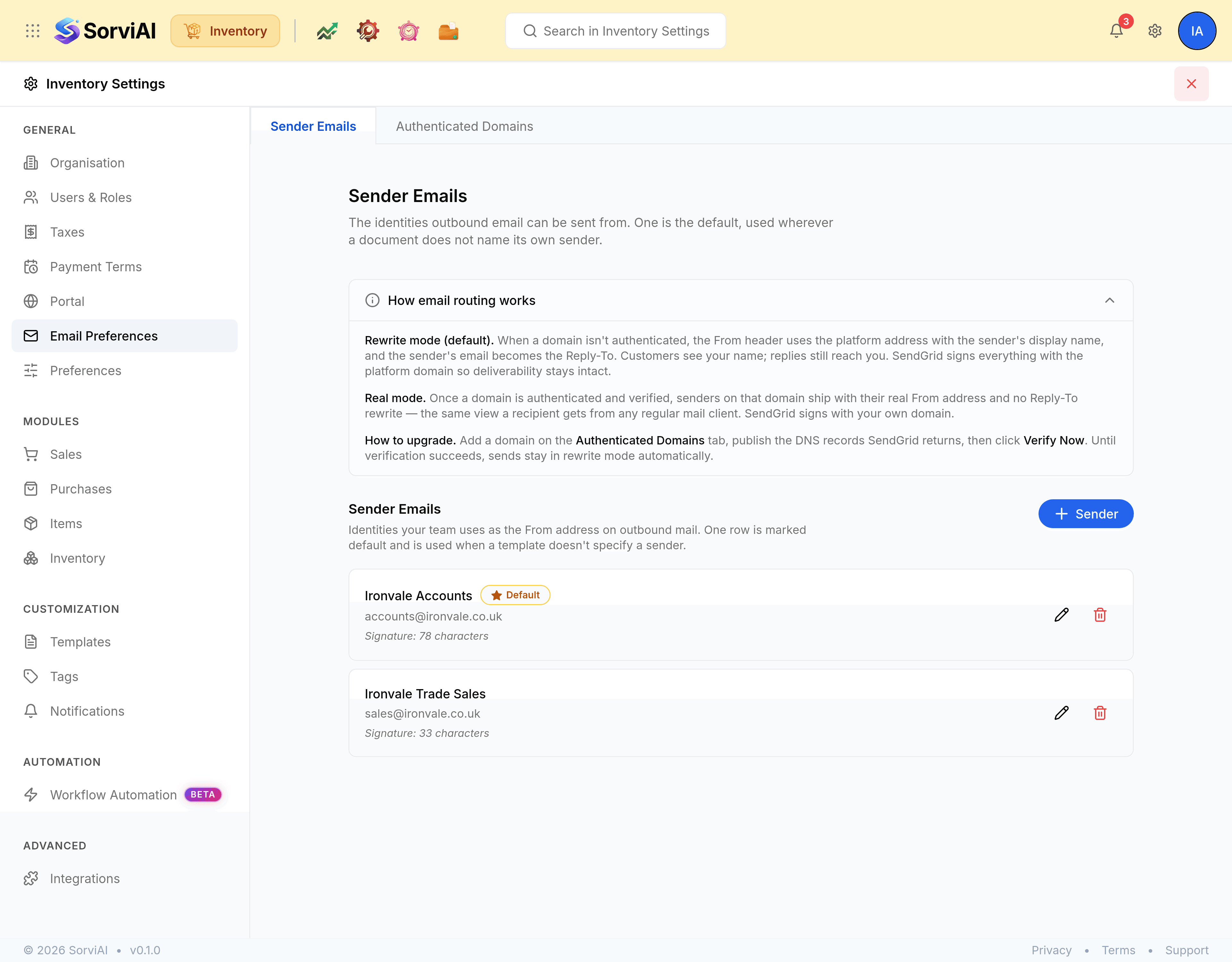
The two modes
- Rewrite modethe default
- Where the domain is not authenticated, mail goes out from the platform address carrying your sender's display name, and the sender's own address becomes the Reply-To. Customers see your name and replies still reach you.
- Real mode
- Once a domain is authenticated and verified, senders on that domain ship with their real From address and no Reply-To rewrite, exactly as they would from any mail client.
Sender Emails
The identities outbound email can be sent from. One is the default and is used wherever a document does not name its own sender.
| Field | What it does |
|---|---|
| EmailRequired | The address to send from, such as `[email protected]`. |
| Display NameRequired | The name a recipient sees, such as Alice from Acme. |
| Signature | Text appended to messages sent from this identity. Optional. |
| Default sender | Used by templates and notifications when no sender is specified. Promoting a row demotes the previous default. |
Authenticated Domains
A domain you control, proved by publishing the DNS records the mail provider returns.
Go to Settings, Email Preferences, Authenticated Domains.
Add the domain.
Enter the Domain on its own, such as
acme.com, with no username and no trailing slash. Choose a Region: Global, or EU (data residency) where that matters to you.Publish the DNS records the screen returns.
Each row gives a Host and a Value to add at your DNS provider.
Select Verify Now.
Verification reads the records back. Where it fails, the records have usually not propagated yet rather than been entered wrongly.