
Integrations
Your own shipping carrier accounts and your own Stripe account, connected so labels, rates and tracking come back into Inventory.
Integrations connect accounts you already hold elsewhere. Nothing here is a SorviAI service being switched on: it is your carrier account and your payment provider being told to talk to Inventory.
Go to SettingsIntegrations. Two tabs: Shipping and Payments.
Shipping
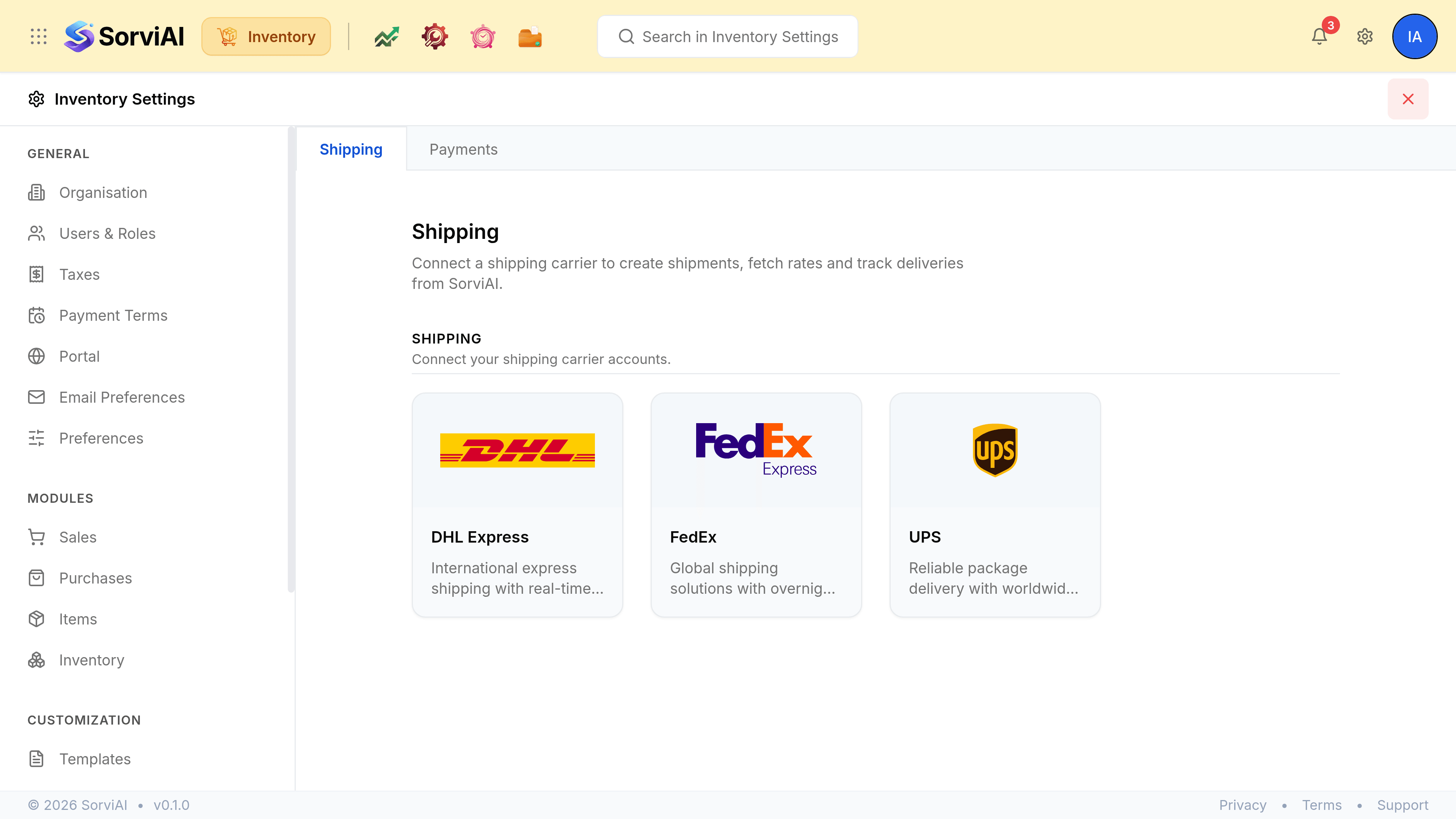
Three carriers, each a card that opens a configuration panel: DHL Express, FedEx and UPS. Connecting one lets Inventory validate addresses, fetch rates, create labels and track a shipment once it has gone.
| Field | What it does |
|---|---|
| Credentials | What the carrier requires, which differs per carrier. DHL asks for an account number; FedEx asks for an API key and a secret key. |
| Environment | Sandbox or Production. Sandbox is for testing against the carrier's own test service and produces no real labels. |
| Status | Enabled or Disabled. Disabling keeps the credentials and stops Inventory using the carrier. |
| Remove | Deletes the integration and its stored credentials. |
Payments
One provider, Stripe, connected through Stripe Connect rather than by pasting API keys.
Go to Settings, Integrations, Payments.
Select Connect with Stripe.
You are taken to a page hosted by Stripe to sign in or create an account.
Authorise on Stripe's site, then come back.
Your account is linked when you return.
Add the webhook signing secret.
It is what lets the app verify that an event genuinely came from Stripe.
The card then shows whether the account is Connected, whether the integration is Active, and whether it is in Test or Live mode. Disconnect revokes the link, and you can revoke it from your Stripe dashboard instead.