Variants
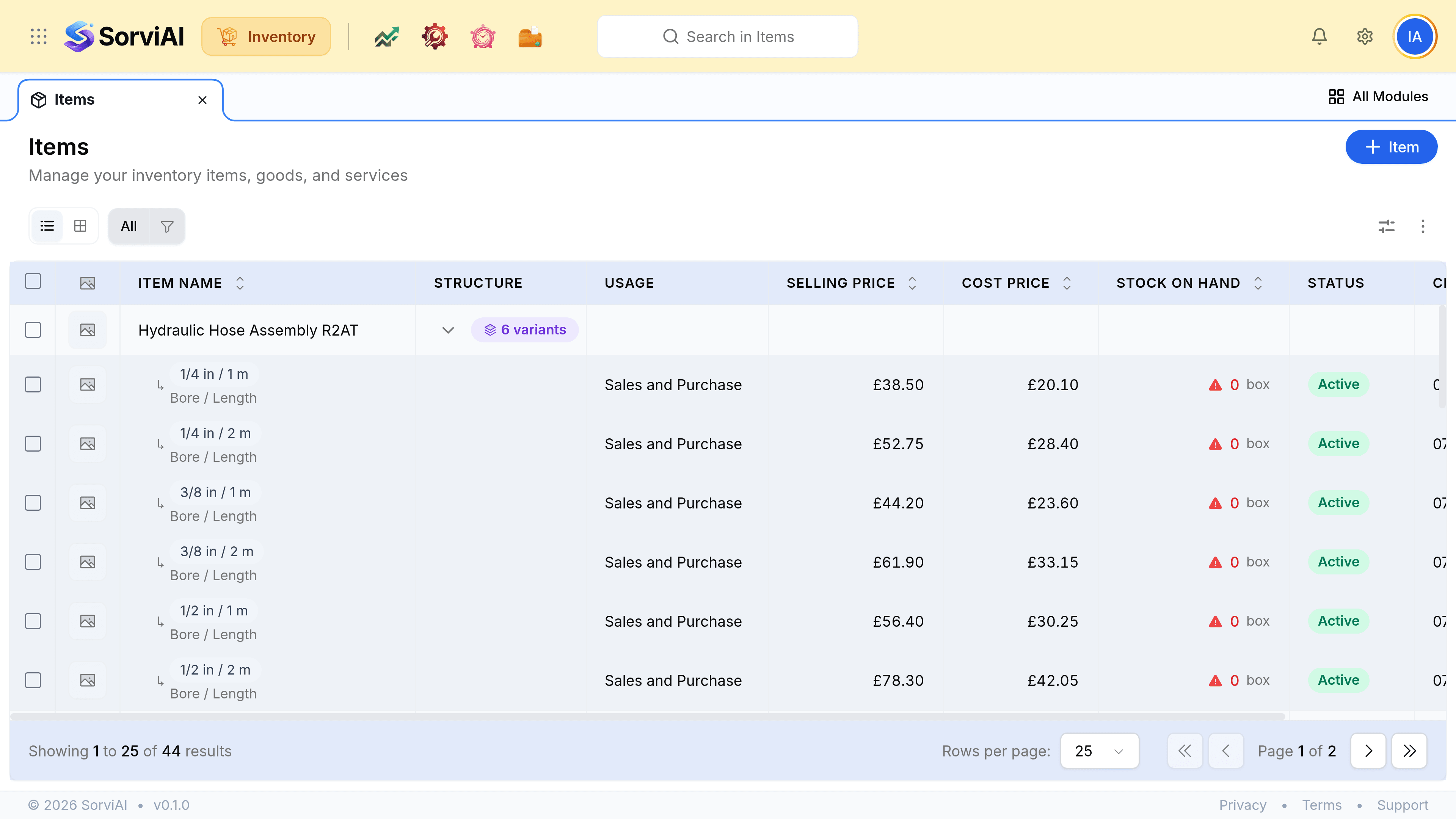
Adding bores, sizes or grades to a product creates real items underneath it, each with its own SKU and stock.
A variant is how one product carries several versions of itself. Each combination becomes a full item with its own SKU, prices and stock, and the product above becomes a label that groups them.
Build a product with variants
Set the structure to Has variants
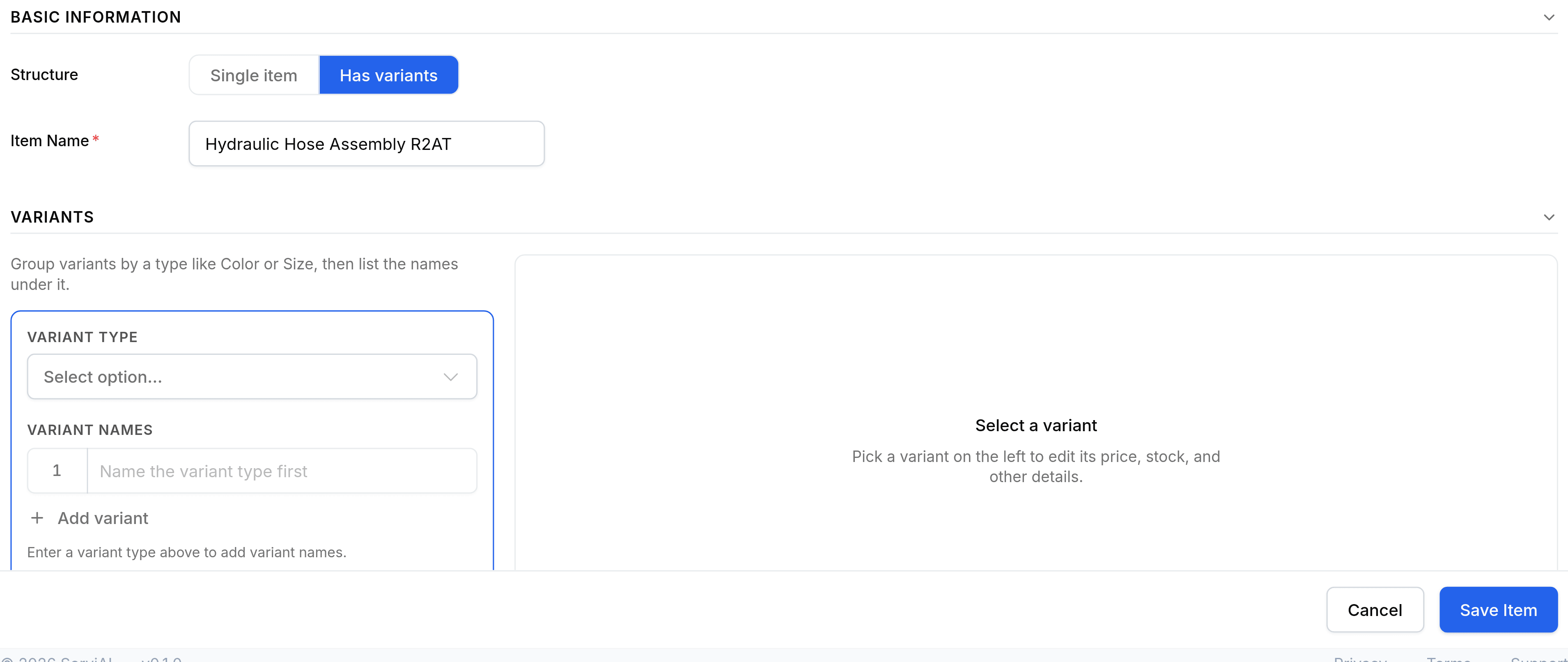
Go to ItemsItem and select Has variants, then name the product. Keep the distinguishing part out of the name: Hydraulic Hose Assembly R2AT, not the bore and the length.
Name the axes
A variant type is an axis such as Bore or Length; its variant names are the values on it. Add variant type takes you to three axes, which is the cap the button itself shows.
List only the values you sell
Three bores and two lengths describe six combinations; three axes of three describe twenty-seven. A combination you create shows up in every picker afterwards, so trim before you generate.
Give each variant an SKU and its prices
Select a variant on the left and its details open on the right. A variant with no price of its own does not fall back to the product, so a blank price is a blank price.
What a variant keeps, and what it borrows
| Field | Owned by | When the variant leaves it blank |
|---|---|---|
| SKU, prices, stock, status | The variant | Nothing is inherited |
| Images | The variant | Falls back to the product's, for display only |
| Descriptions, category, brand | The product | Reads through to the product |
| Accounts, tax, vendor, unit | The product | Reads through to the product |
| HS code, country of origin | The product | Reads through to the product |
| Tracking and valuation | The variant | Never inherited, and set per variant |
| Returnable, product type | The variant | Set per variant, which is what allows a mixed product |
| Usage | The product | Decided once, shown on every variant row |
Finding and counting a variant
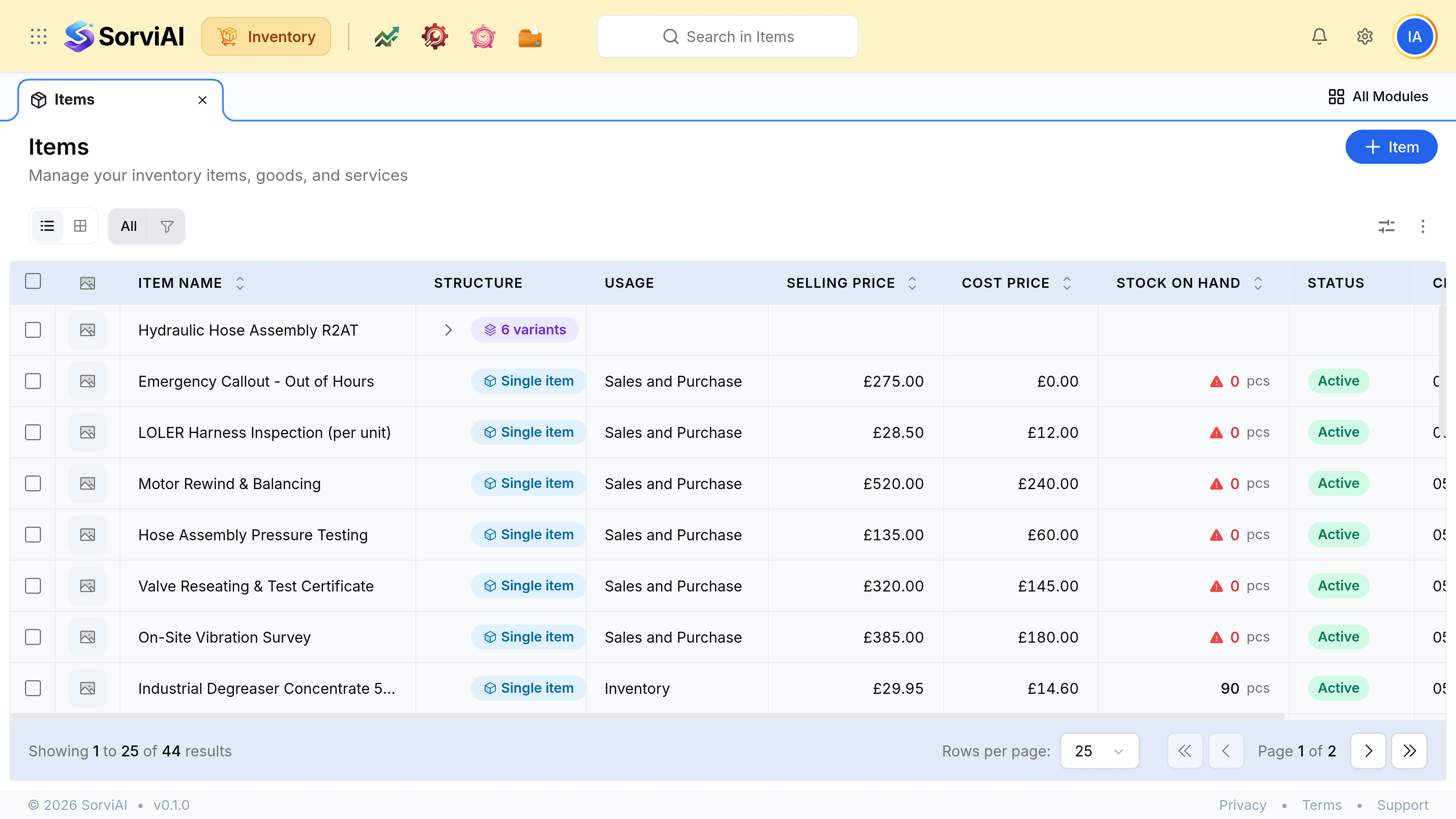
- The items list shows products and standalone items only. Expand a product to load its variants underneath it.
- Search returns variants in their own right, so you can put one bore on a document without opening the parent.
- A variant has its own address and opens as its own record, with the same five tabs any other item has.
- Filters, exports and reports treat a variant as an item, because it is one.