
Run a Report
The five controls every stock report carries, and which of them changes the answer.
Last reviewed
Every stock report opens with the same toolbar, and every one of the twelve carries it. Learn it once and the rest need no explaining.
The toolbar
| Field | What it does |
|---|---|
| Group | Groups the rows by a field you choose. Only on the five reports that offer it: the two Inventory Adjustment reports, Shipment Details, and the two Transfer Order reports |
| Compare | Sets a comparison period. Packing History only |
| Columns | Opens Customise columns: tick what you want, then Apply |
| The date range | A button off to the right holding whatever range is set. Presets run from This Month to Last 36 Months, and Custom range takes a start and an end date |
| Run Report | Fetches the report again with whatever you have set |
| The kebab | Export options, to the right of Run Report. Excel, PDF, CSV or Print |
Run one
Find the report
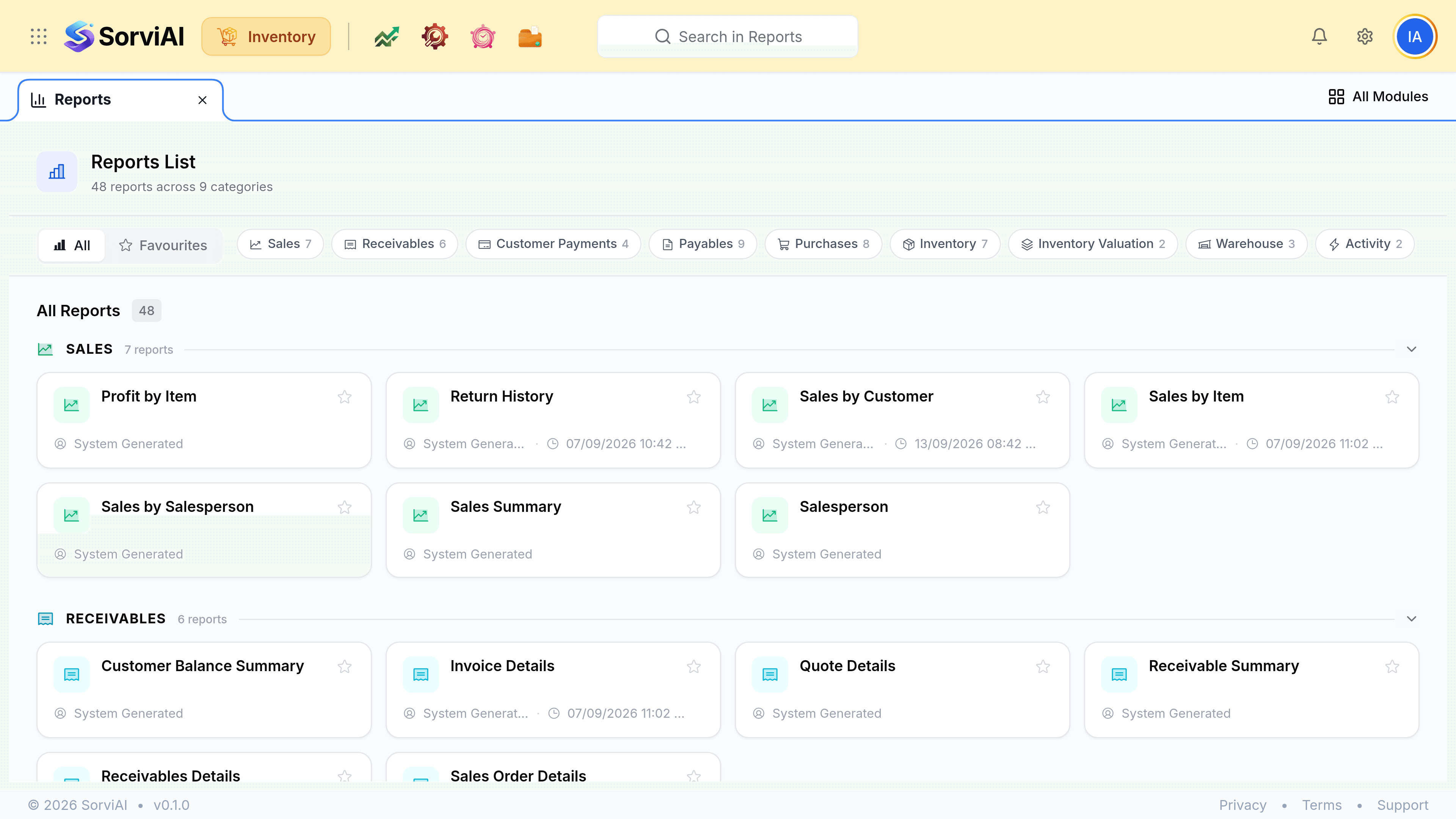
The chips filter by category and the search box filters by name. Favourites is the first chip, and it holds whatever you have starred.
Set the date range
The button holding the current dates, over at the toolbar's right, opens Date range: twelve presets from This Month to Last 36 Months, and a Custom range taking a start and an end date. It opens on your financial year, and it is the setting behind most surprises.
Group the rows, if the report offers it
Group by lists the report's own fields. On Transfer Order Details that means order number, date, transferred date, status, from and to warehouse, category and item. Grouping does not remove rows, it arranges them.
Choose your columns
Columns opens Customise columns, a searchable tick list ending in Apply and Cancel. Stock Summary starts on item name, opening stock, quantity in, quantity out and SKU, with a dozen more available including purchase rate, category and brand.
Select Run Report
Nothing is changed by running one, on any period, however often.