
Introduction - Documents
Documents lists every file in the workspace, whether it is attached to a record or standing on its own.
It is not only a second view of your attachments. Files reach this list two ways: by being attached to a record, and by being uploaded here directly, and the list is where you find either of them again.
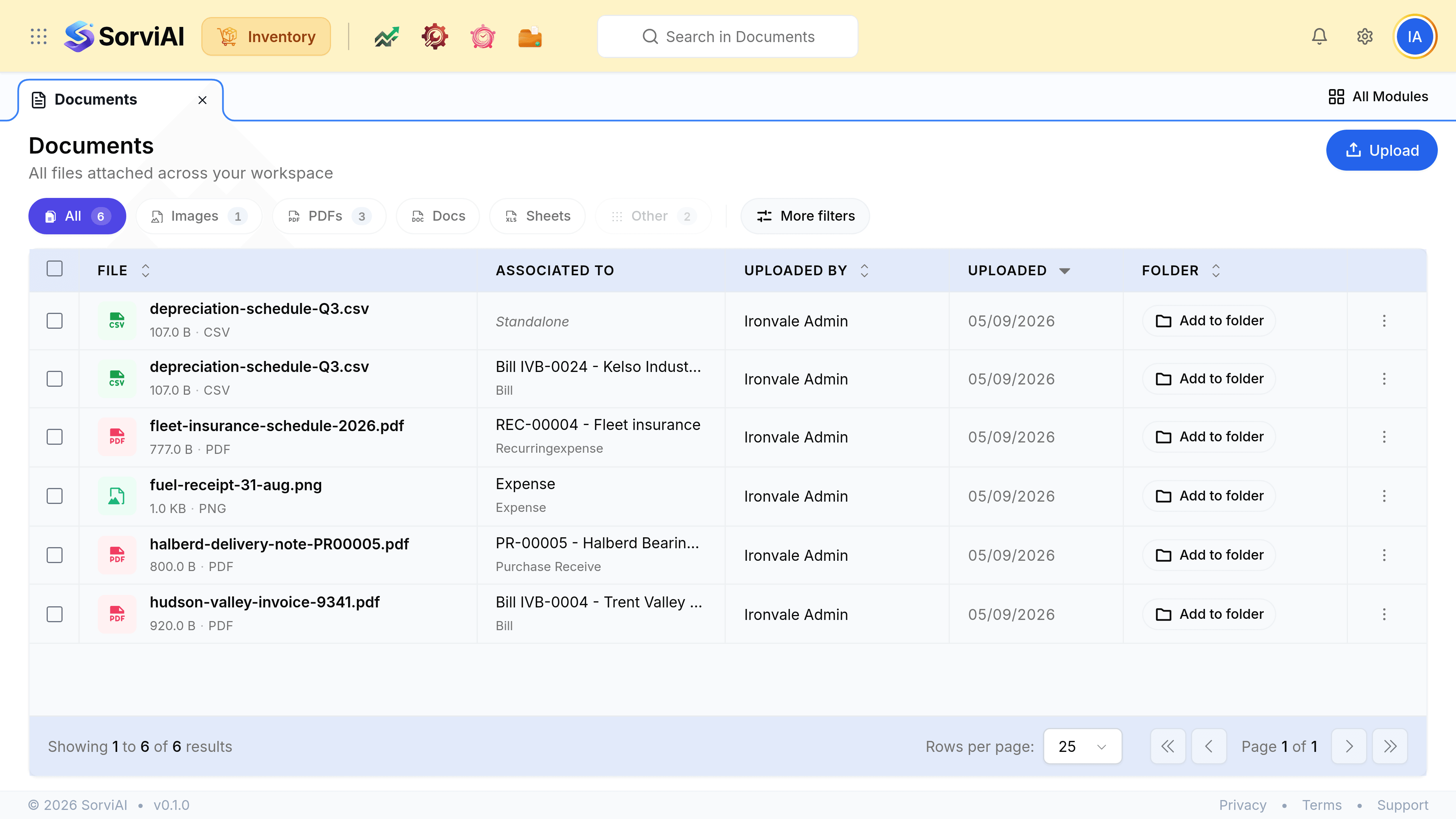
Attached or standalone
- Attachedevidence for a record
- Added from a purchase receive, a shipment, a bill or an item. The Associated To column names the record and the kind of record it is, so the file can be traced back.
- Standalonefiled here and nowhere else
- Uploaded straight into Documents. It belongs to the workspace rather than to any one transaction, which suits a policy, a certificate or a price list.
What is worth attaching in a warehouse
| Record | What tends to be attached to it |
|---|---|
| Purchase receive | The vendor's delivery note, signed |
| Shipment | Proof of delivery, or the carrier's label |
| Sales return | Photographs of what came back, and its condition |
| Stock adjustment | The stocktake sheet the difference was found on |
| Item | A specification, a data sheet or a certificate |
| Bill or expense | The supplier's invoice, or the receipt |
The pattern is the same in every row: the file is the evidence for a document whose numbers somebody may query later.
Filing by type, and by folder
The chips across the top count the files by kind, so PDFs or Images narrows the list in one click. A chip with nothing behind it is greyed rather than hidden, which is how you can tell there are none rather than that you have missed the control.
Folders are the other axis, and they are yours to invent: a file can be filed into one from the list, and a new folder is created at the moment you first need it.