
Track Completion
See who has finished, who is late, and where the certificates are.
A program's own page is the only place completion is visible across everybody assigned to it. The Employees tab is the roster; the rest of the tabs are the evidence.
Open the program from the list, or from the mini-list down the left of any program page.
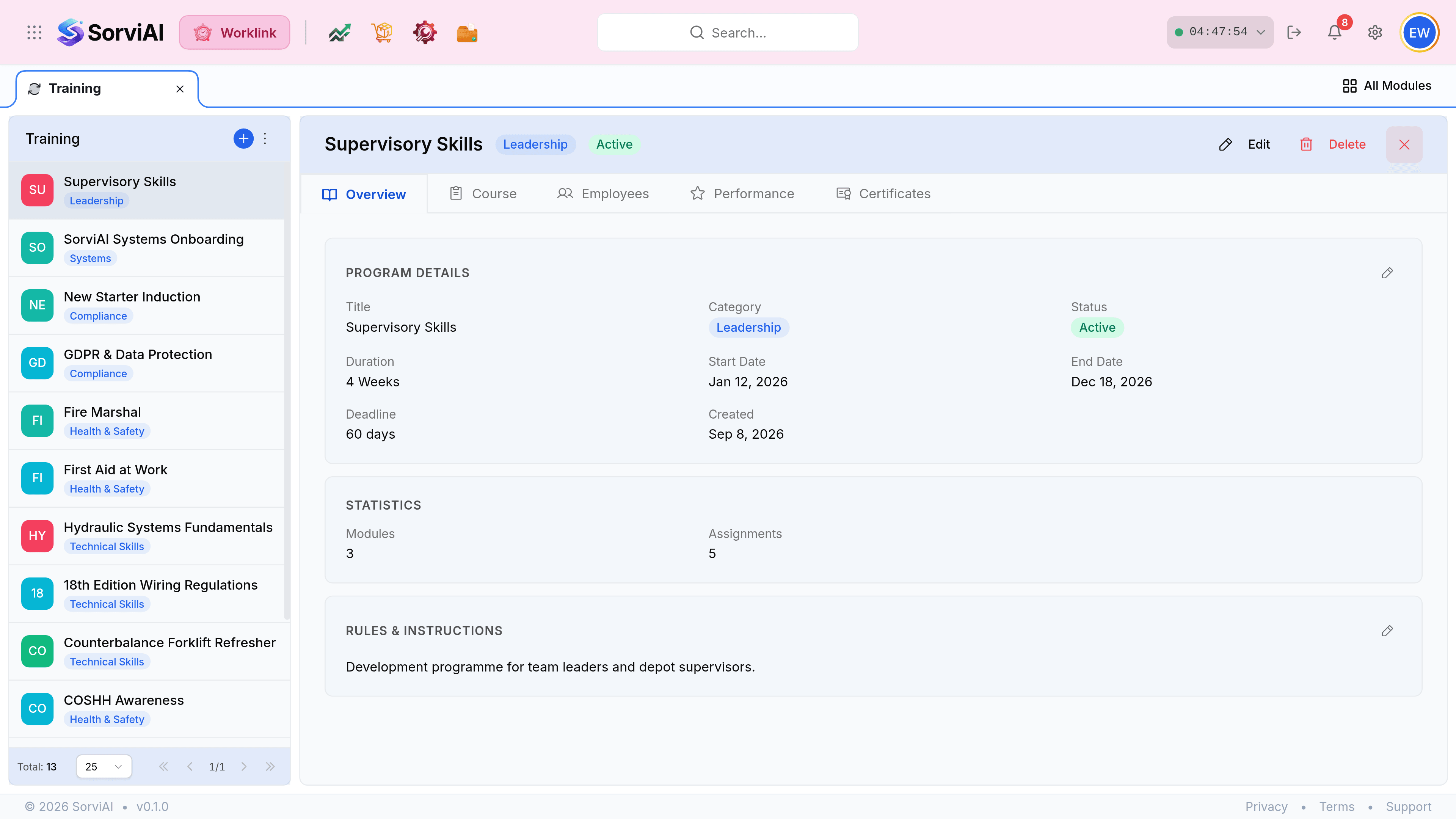
Select the Employees tab. This is everybody assigned, with where each of them has got to.
Use Performance to record or read an assessor's note, and Certificates to see what has been issued.
The five tabs
| Tab | What it is for |
|---|---|
| Overview | The program's own settings: category, duration, deadline and the statistics. |
| Course | The material itself, and the modules it is divided into. |
| Employees | The roster of assignments and their progress. This is the completion view. |
| Performance | Assessor notes against individuals, written after they finish. |
| Certificates | What has been issued, to whom, and whether it is still valid. |
Reading the statistics
The Overview's Statistics card holds two numbers that are easy to mix up. Modules is how many parts the course has; Assignments is how many people hold it. A program with 3 modules and 5 assignments has fifteen ticks to collect in total.
Chasing what is late
- Start with the Overdue cardon the programs list
- It counts assignments past their deadline across every program, which is the organisation-wide position.
- Then filter by categorycompliance first
- Health and Safety and Compliance are the ones with consequences outside Worklink.
- Then open the programthe Employees tab
- It names the individuals, which is what a chase actually needs.