
Initiate a Separation
Open a separation for an employee and work the clearance checklist through to the last day.
A separation opened from the administrative side covers everything a resignation does, plus the cases an employee would never start: a retirement, a fixed-term contract ending, a dismissal.
Select New Separation on the Offboarding screen and choose the employee.
Set the Exit Type. Resignation, Retirement and End of Fixed-Term Contract are the common ones, and the type is what most reporting groups by.
Record the notice period and the leaving dates. Worklink calculates one from the notice, and you can set an agreed date beside it.
Work the record's tabs as the leaving date approaches. Clearance is the one with the most in it.
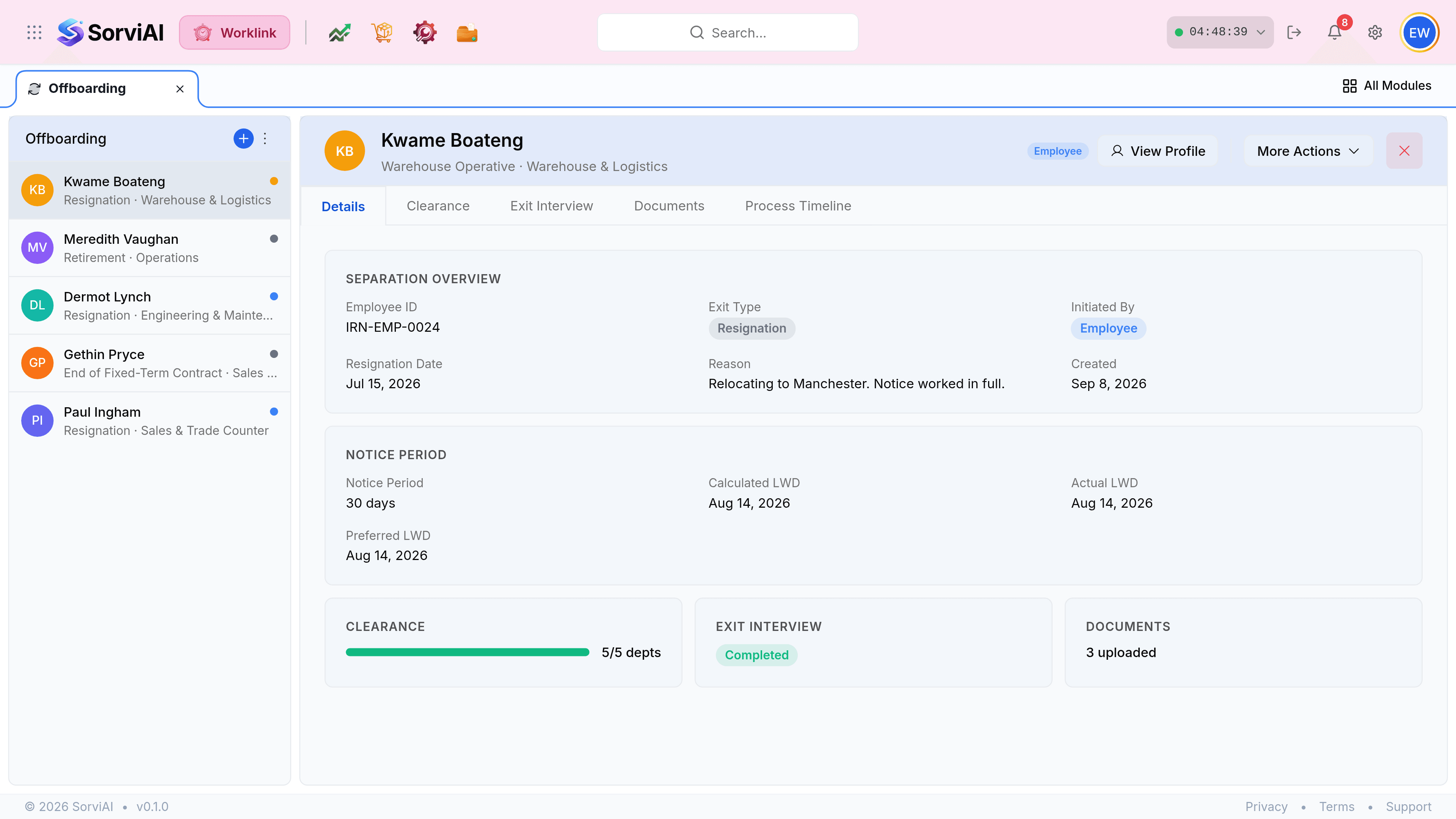
The five tabs on a separation
| Tab | Holds | Closes when |
|---|---|---|
| Details | Exit type, dates, reason and who started it. | It is complete from the outset. |
| Clearance | A sign-off per department: equipment, systems, finance and the rest. | Every department has confirmed. |
| Exit Interview | The interview, arranged and then recorded. | It has been held and written up. |
| Documents | Anything filed against the leaving: letters, agreements, handover notes. | There is nothing left to file. |
| Process Timeline | What has happened and when, in order. | Never; it is the audit trail. |
Clearance is a checklist across departments
The progress bar on the pipeline is this: how many departments have signed off out of how many are required. It is the stage that most often runs past a last working day, because it depends on several people rather than one decision.
When it closes
Completing the separation sets the employee's status and takes them off the active roster. Nothing is deleted: their attendance history, leave record, training and certificates all stay exactly where they were, which is what the separation exists to preserve.