
Apply for Leave
Raise a request against one of your entitlements and send it to your approver.
A leave request names a type, a span and a reason. The form checks the request against your balance as you build it, so you find out it is too long before you submit rather than after.
Open Apply Leave, from the Leaves screen or from Quick Actions on My Attendance.
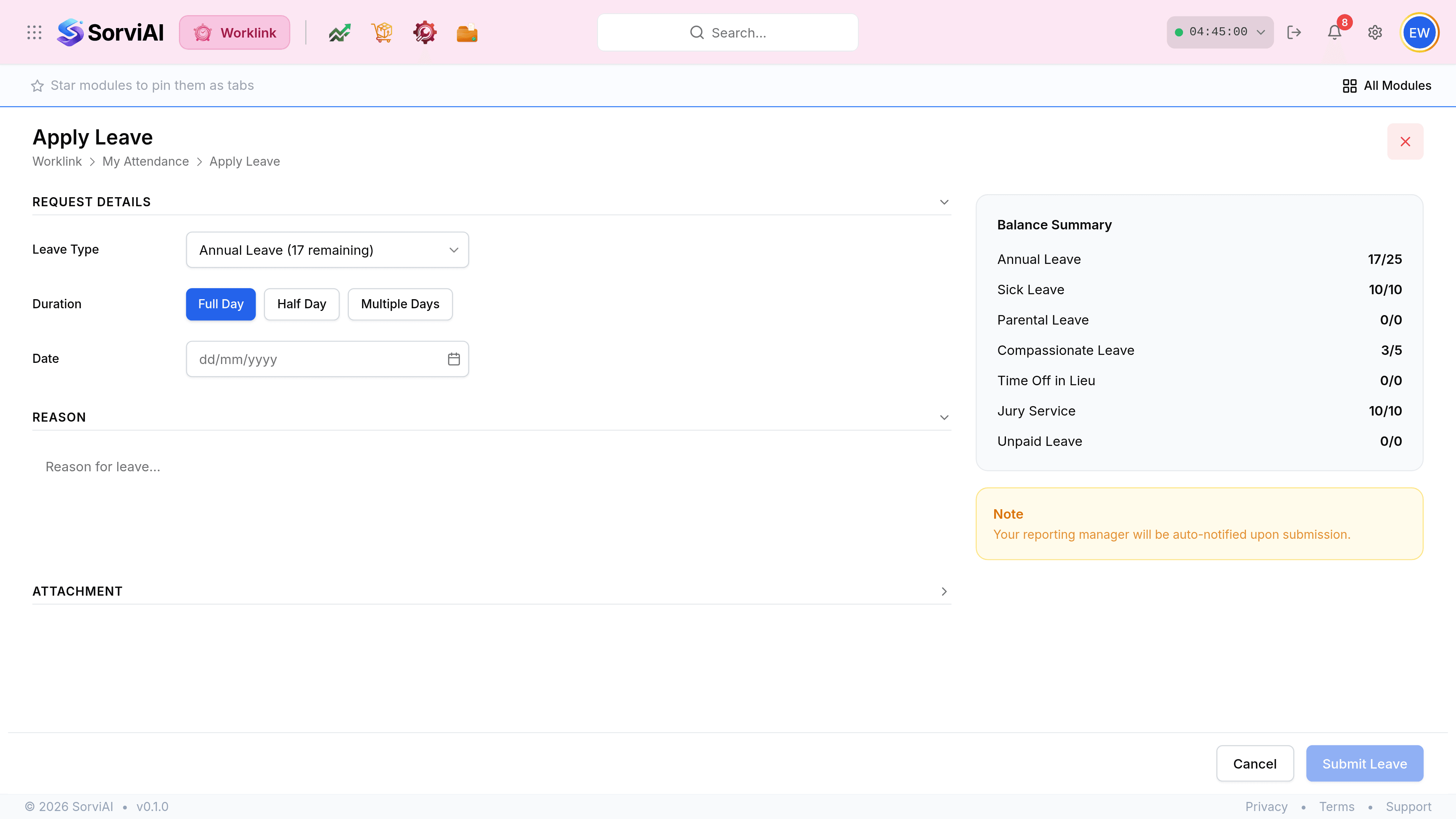
Choose a Leave Type. Each option carries its remaining days in brackets, so you can see what you have without leaving the form.
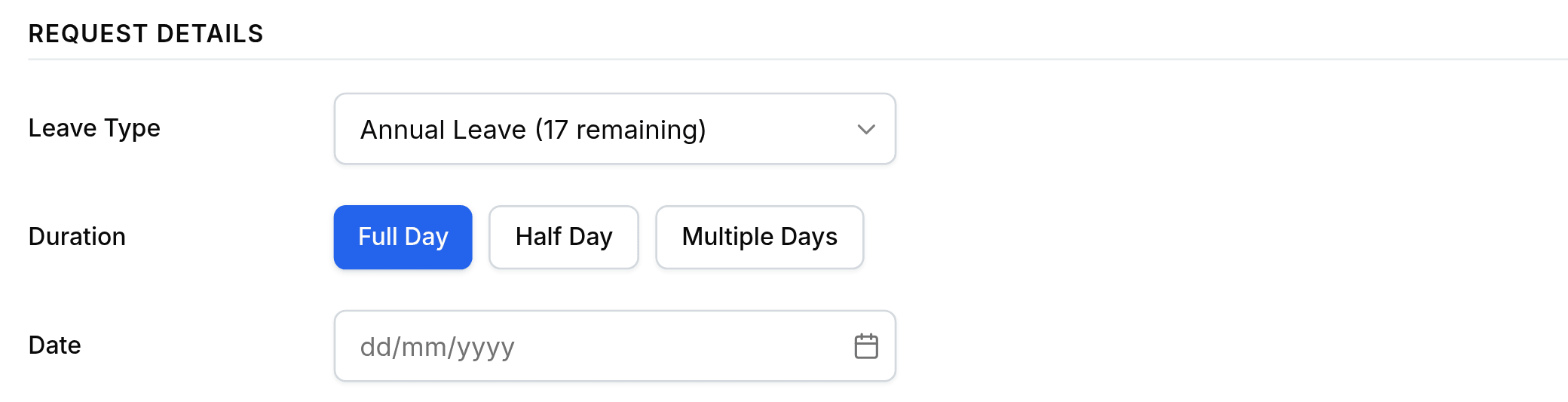
Pick a Duration. Full Day and Half Day ask for one date; Multiple Days asks for a start and an end and counts the working days between them.
Write a Reason, and attach a document if the type calls for one. Sick leave beyond a few days usually does.
Select Submit Leave. Your reporting manager is notified automatically; you do not need to tell them separately.