
Kiosk
Pair a wall tablet so people can check in with a six-digit code, with no login on the device and nothing to log out of.
A kiosk is a tablet on a wall that anyone can walk up to. Nobody signs into it: an employee types their own six-digit code and taps once. It is how a depot or a shop floor records attendance for people who do not sit at a desk.
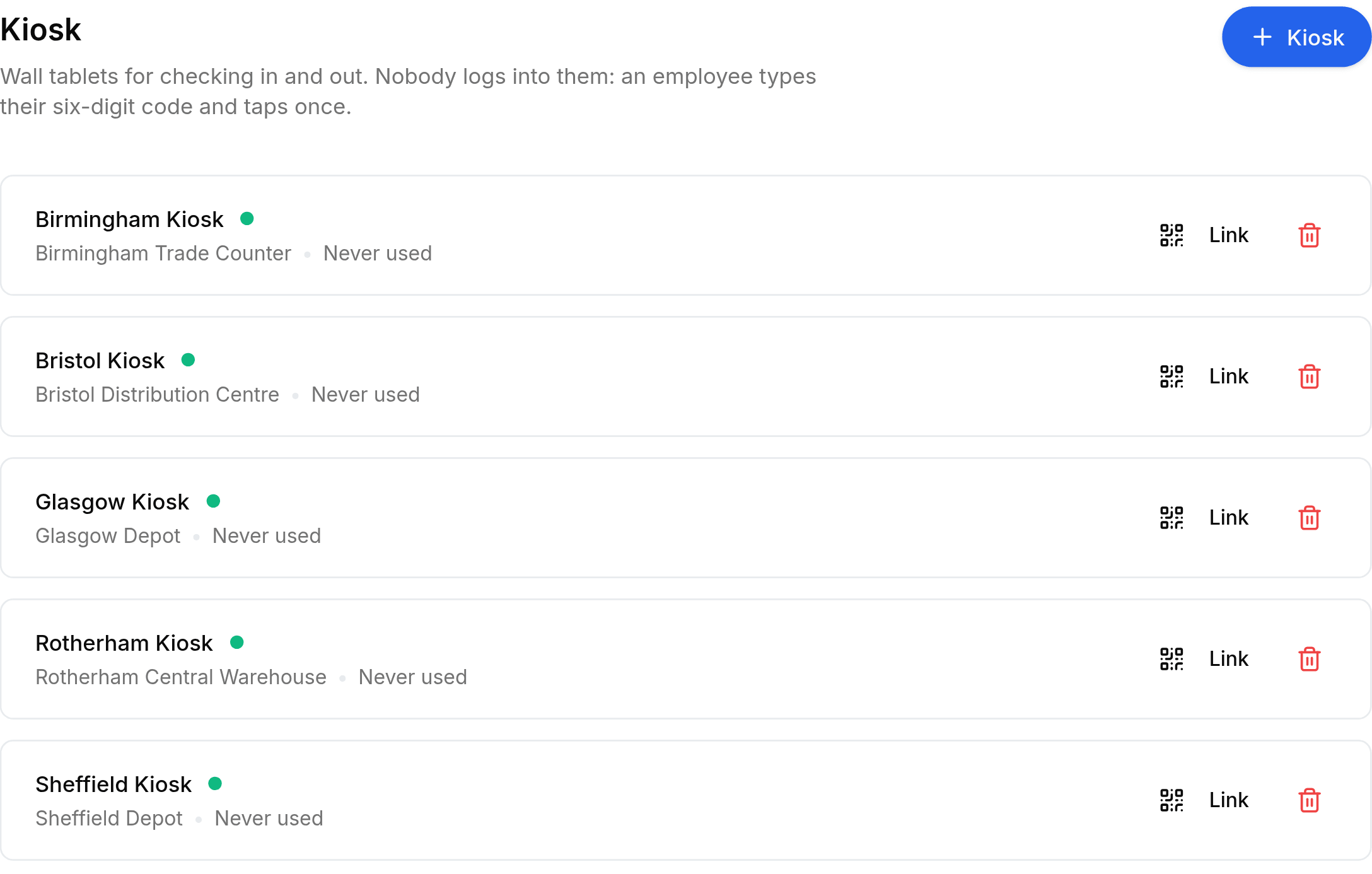
Add and pair one
Go to Worklink Settings > Kiosk, then select + Kiosk at the top right.
Give it a Name that says where it is, such as
Warehouse door, and choose the Office it belongs to. Both are required, and only active offices are offered.Select Save. Worklink goes straight to the pairing screen, because pairing is the point of adding one.
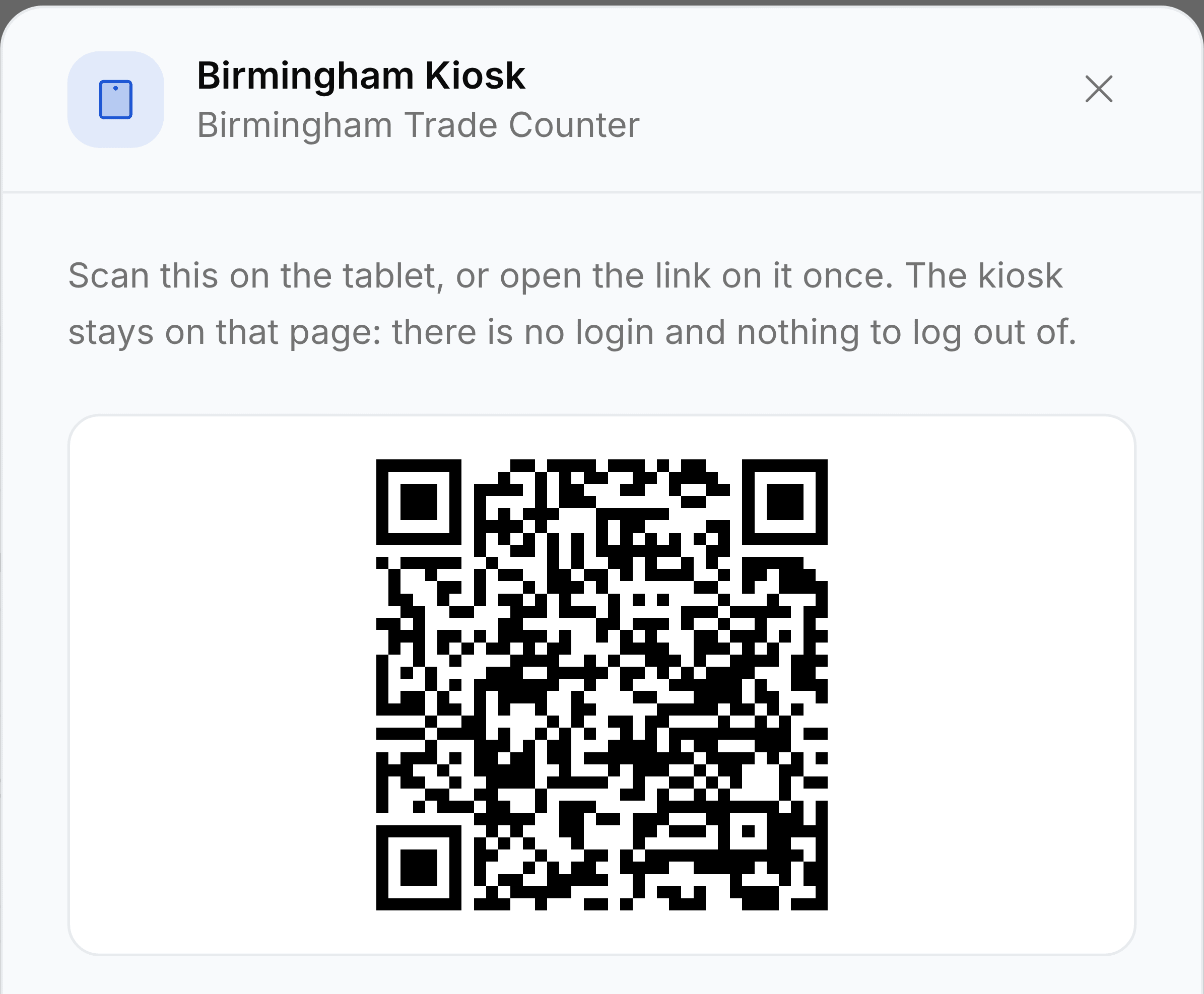
On the tablet, scan the QR code, or use Copy link and open the address there once.
Leave the tablet on that page and select Done here.
Reading the list
Each kiosk shows its name, its office and when it was last used. A green dot means active; a Revoked badge means the pairing has been withdrawn and the tablet no longer works. Link reopens the pairing screen at any time, which is what you use when a tablet is replaced or reset.