
Preferences
Whether the work-session widget sits in your header, and whether it follows you into the rest of SorviAI.
Preferences holds two switches, both about the same control: the work-session widget in the top bar, which starts a break or ends your day without taking you off the page you are on.
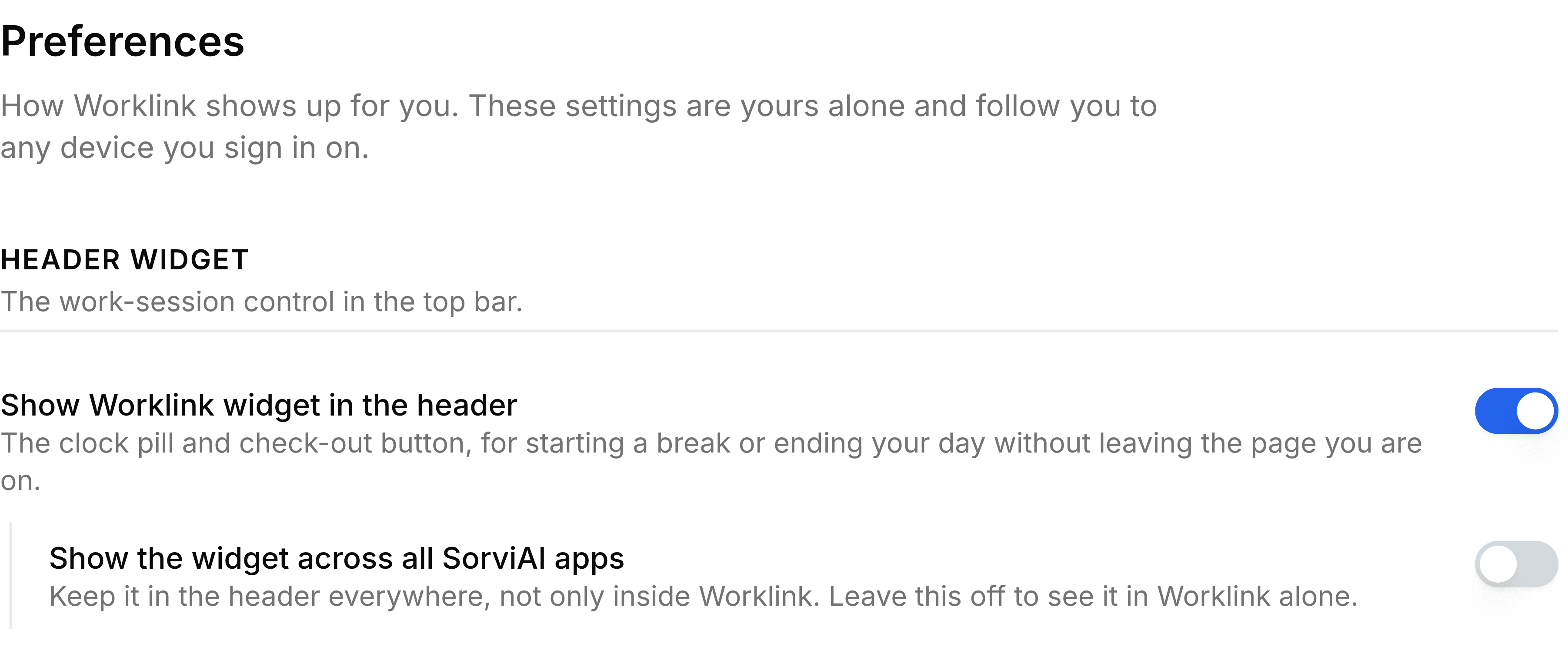
The two switches
- Show Worklink widget in the headerthe main switch
- Puts the clock pill and the check-out button in the top bar. Turn it off and the header goes quiet; checking in and out still works from My Attendance.
- Show the widget across all SorviAI appsthe follow-on
- Keeps the widget in the header everywhere, not only inside Worklink. Leave it off to see the widget in Worklink alone.
Go to Worklink Settings > Preferences.
Turn Show Worklink widget in the header on or off.
With it on, decide whether the widget should follow you into Finance, Inventory and the rest, using the second switch.
There is no Save on this screen. Each switch saves as you set it and the header above repaints straight away, which is the whole preview the setting needs.