
Raise a Regularization
Ask for a correction to an attendance day, and pick the request type that fits what happened.
Pick the type first. Everything under it is generated from that choice, so an empty-looking form is a form waiting on its first answer.
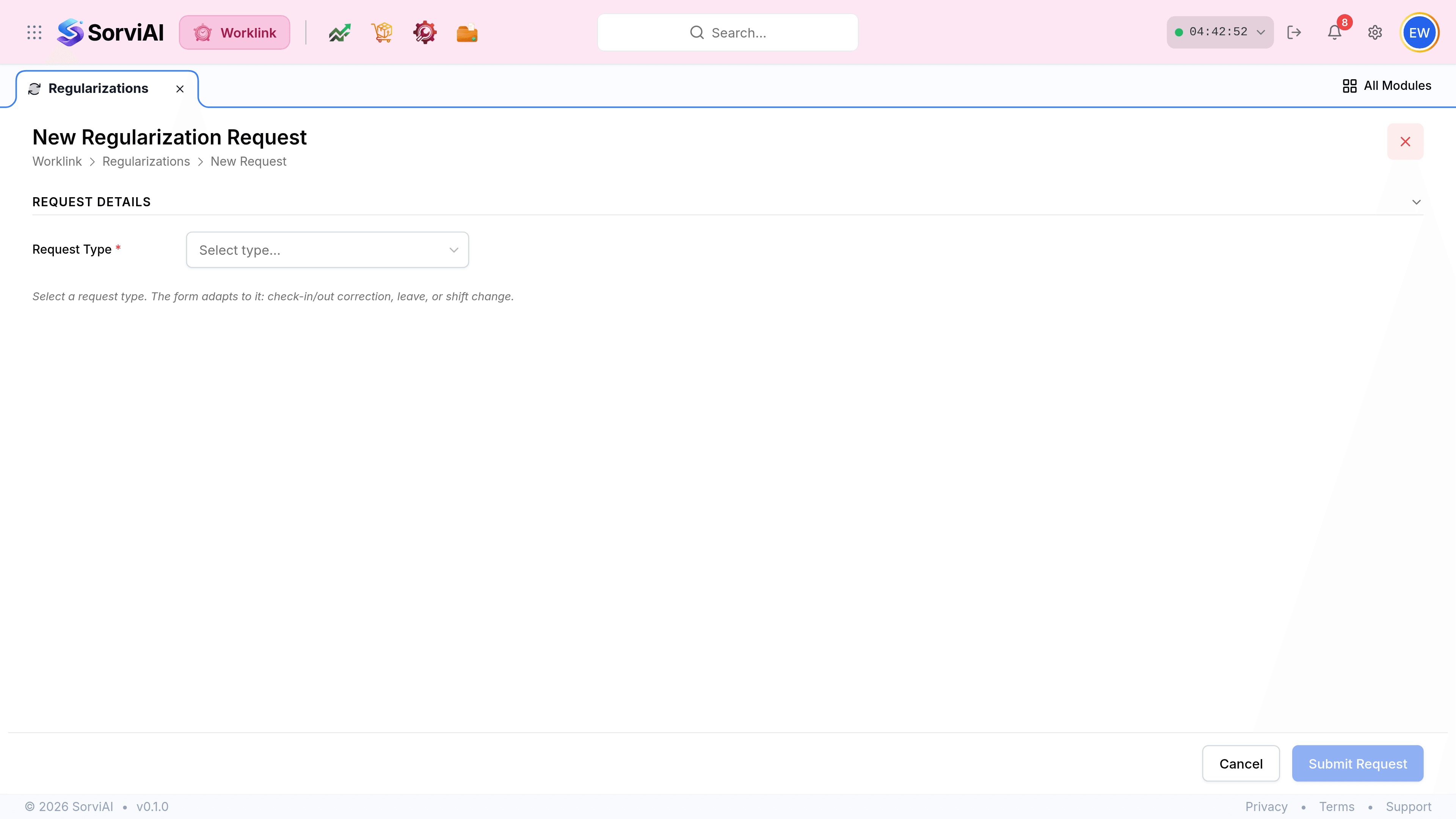
Open New Request and start with Request Type. The rest of the fields appear once it is set.
Point the Date at the affected day.
Adjust the times. Worklink seeds them from your assigned pattern, so most of the time you are confirming a figure rather than entering one.
Explain yourself in the Reason box. Two people will read it before the record moves.
Select Submit Request.
The six types
| Type | Raise it when | It asks for |
|---|---|---|
| Forgot to clock in | You worked but never started the clock. | The time you arrived. |
| Forgot to clock out | The day is still open because you never stopped it. | The time you left. |
| Missed punch | Both ends are missing, or no record appeared at all. | Both times. |
| Overtime approval | You worked beyond your scheduled hours and want it recognised. | A From and Until span. |
| Shift change | You worked a different pattern from the one you are assigned. | The pattern you actually worked. |
| Work from home | You worked, but not from a depot. | The date and the reason. |