
Export a Report
Take a report out as a CSV, and choose the columns before you do.
Every report exports the same way and to the same format. The work is what you set before pressing it, because the file is exactly what the screen is showing.
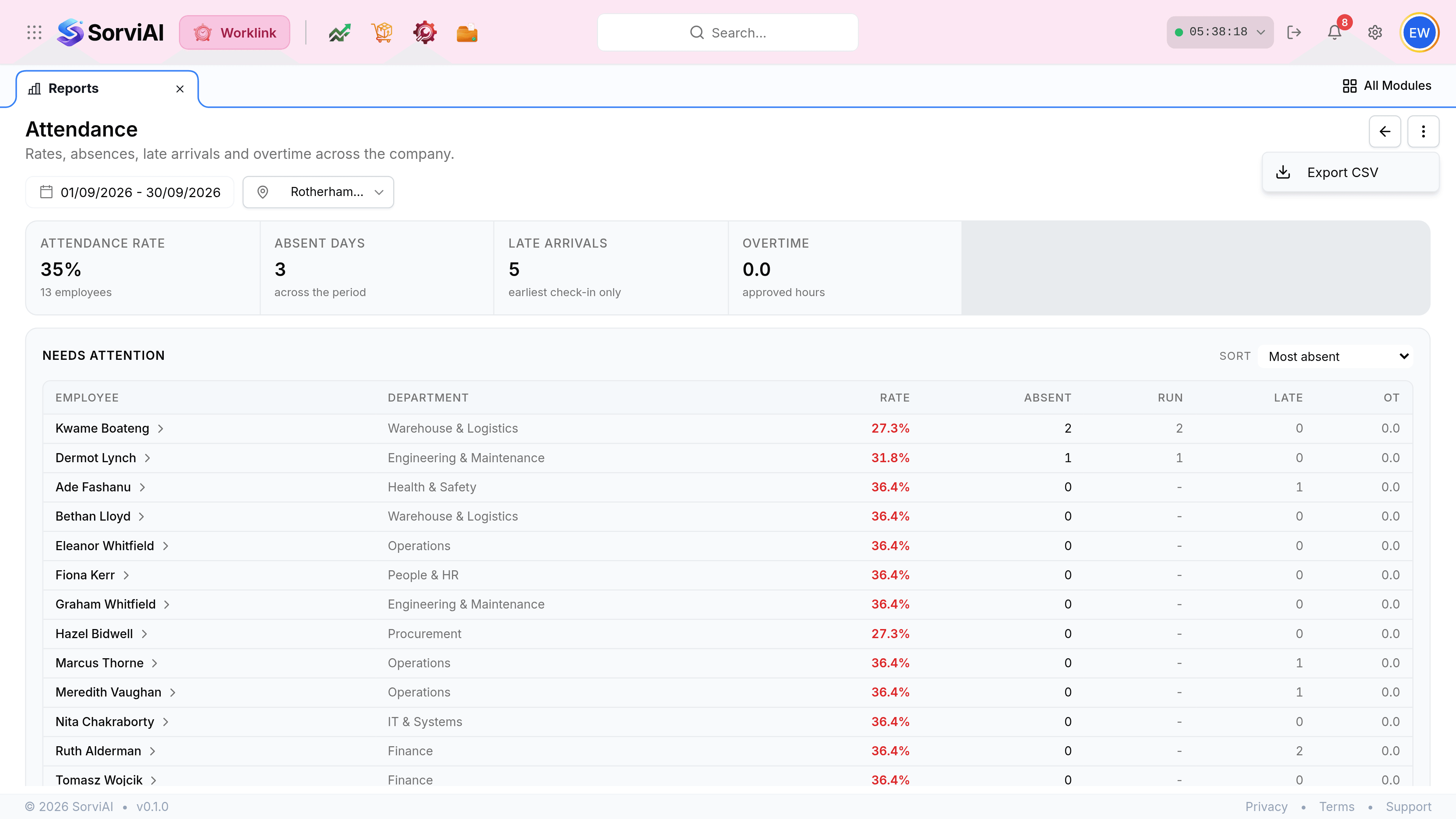
Set the period, the depot and any filters first. The export follows the report; it does not offer its own scope.
Select the three-dot button beside the back arrow and choose Export CSV.
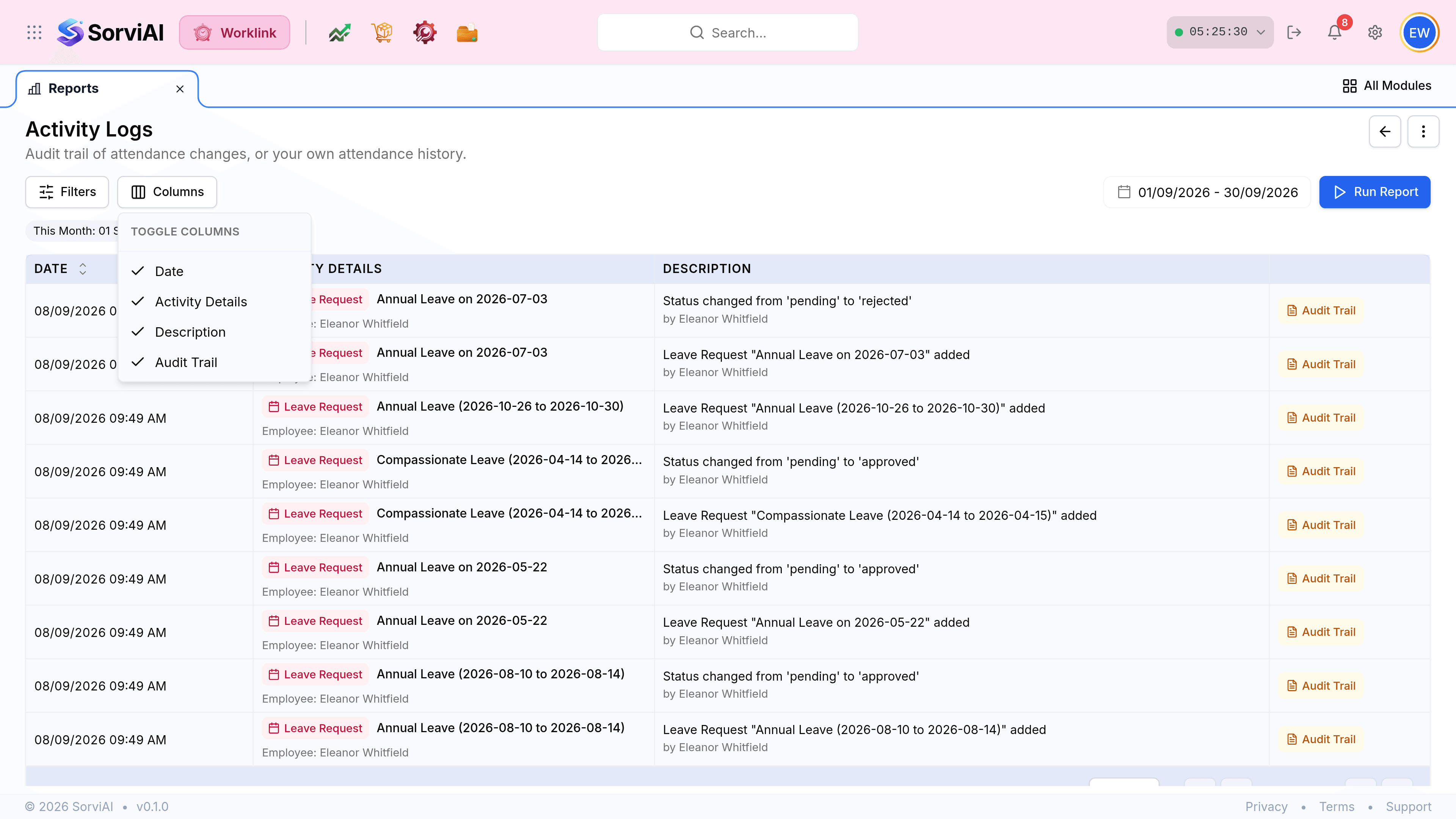
Choosing the columns first
Activity Logs carries a Columns control, so the file can be narrowed before it is produced rather than trimmed afterwards.
| Before exporting | Check |
|---|---|
| The date range | It is the single biggest cause of a file that does not match what somebody asked for. |
| The depot | An export scoped to one site is not the organisation, however it is labelled afterwards. |
| The filters | On Activity Logs, the chips show what is applied. On the rest, the toolbar does. |
| The columns | Only Activity Logs lets you choose them; the other reports export what they show. |
What the export is good for
- Payrollhours and overtime
- The Attendance report exported for a pay period, with approved overtime already separated out.
- An auditthe trail
- Activity Logs filtered to a date range and exported, which is the evidence of who changed what.
- A leave forecastunused entitlement
- The Leave report's remaining figure per department, taken into a spreadsheet to plan cover.