
Request a Correction
Raise a regularization when a day in your records is wrong, and pick the type that fits.
A regularization is how a wrong day gets fixed. You state what actually happened, your manager decides, and if they approve it Worklink rewrites the attendance record for you.
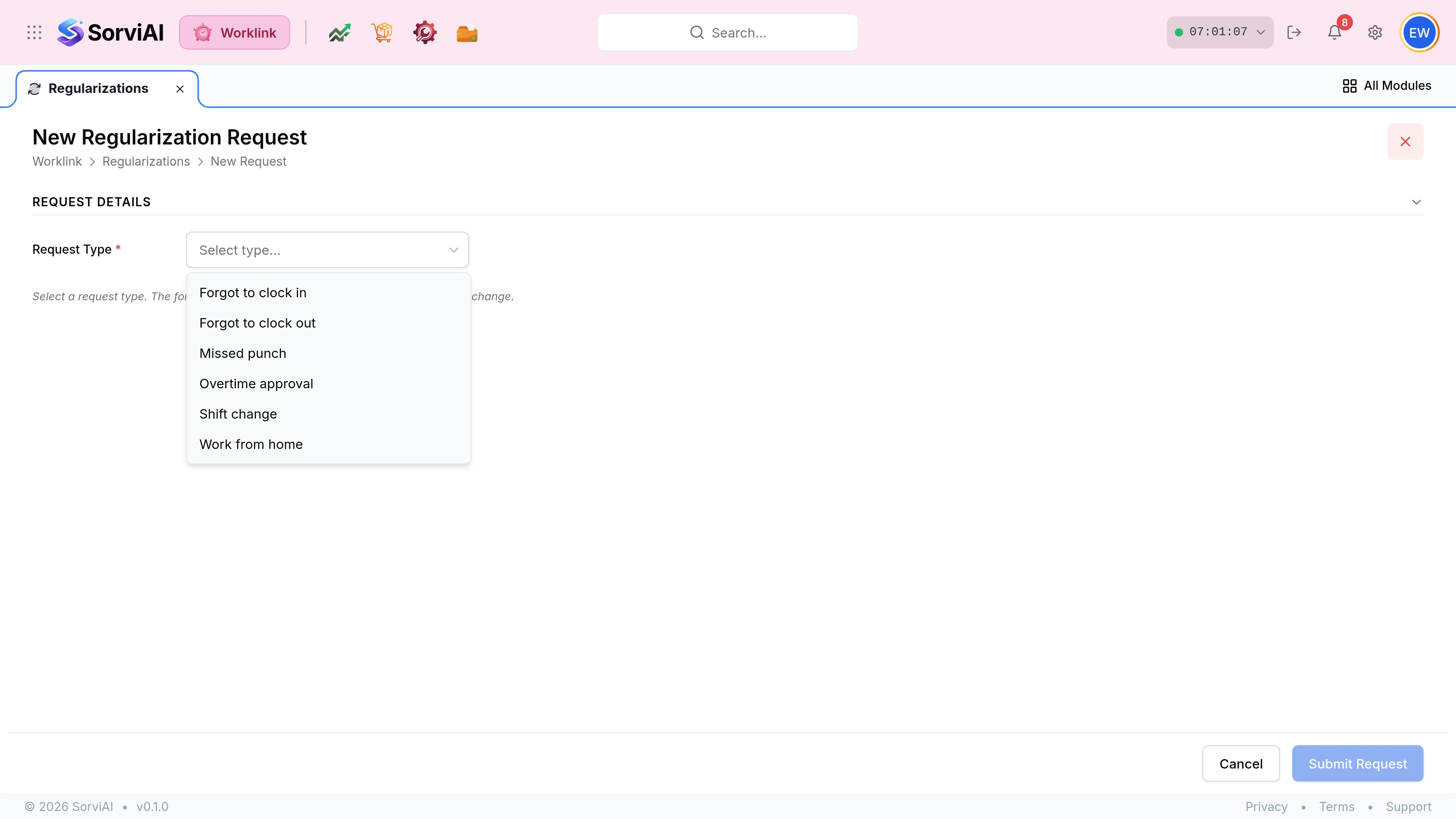
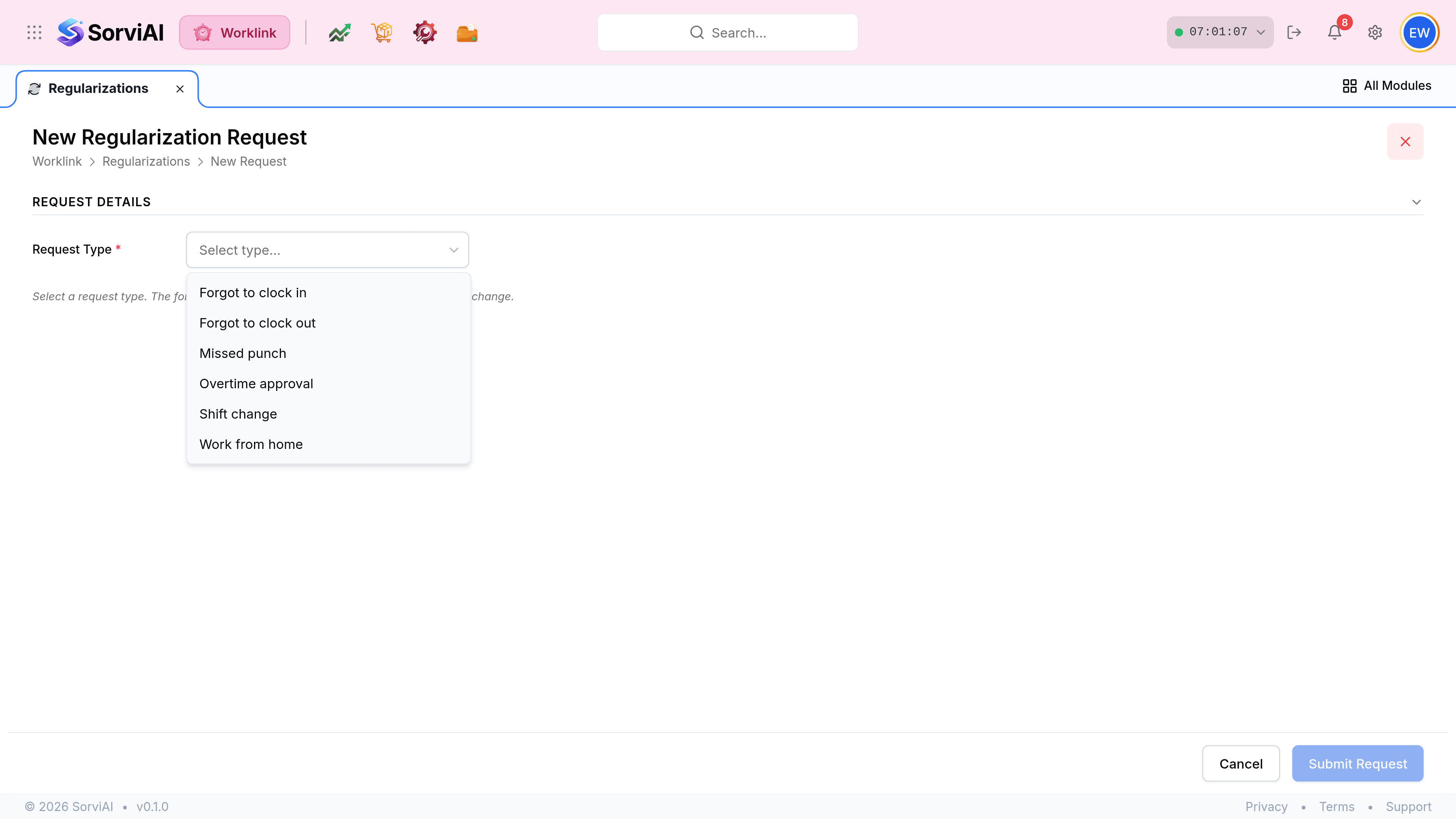
Open Regularizations and select New Request, then choose a Request Type. The form rebuilds itself around the type, so this is the first field for a reason.
Set the Date to the day that is wrong, then correct the time. Worklink prefills it from your shift, which is right often enough to be worth checking rather than retyping.
Write a Reason. It is required, and it is the only thing your manager has to go on.
Select Submit Request. It goes to whoever the organisation chart puts above you.
Which type to pick
| Type | Use it when | What it asks for |
|---|---|---|
| Forgot to clock in | You worked the day but never started the clock. | The time you actually arrived. |
| Forgot to clock out | The day is still open because you never stopped the clock. | The time you actually left. |
| Missed punch | Both ends are missing, or the record never appeared at all. | Both times. |
| Overtime approval | You worked beyond your scheduled hours and want it recognised. | The extra time, and why. |
| Shift change | You worked a different pattern from the one you are assigned. | The shift you actually worked. |
| Work from home | You worked, but not from a depot. | The date, and the reason. |