
Introduction - My Attendance
Your own working day in Worklink: the clock, the shift behind it, and the month so far.

My Attendance is the one screen in Worklink that is always about you. It opens on today, shows the clock running against the shift you are assigned to, and keeps the rest of the month in view beside it.
Everyone has this screen. It needs no permission, because it never shows anybody else's day.
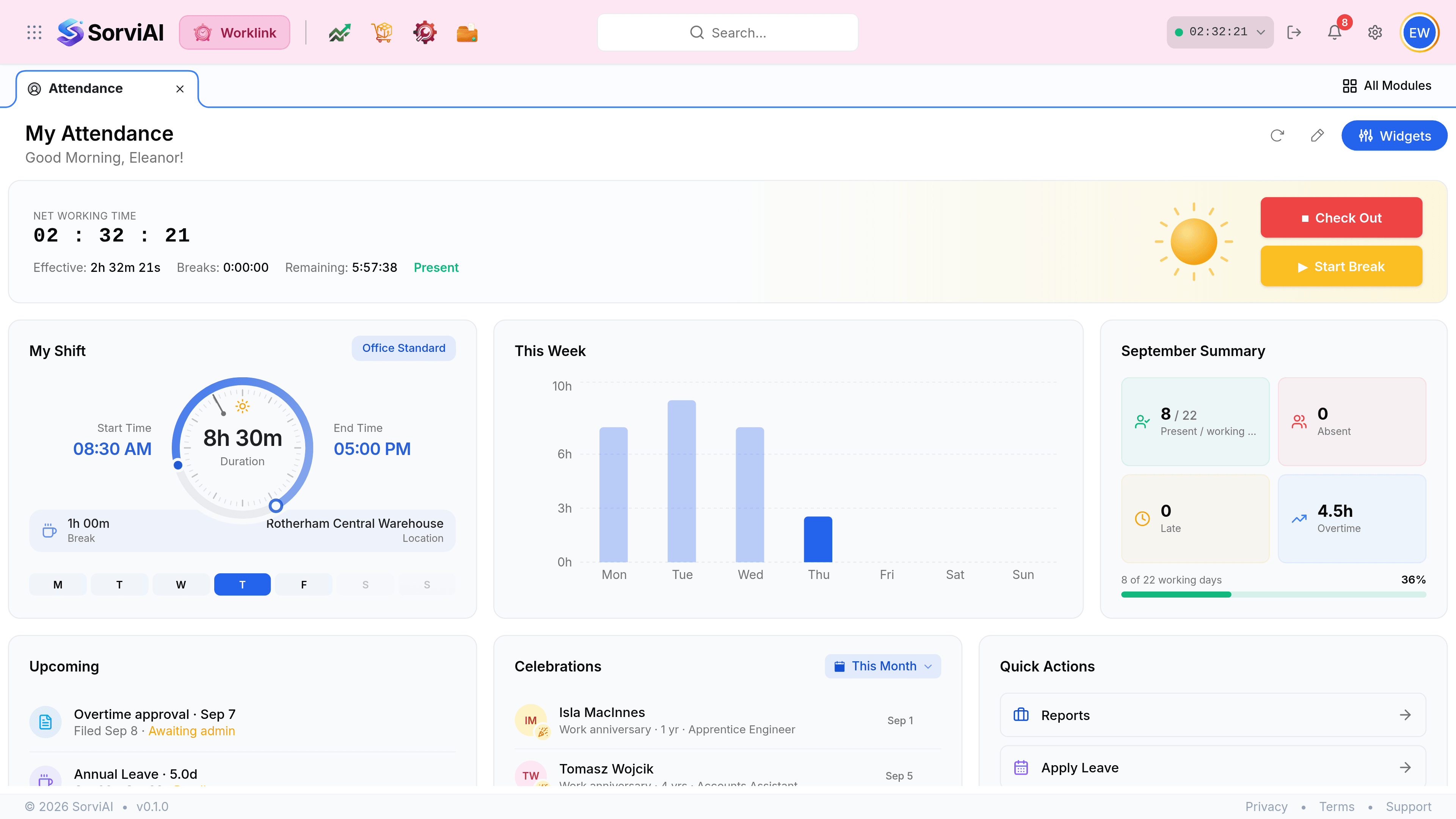
What the screen holds
The page is one live band and a grid of cards. The band is the only part that changes while you watch it.
- The timer bandtoday, live
- Net working time, what you have taken as breaks, what is left of the shift, and the button that starts or stops the clock.
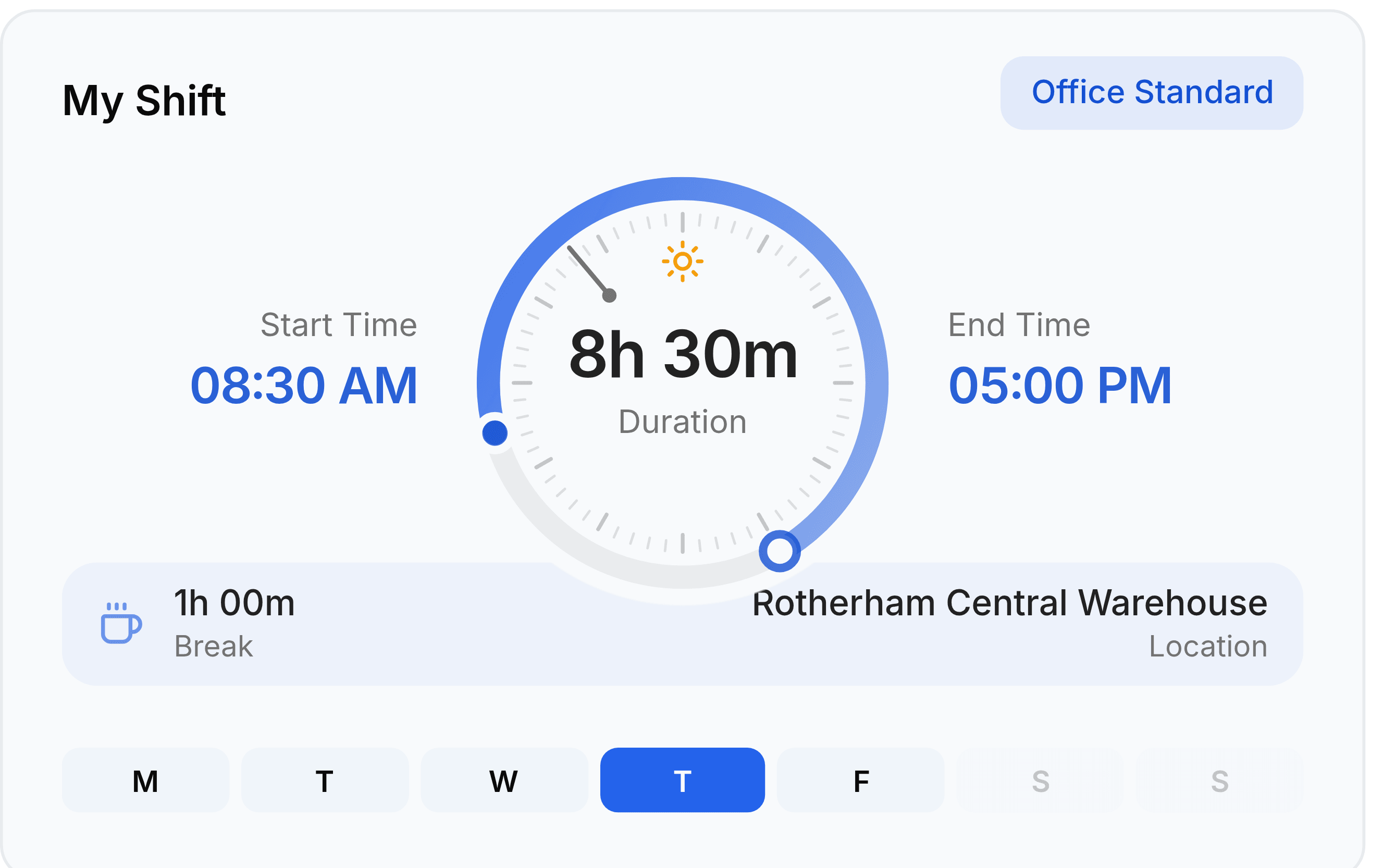
- My Shiftwhat you are measured against
- The shift you are on, its start and end, your scheduled hours, your break allowance and which days of the week you work.
- This Weekthe last seven days
- A bar per day of hours worked, so a short day stands out against the ones either side of it.
- Month summarythe running totals
- Days present out of working days, days absent, times late and overtime accrued, with the month's progress underneath.
Your shift is what makes a number mean anything
The clock on its own only counts. It is the shift that decides whether what it counted was early, late, complete or over.
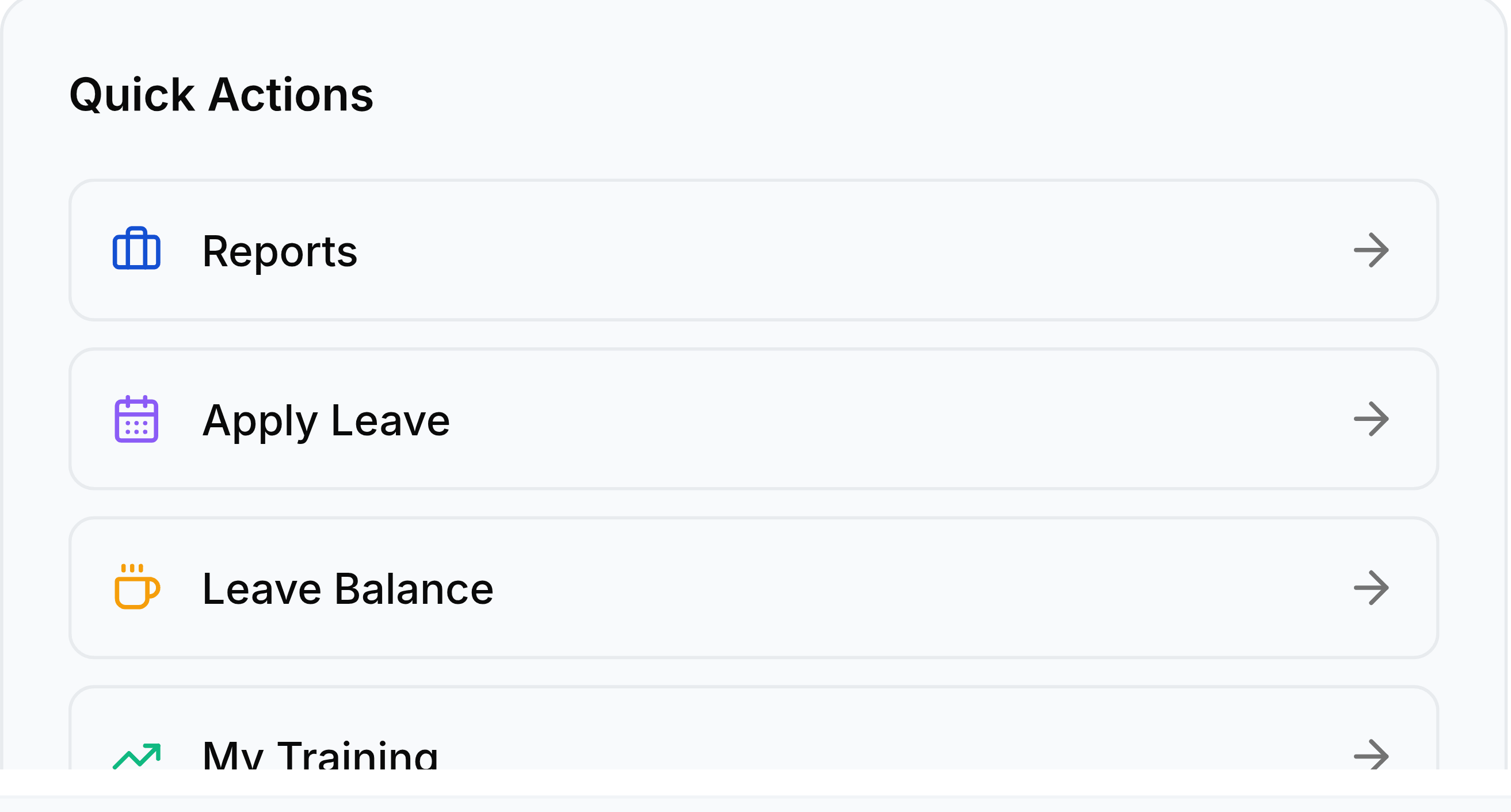
Where the rest of the page leads
The cards below the fold are shortcuts, not separate records. Each one opens something documented elsewhere in Self Service.
| Card | What it shows | Where it goes |
|---|---|---|
| Upcoming | Leave and holidays falling in the next thirty days. | Your own leave, in My Leaves. |
| Celebrations | Birthdays and work anniversaries across the organisation. | Nowhere; it is a read-only courtesy. |
| Announcements | Notices published to everyone, newest first. | The full notice, expanded in place. |
| Quick Actions | Reports, Apply Leave, Leave Balance and My Training. | The four screens people reach for most. |