
Publish an Announcement
Write a notice, choose who sees it and when, and take it down afterwards.
Last reviewed
Writing and publishing are separate steps, which is what makes it safe to draft a notice in advance and date it for the morning it matters.
Select New Announcement.
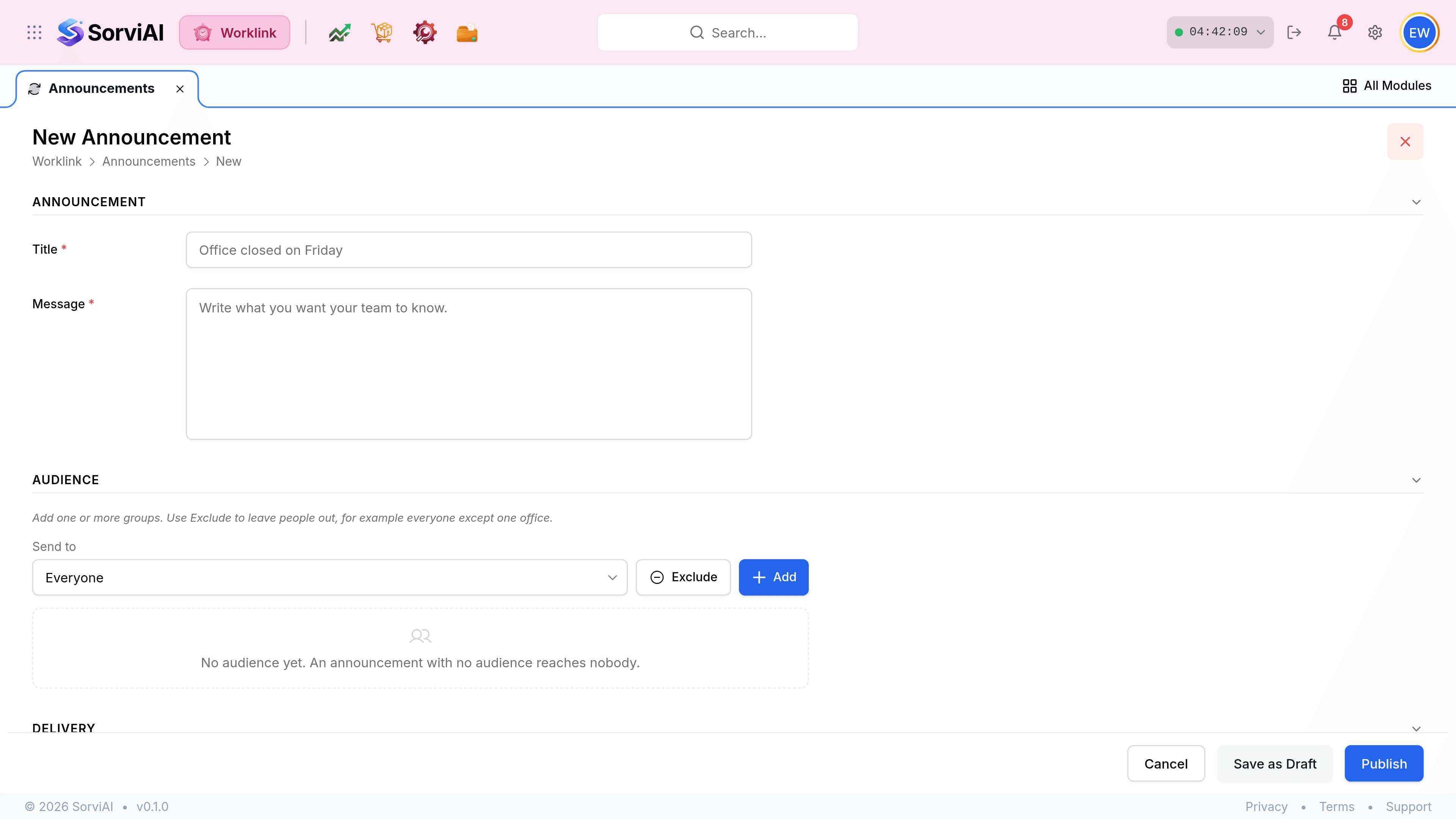
Write the Title. It is the line people read on their overview, so make it the message rather than a heading.
Write the Message, then build the Audience: choose a group in Send to and select Add. Everyone is offered first, but nothing is targeted until you add it.
Leave Schedule for later empty to send it the moment you publish, or set a date and time to have it publish itself.
Select Publish, or Save as Draft if it is not agreed yet.
Excluding people from an audience
Exclude adds a subtracting rule rather than a targeting one, which is how you say "everyone except one office". An audience made only of exclusions is refused, because there is nothing for them to subtract from.
Publish now, draft, or schedule
| Choose | When | What happens |
|---|---|---|
| Publish | The notice is needed today. | It appears on the targeted people's overview immediately, and each of them gets a bell notification. |
| Save as Draft | It is written but not agreed, or the date is not fixed. | Nobody outside this screen sees it, and no schedule is set. |
| Schedule for later | It is finished and belongs to a specific morning. | It publishes itself at that date and time, with nobody pressing anything. |
Taking one down
An announcement that has served its purpose does not need deleting. Use the row's actions to unpublish or remove it from the overview, and the record stays in the list as history of what was announced and when.