
Change an Employee's Shift
Move one person onto a different pattern, correct a wrong start date, or end an assignment.
Two routes exist and they do different things. Editing the assignment corrects its dates; assigning the new shift moves the person. Removing it is neither, and is almost never what you want.
Locate the person on the roster, then open the overflow menu on their row.
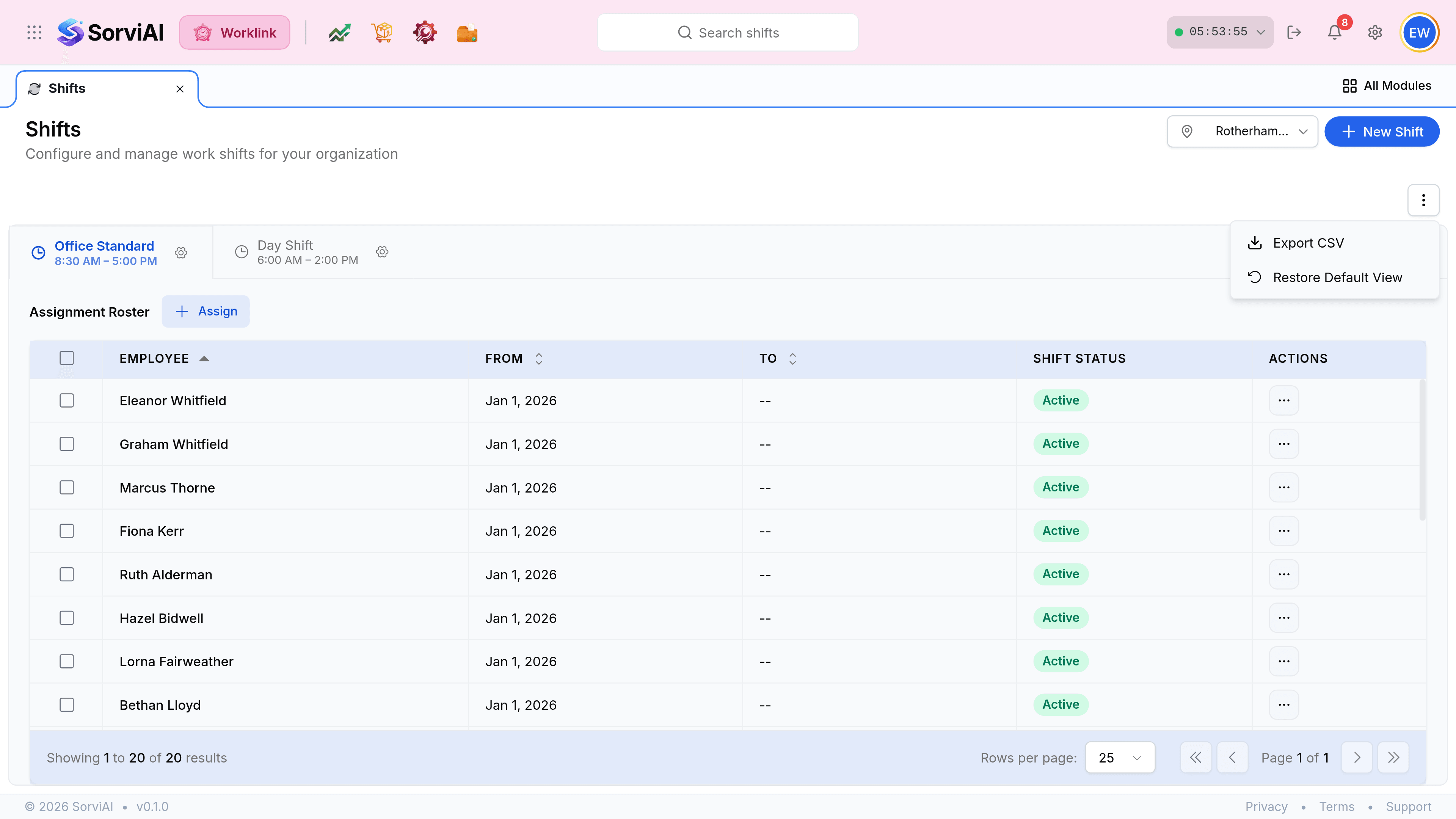
Choose Edit Assignment to change the From or To dates on the pattern they are already on.
To move them to a different pattern instead, go to that shift's tab and assign them there from the change date. Their old assignment closes automatically.
Which one you want
Assign the new shift
a real rota change
- YesDays before the change keep the old pattern.
- YesDays after it are judged by the new one.
- YesThe old assignment closes on its own.
Remove Assignment
almost never
- NoDeletes the assignment rather than ending it.
- NoDays it covered lose the pattern they were judged against.
- YesRight only for an assignment created by mistake and never worked.
Correcting a wrong start date
If somebody was assigned from the wrong day, Edit Assignment and change From. Every attendance day between the two dates is re-evaluated against the corrected pattern, so a run of wrongly-flagged late days can be fixed in one edit.