Export Attendance Records
Take a filtered slice of attendance out of Worklink as a CSV or an Excel file.
The export is a three-step flow of its own rather than a button on the list. It narrows the records, lets you choose the columns, shows you real rows in the format they will land in, and only then builds the file.
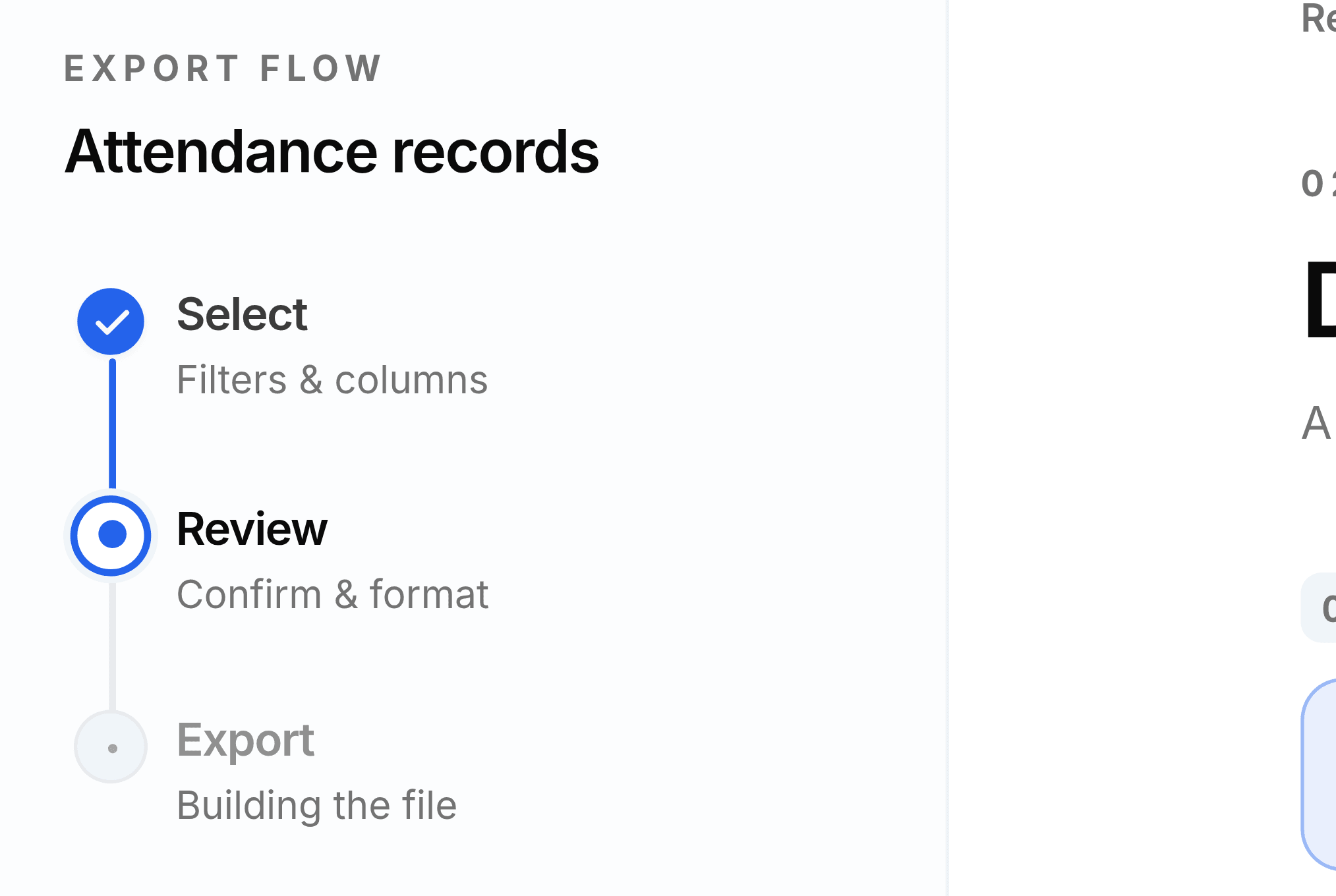
Step one: choose the records and the columns
Set the Date range, either from the chips or by typing a start and an end.
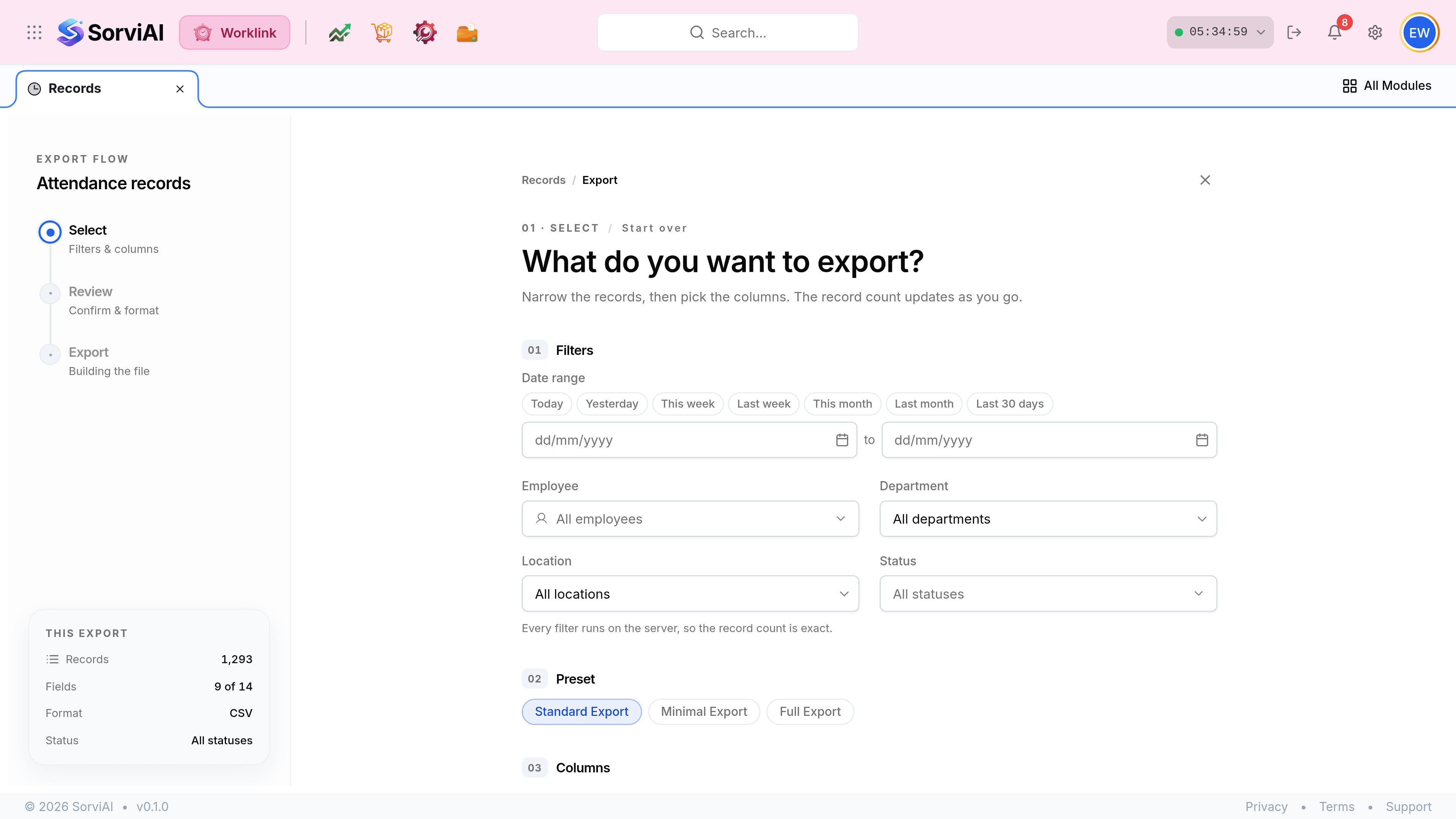
Narrow by Employee, Department, Location or Status. Unlike the records list, Location is a filter here and defaults to all sites.

Pick a Preset. Standard is nine of the fourteen fields, Minimal is the bare identifying set and Full is everything.
Adjust individual Columns if a preset is close but not right. The fields are grouped, and each group carries its own count.
Step two: check the format and the sample
Choose CSV or Excel. PDF is marked Soon and cannot be selected yet.
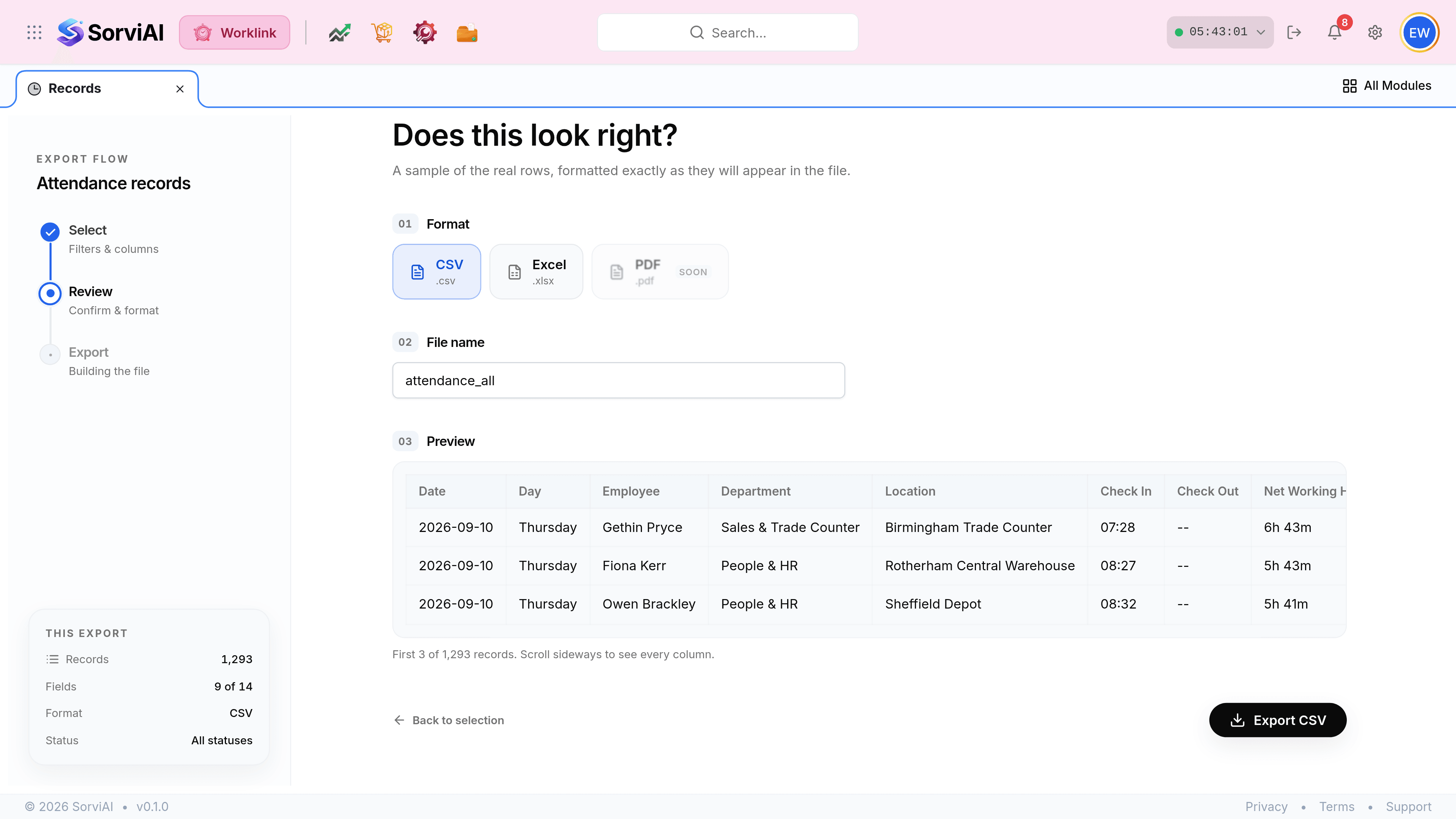
Change the File name if the default does not say enough. It arrives as typed.
Read the Preview. These are three of your real rows, formatted exactly as the file will hold them, so a column that reads oddly here has already gone wrong.
Select Export CSV, or Back to selection if the sample shows something you did not intend.
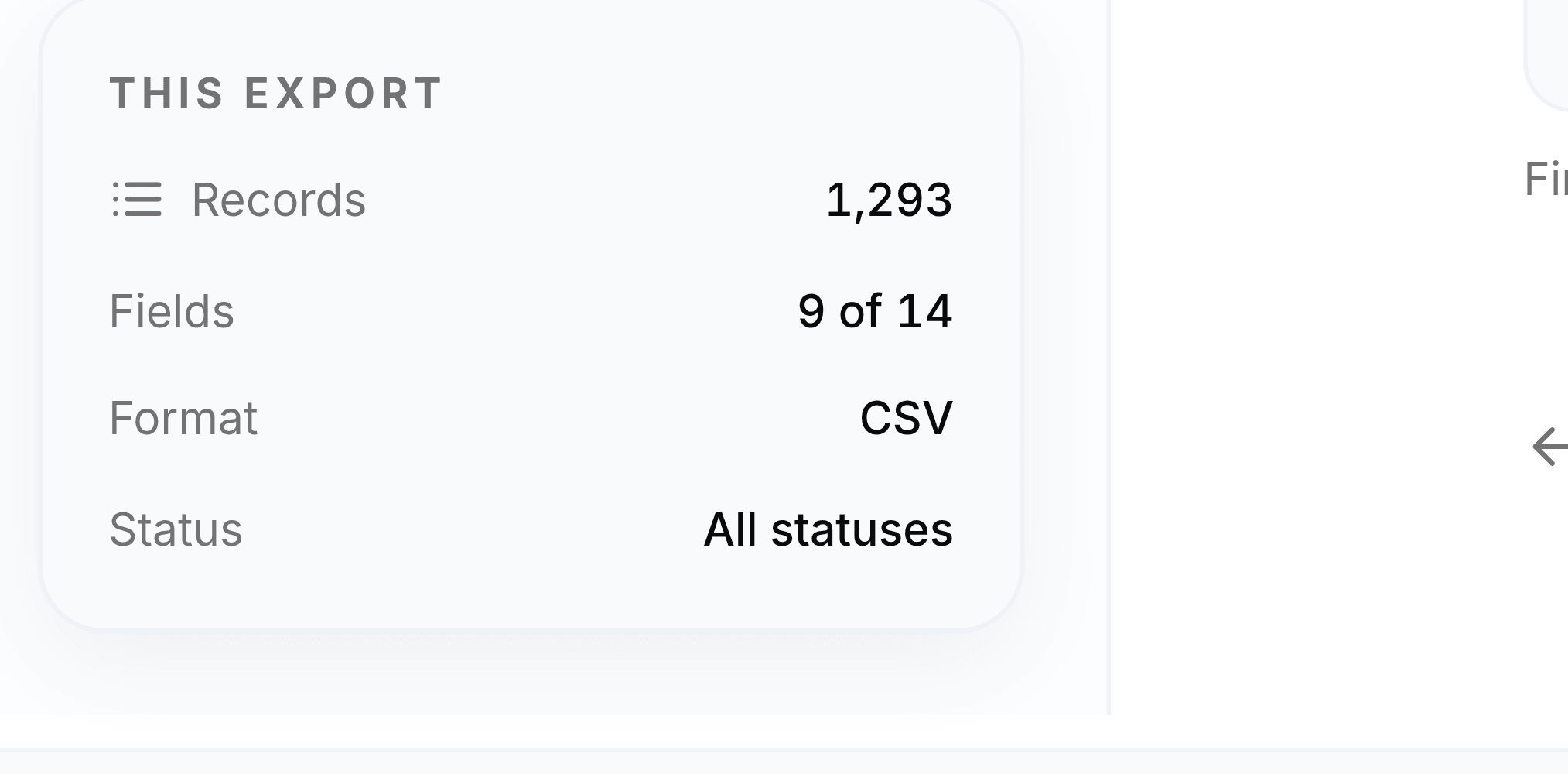
The summary card