
Create a Shift
Define the hours, the break, the working week and the dates a pattern applies between.
Three fields are required and the rest have sensible defaults. The two toggles are what turn a nine-to-five into a real rota.
Select New Shift on the Shifts screen.
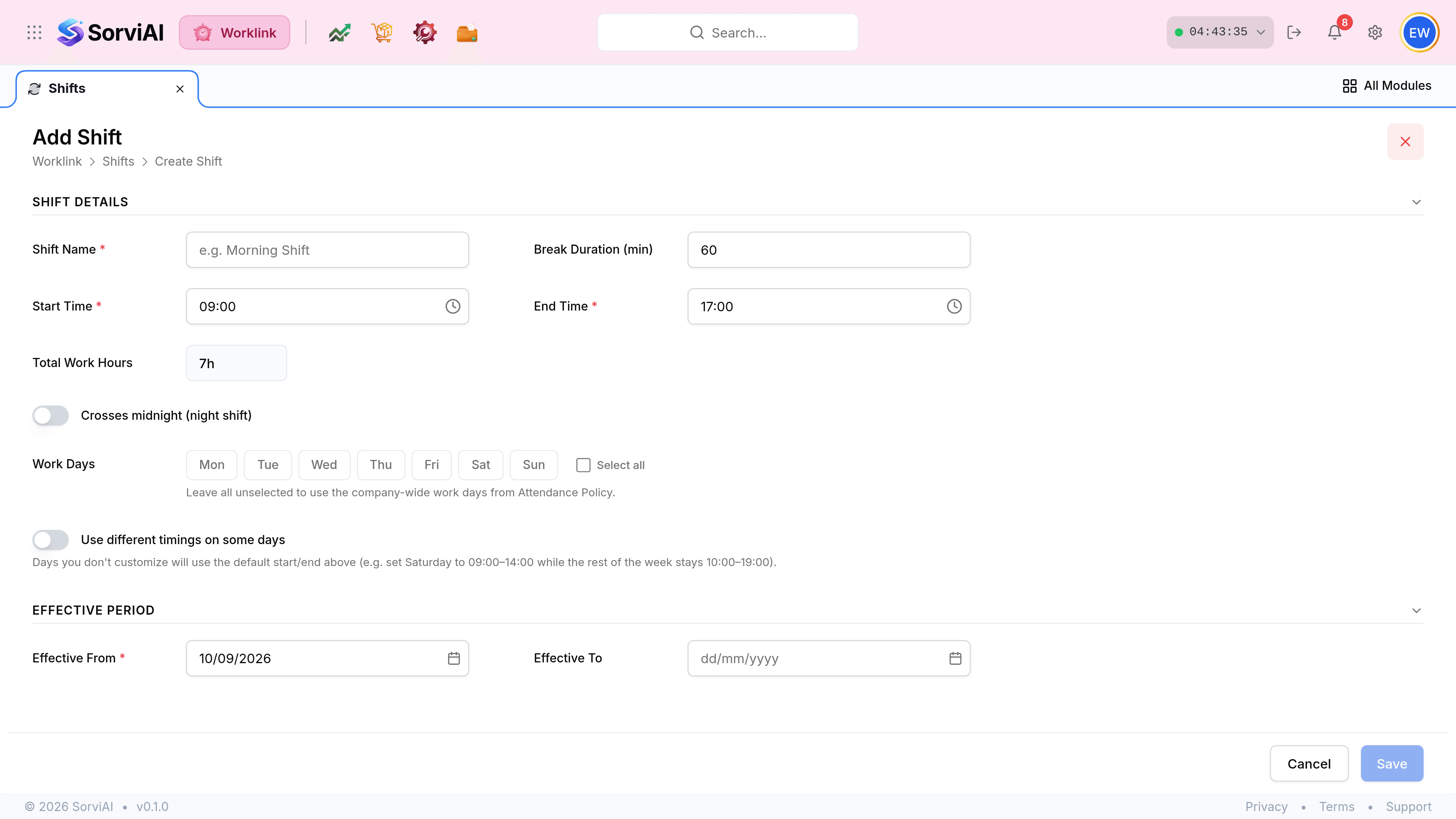
Name the shift, then set Start Time and End Time. Total Work Hours fills itself in from those two less the break, and cannot be typed into.
Set the Break Duration in minutes. It is subtracted from every day on this pattern, which is why nine to five with an hour's break shows as seven hours.
Turn on Crosses midnight for a night shift, so an end time earlier than the start time is read as the next morning rather than as an error.
Choose the Work Days, or leave them all unselected to inherit the company-wide pattern from the Attendance Policy.
Set Effective From, and Effective To only if the pattern is temporary. Then Save.
The two toggles
- Crosses midnightnight shift
- Tells Worklink the end time belongs to the following day. Without it, a 22:00 to 06:00 pattern reads as a negative span.
- Use different timings on some daysper-day overrides
- Lets one or two days differ while the rest keep the defaults above, such as a short Saturday against a standard week.