
Work Locations
Add an office, give it a timezone, and let its work week and hours flow through to everybody assigned to it.
Work locations come first in a new tenant, because so much else resolves against them. An office carries the timezone attendance is counted in, the work week its people follow, and the scope a holiday or a leave policy can be limited to.
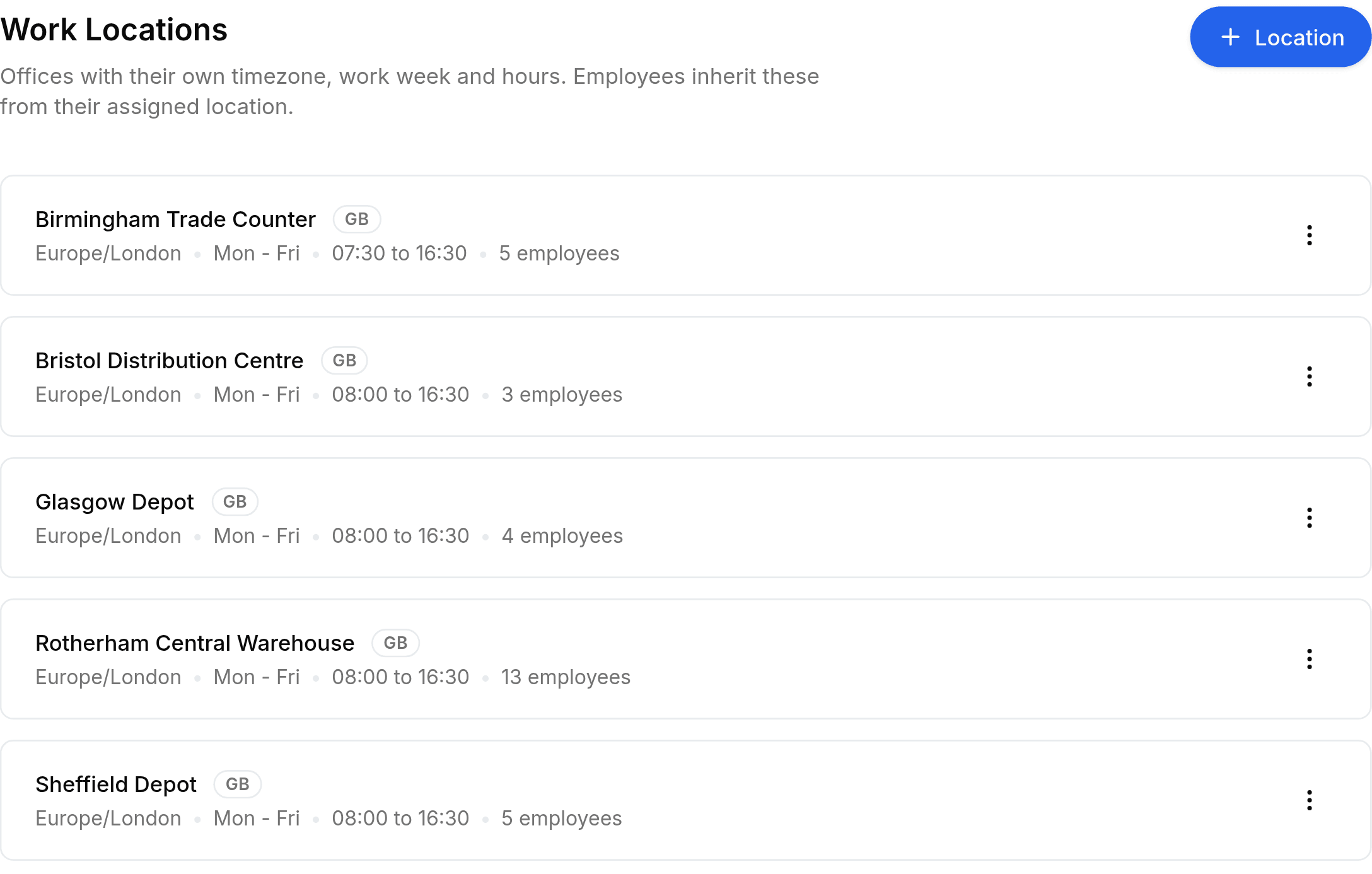
Add an office
Go to Worklink Settings > Work Locations, then select + Location at the top right.
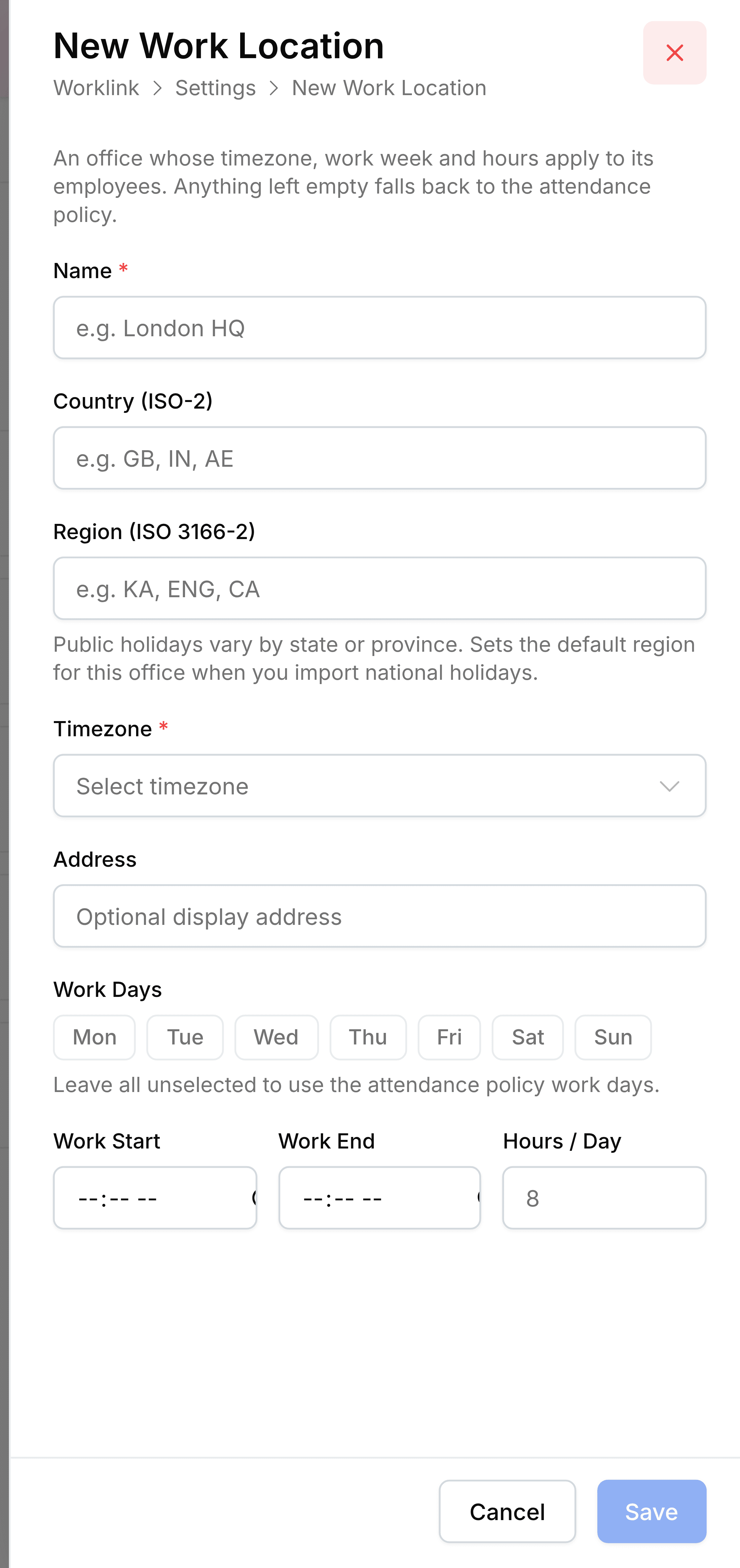
Enter the Name, such as
Sheffield Depot, and set the Timezone. Those two are required.Enter the Country as a two-letter code, and a Region where the country's holidays differ by region.
Add an Address if it helps people recognise the site. It is display text and nothing resolves against it.
Choose the Work Days, and set Work Start, Work End and Hours / Day where this office differs from the rest.
Select Save.
Empty means inherit
Every field below the timezone is optional, and leaving one empty is a decision rather than an omission: the office falls back to the attendance policy for that value. Leave the work days unselected and the office follows the policy's working week.
| Field | What it does |
|---|---|
| Name | What the office is called throughout Worklink. Required. |
| Timezone | The zone attendance is counted in for everybody assigned here. Required, and the reason this screen matters. |
| Country | A two-letter code such as GB, IN or AE. The national holiday import builds its list from it. |
| Region | An ISO 3166-2 subdivision, for countries whose holidays differ by region. |
| Address | Optional display text. |
| Work Days | This office's working week. Leave every day unselected to use the attendance policy's. |
| Work Start, Work End, Hours / Day | This office's standard day, where it differs from the policy default. |
Why the timezone matters more than the rest
An employee's zone resolves through their personal override first, then their work location, then the organisation profile, and only then UTC. In practice the work location decides it for almost everybody, and an office without one leaves attendance counted in UTC, shifting every recorded time away from the local working day.