
Skip to the article

Assign Employees to a Department

Add people to a department, and choose whether it becomes their home one.

Assigning is done from the department, not from the person, and it takes as many people at once as you like. The one decision that matters is whether they are joining it or moving to it.
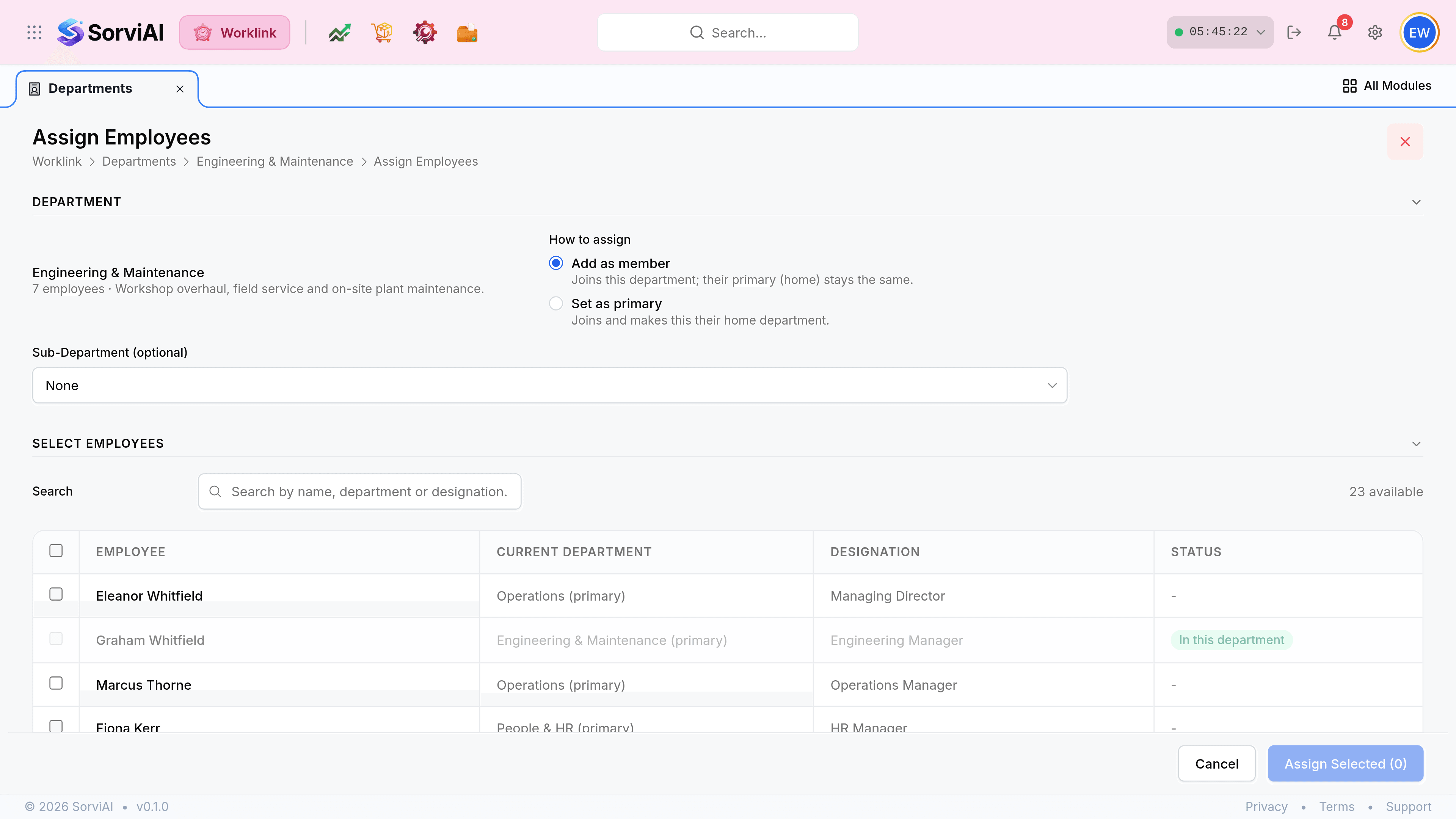
The Assign Employees screen for Engineering and Maintenance, with the breadcrumb Worklink, Departments, Engineering and Maintenance, Assign Employees. A Department section names the department and its seven employees beside a How to assign control offering Add as member or Set as primary. A Sub-Department dropdown reads None. A Select Employees section holds a search box, the text 23 available, and a table of employees with their current departments and designations. Cancel and Assign Selected buttons sit at the foot.
One screen, three decisions: how, which team, and who.
  1. Open the department from the list and select Assign.

    The head of a department page. Engineering and Maintenance with a green Active chip, the description Workshop overhaul, field service and on-site plant maintenance, and a line reading Code ENG, Mail Alias eng@ironvale.co.uk, Department Head Graham Whitfield. At the right, 7 employees beside a blue Assign button, an Edit button and a red Delete button.
  2. Choose How to assign. This is the whole decision, and the two options do genuinely different things.
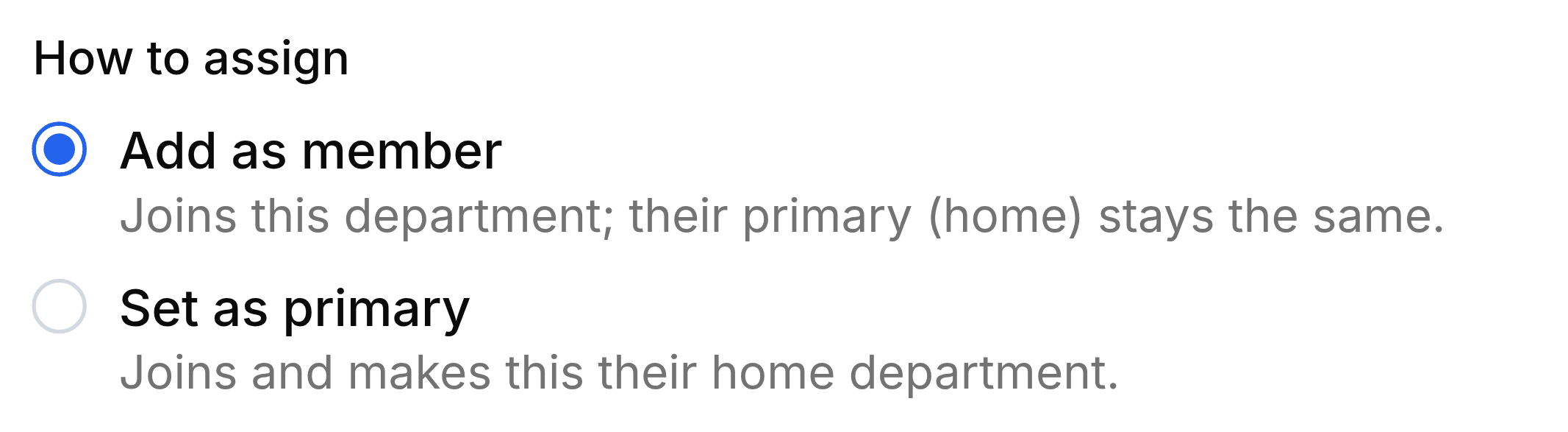
    The How to assign control on the Assign Employees form. Two radio options: Add as member, selected, with the note Joins this department; their primary (home) stays the same. Below it, Set as primary with the note Joins and makes this their home department.
  3. Pick a Sub-Department if the people are joining a specific team. It is optional, and defaults to None.

  4. Tick the people. Anybody already in the department is greyed out and marked In this department, so you cannot add them twice.

    The Select Employees table on the Assign Employees form. Columns read Employee, Current Department, Designation and Status. Eleanor Whitfield is in Operations (primary) as Managing Director. Graham Whitfield's row is greyed out with a disabled checkbox and a green In this department chip. Marcus Thorne, Fiona Kerr, Ruth Alderman and Hazel Bidwell follow with their own primary departments.
  5. Select Assign Selected. The button carries the count, so you can check it before committing.

Member or primary

Add as member

they join

  • YesThey appear in this department's list and filters.
  • YesTheir home department is untouched.
  • YesRight for somebody who works across two teams.
  • NoReports still count them under their primary.

Set as primary

they move

  • YesThis becomes their home department.
  • YesReports and listings count them here from now on.
  • YesRight for a transfer.
  • NoTheir previous primary stops counting them.

Removing somebody

The member table on a department page, headed All Engineering and Maintenance Employees with a count of 7. Columns read Photo, Employee ID, Name, Sub Department, Designation, Location and Status. Graham Whitfield is marked (Head), and rows show people at Rotherham Central Warehouse, Glasgow Depot, Bristol Distribution Centre, Birmingham Trade Counter and Sheffield Depot, with Confirmed, Notice Period and Apprenticeship statuses. Each row ends in a bin icon.
The bin at the end of a row removes somebody from this department, not from Worklink.

Was this document helpful?