
Find Who Is In
Search, filter and switch view so the screen answers the question you actually have.
On a team of a dozen the default grid is enough. Past that, the three view modes and four filters are what turn a wall of tiles into an answer.
Search for one person

Switch the view to fit the question

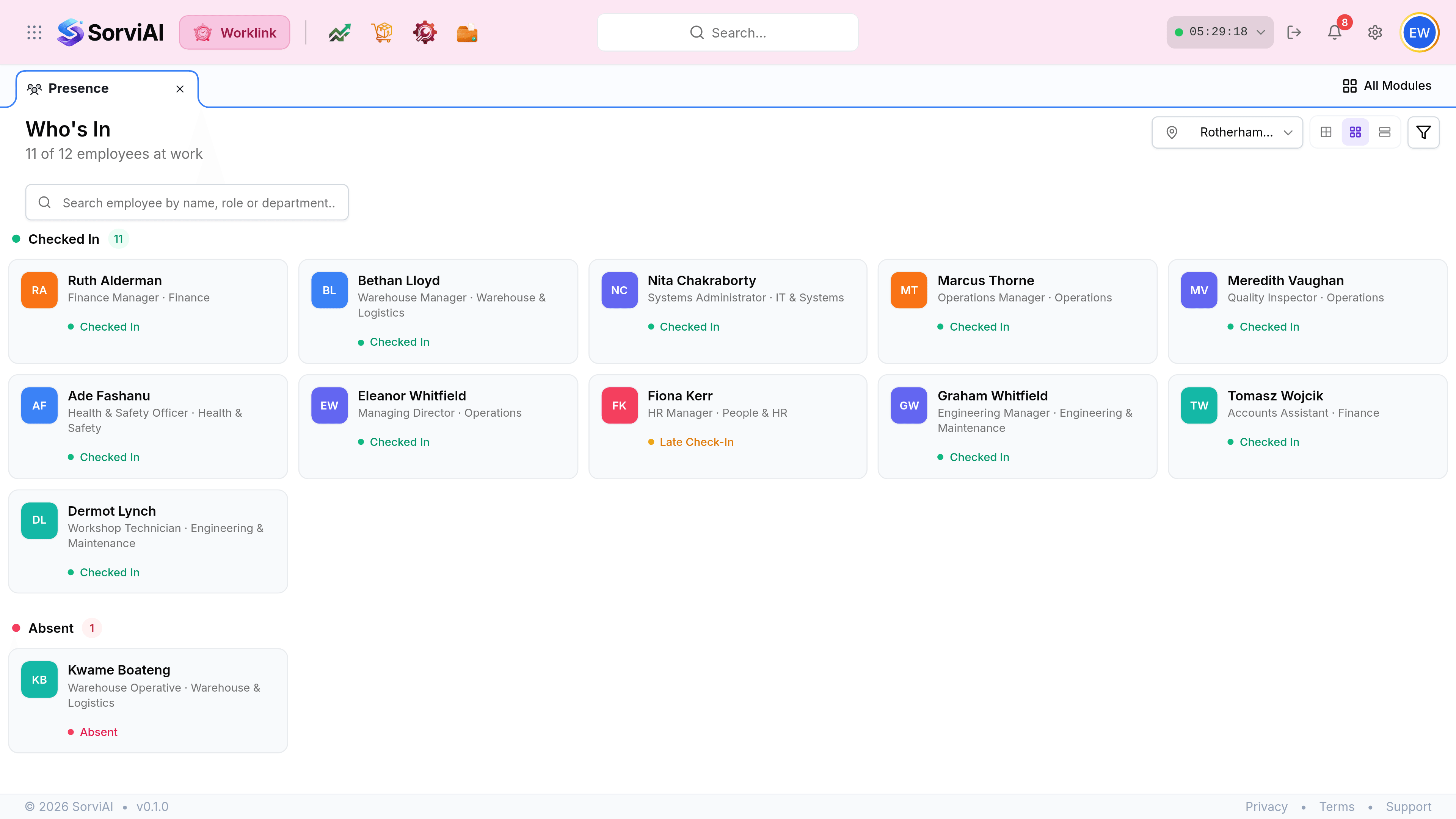
Select the middle button for Compact view. It groups everybody by state and puts a count beside each heading, which is the fastest read of who is in.
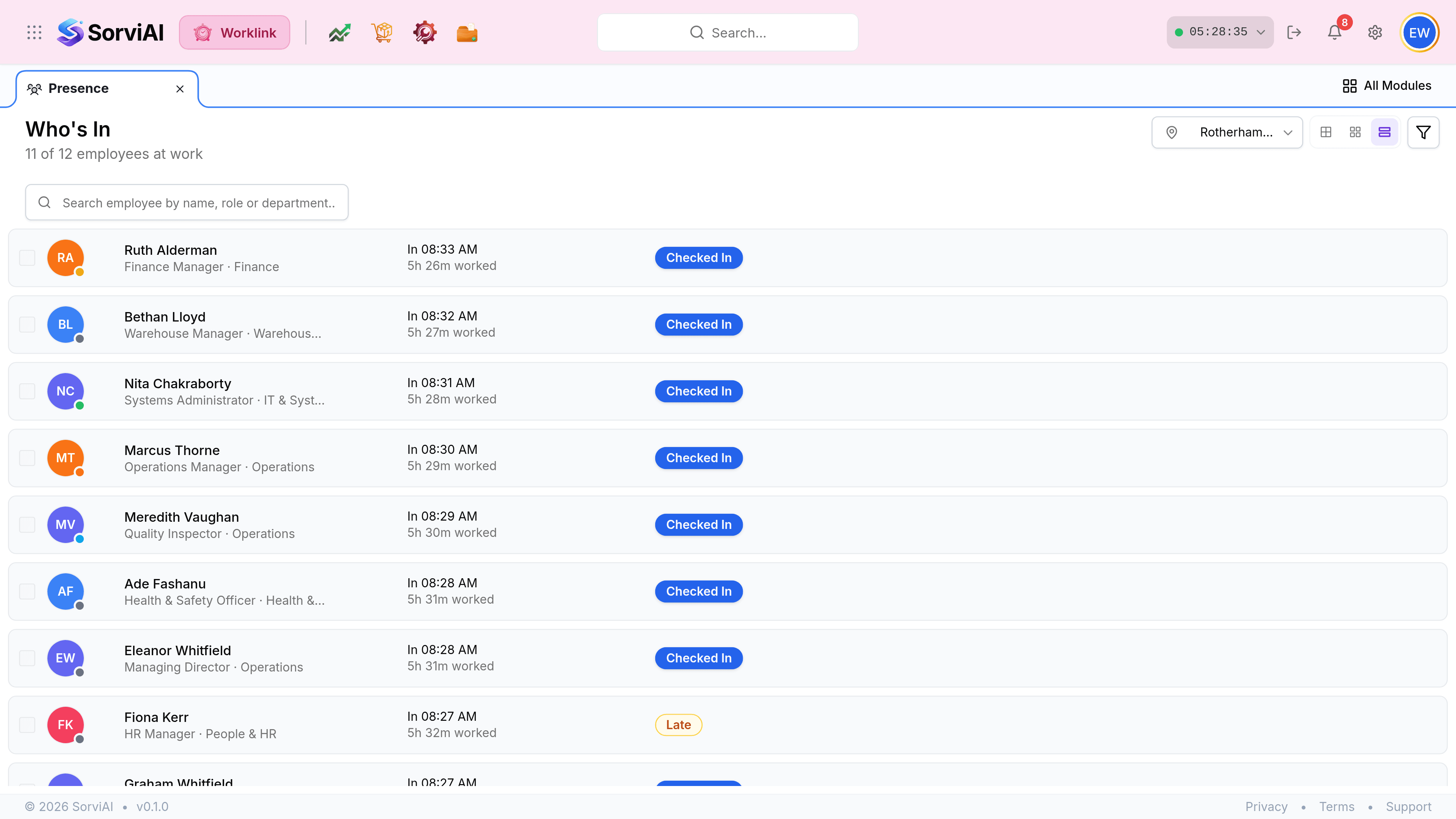
Select the right-hand button for List view, which adds the times and the hours worked so far. It is the one to use when you need numbers rather than names.
| View | Shows | Best for |
|---|---|---|
| Grid | Large tiles, one per person, ungrouped. | A small team you recognise by face. |
| Compact | Cards grouped by state, with a count per group. | Answering who is in, fastest. |
| List | Rows with check-in time and hours worked. | Checking how long somebody has been here. |
Narrow with the filters
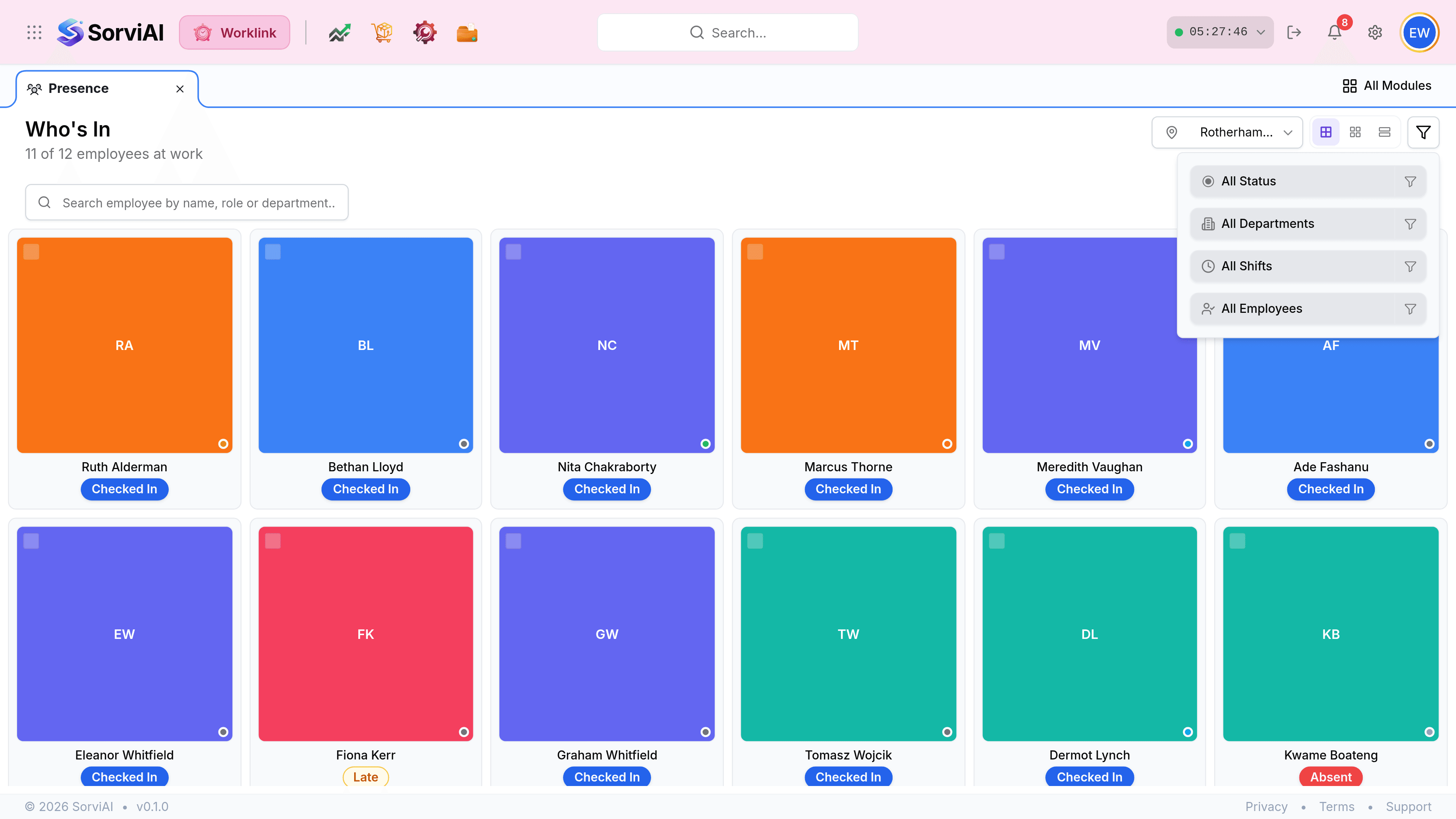
- All Statusthe seven states
- Narrow to just the absent, just the late, just those yet to arrive.
- All Departmentsby team
- The same grouping every other Worklink screen filters on.
- All Shiftsby pattern
- Only here. It answers whether the back shift turned up, which no other filter can.
- All Employeesby person
- Pin the screen to specific people.
Nudging somebody
Where an employee is flagged, because they are late without a correction filed, over their break, or expected and not arrived, the screen offers to notify them. The tick boxes on the rows are how you pick several at once.