
Correct a Record
The two routes to changing an attendance day, and why neither of them is editing the row.
Nothing on this table can be typed over, and the omission is deliberate. An attendance record is evidence, so every change to one carries either an approval or an import behind it.
Two routes exist. Which one you want depends on whether you are fixing one day or a month of them.
Approve a regularization
one day, one person
- YesThe employee states what happened and why.
- YesThe approval is recorded against the change.
- YesWorklink rewrites the record for you.
- NoNeeds the employee to raise it first.
Bulk upload
many days, many people
- YesCorrects a whole period in one pass.
- YesUseful after a terminal outage or a migration.
- NoNo per-row reason and no approval trail.
- NoAdministrator or manager only.
The normal route: approve the regularization
Almost every correction should arrive this way, because it comes with a reason attached and leaves a record of who agreed to it.
Ask the employee to raise a regularization against the day. They pick the type, give the real time and write a reason.
Open Regularizations and read the request beside the record it names.
Approve it. Worklink writes the corrected times into the attendance record, and the row on this screen changes to match.
The bulk route: upload a corrected period
Select the three-dot button above the table and choose Bulk Upload. The item only appears for administrators and managers.
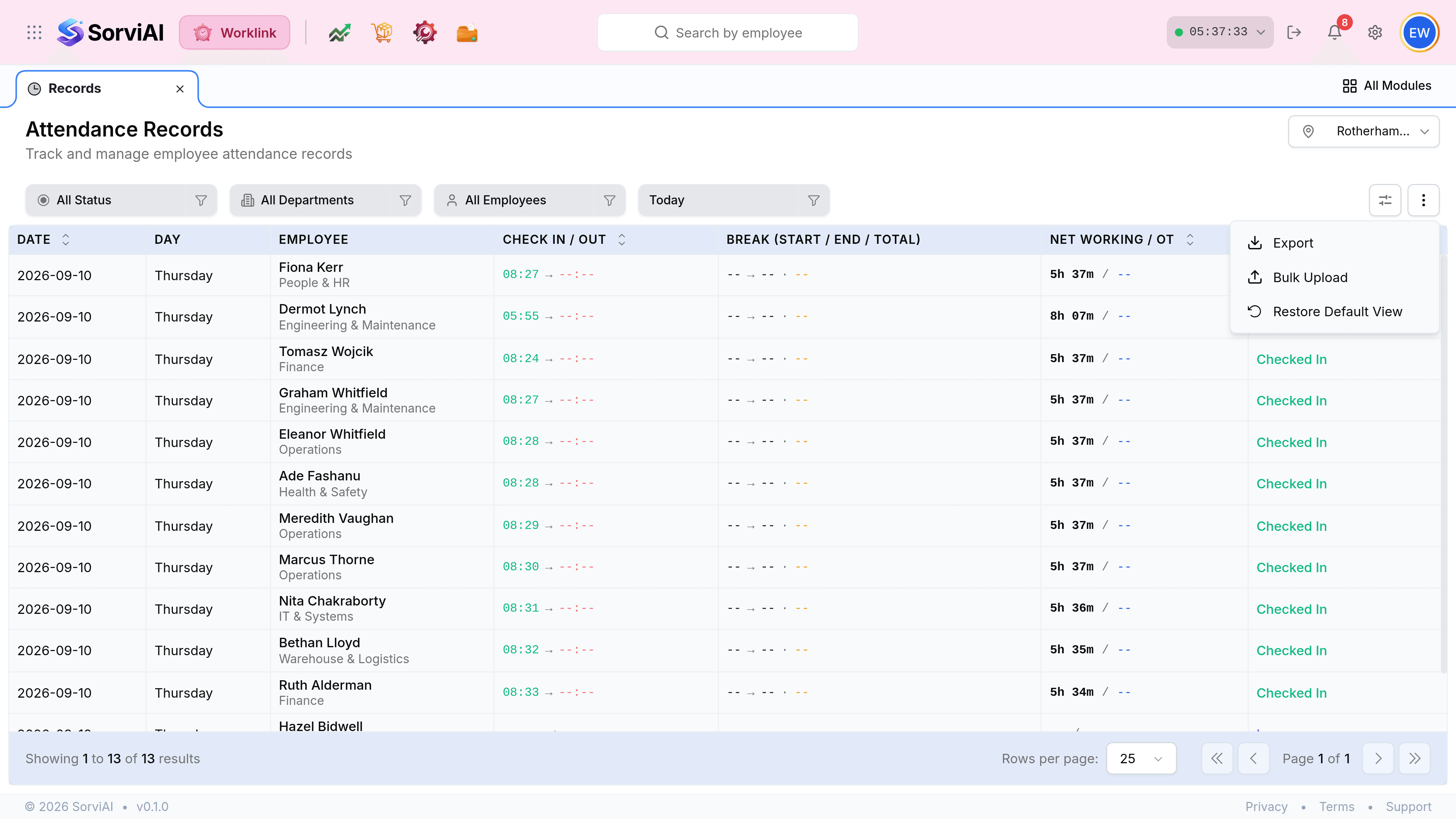
Export the period first, so the file you upload has the columns Worklink expects. Export sits directly above Bulk Upload in the same menu for that reason.
Correct the rows in the exported file, then upload it.