
Skip to the article

Introduction - Employees

The record everything else in Worklink hangs off, and how it differs from a login.
A tour of Employees: the roster, the four filters over it, and what a row actually points at.

An employee record is the anchor for everything Worklink does. Attendance rows point at it, leave balances belong to it, shifts are assigned to it and training is issued against it. Delete one and you would be deleting the history, which is why nothing here deletes.
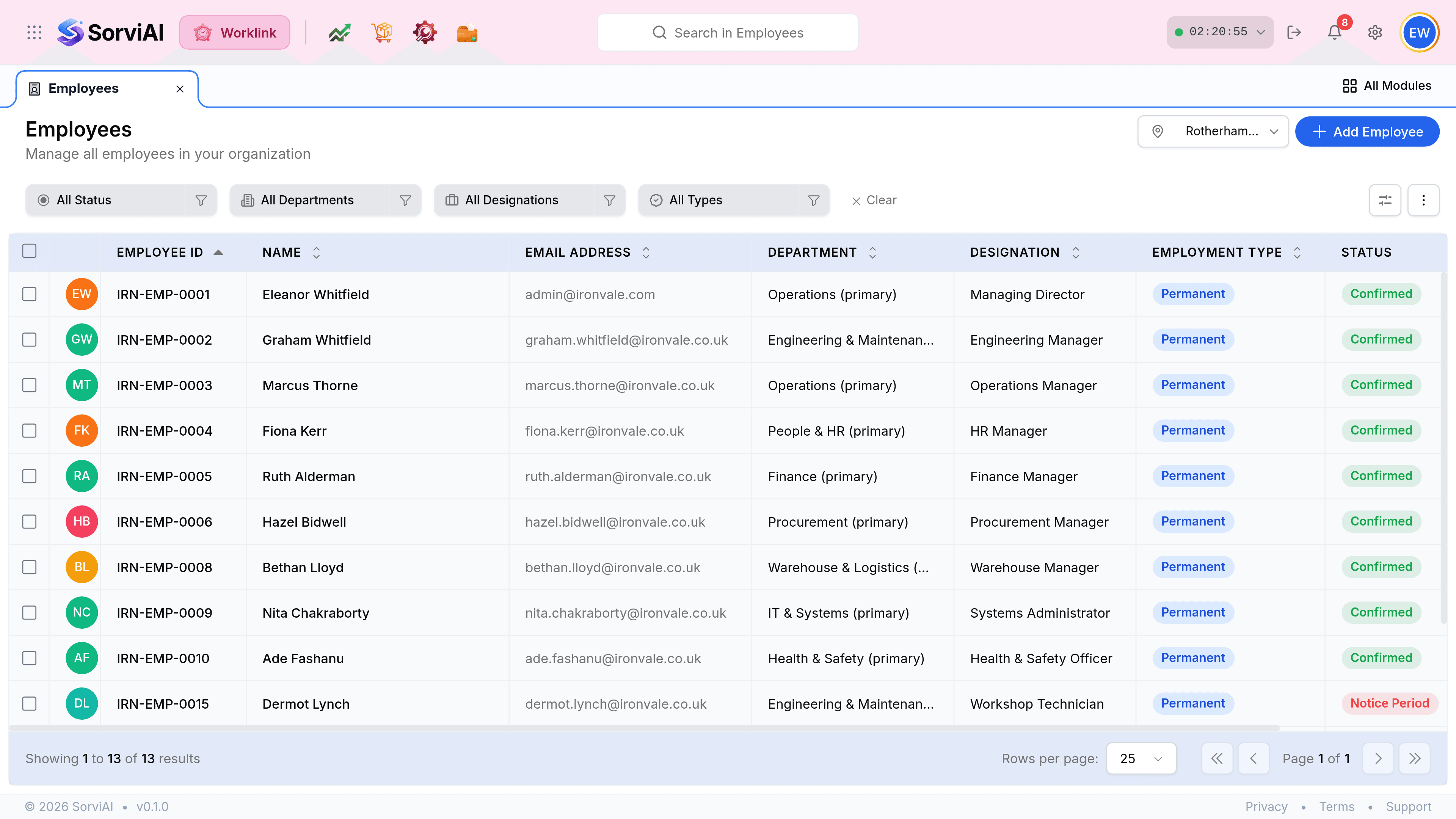

The Employees screen, headed Employees above the line Manage all employees in your organization, with a Central Warehouse location picker and a blue Add Employee button at the top right. Filter chips read All Status, All Departments, All Designations and All Types, followed by a Clear link. The table has columns Employee ID, Name, Email Address, Department, Designation, Employment Type and Status, and lists thirteen people with Permanent type chips and Confirmed or Notice Period status chips.
Thirteen people at one depot. Employee ID sorts ascending by default, so the roster reads in joining order.
The top right of the Employees screen: a location picker showing a pin icon and the word Rotherham, beside a blue Add Employee button with a plus sign.
The picker scopes the roster to one depot; Add Employee is the only way onto it.

An employee is not a user

The two usually describe the same person and they are separate records. Understanding the split explains most of the surprises in this module.

The employee record

who works here

  • YesHolds the contract, the department, the designation and the history.
  • YesExists whether or not the person can sign in.
  • YesCarries its own name and email, which is what documents print.

The user account

who can sign in

  • YesAn email and a password, with a role attached.
  • YesDecides what the person can see and do.
  • NoNot needed for somebody who never opens Worklink.

Narrowing the roster

The filter row on the Employees screen: four chips reading All Status, All Departments, All Designations and All Types, each with a funnel icon, followed by a Clear link with a cross.
Four chips and a Clear. They combine, so one department in one status is two presses and a reset is one.
Five rows of the Employees table. Eleanor Whitfield is IRN-EMP-0001, Managing Director in Operations (primary). Graham Whitfield is Engineering Manager in Engineering and Maintenance. Marcus Thorne is Operations Manager, Fiona Kerr is HR Manager in People and HR, and Ruth Alderman is Finance Manager in Finance. Every row carries a blue Permanent chip and a green Confirmed chip.
Note the (primary) after each department: it marks the home one, and somebody can be in more than one.
Columns on the Employees list
FieldWhat it does
Employee IDThe organisation's own reference, such as IRN-EMP-0004. Gaps in the sequence are people at other depots, not missing records.
DepartmentThe home department, marked (primary). Somebody in more than one shows their primary here.
DesignationTheir job title, from the shared designation list.
Employment TypePermanent, and the other contract types your organisation uses. A chip rather than text.
StatusWhere they are in the employment lifecycle: Confirmed, Notice Period, Apprenticeship and so on.

Was this document helpful?
