
Customise Your Overview
Choose which widgets exist, then arrange them so the dashboard opens on what you actually watch.
Two controls do two different jobs. The blue pill decides which widgets exist; the pencil decides where they sit. Neither changes anybody else's dashboard.
Choosing the widgets
Select Widgets. The catalogue opens grouped by what each widget is about.
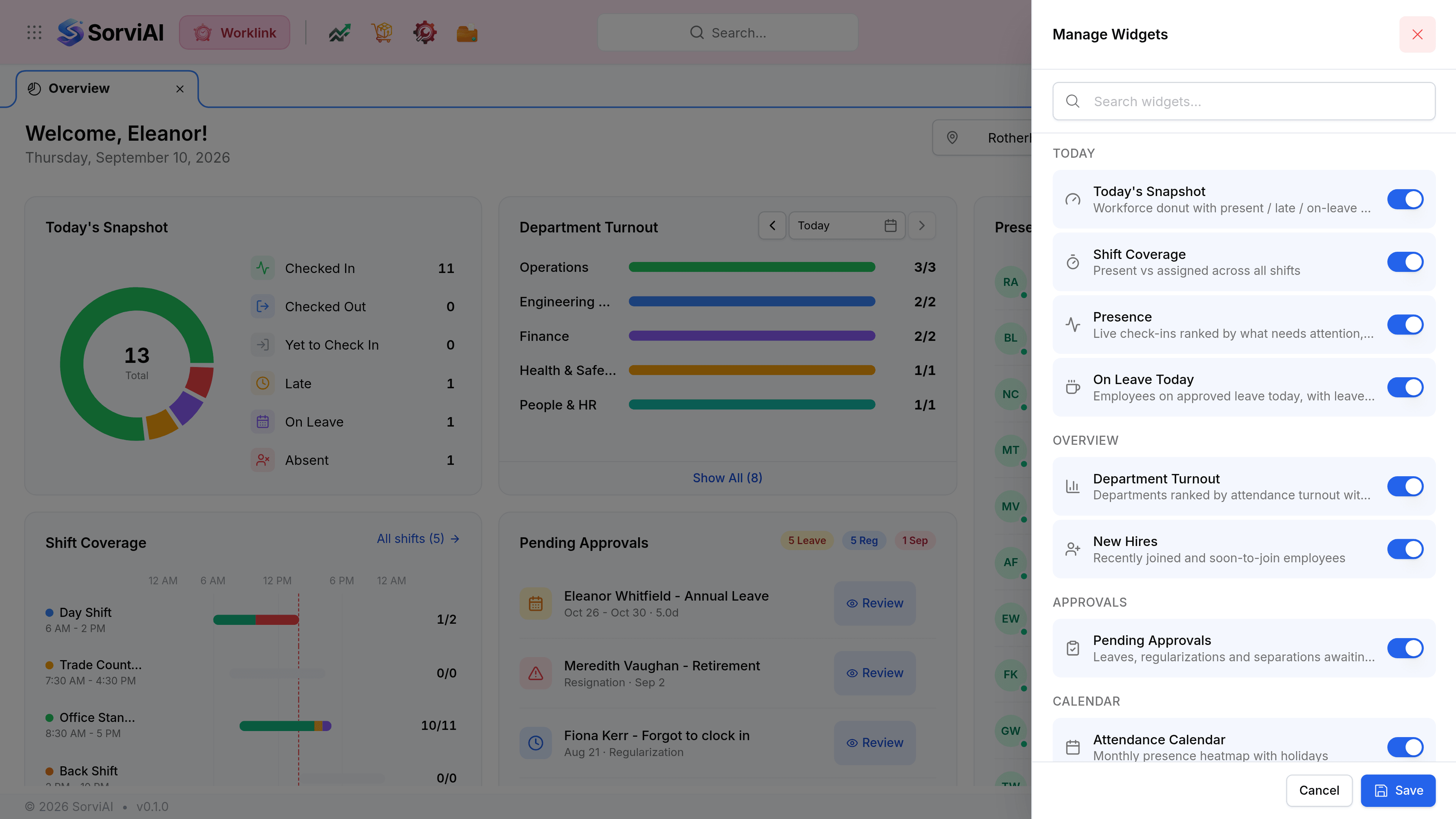
Toggle widgets on or off. Use the search box if you know the name; the list is longer than what fits on one dashboard.
Select Save. Nothing changes until you do, so a panel you opened to look at costs nothing to close.
| Group | Holds | About |
|---|---|---|
| Today | Today's Snapshot, Shift Coverage, Presence, On Leave Today. | The current day, whatever the page period says. |
| Overview | Department Turnout, New Hires. | The shape of the depot over the selected period. |
| Approvals | Pending Approvals. | Work waiting on a decision. |
| Calendar | Attendance Calendar, Upcoming Events. | What is coming, including last working days. |
Arranging them
Select the pencil to enter Edit layout. Every widget gains a drag handle beside its title and the toolbar changes.
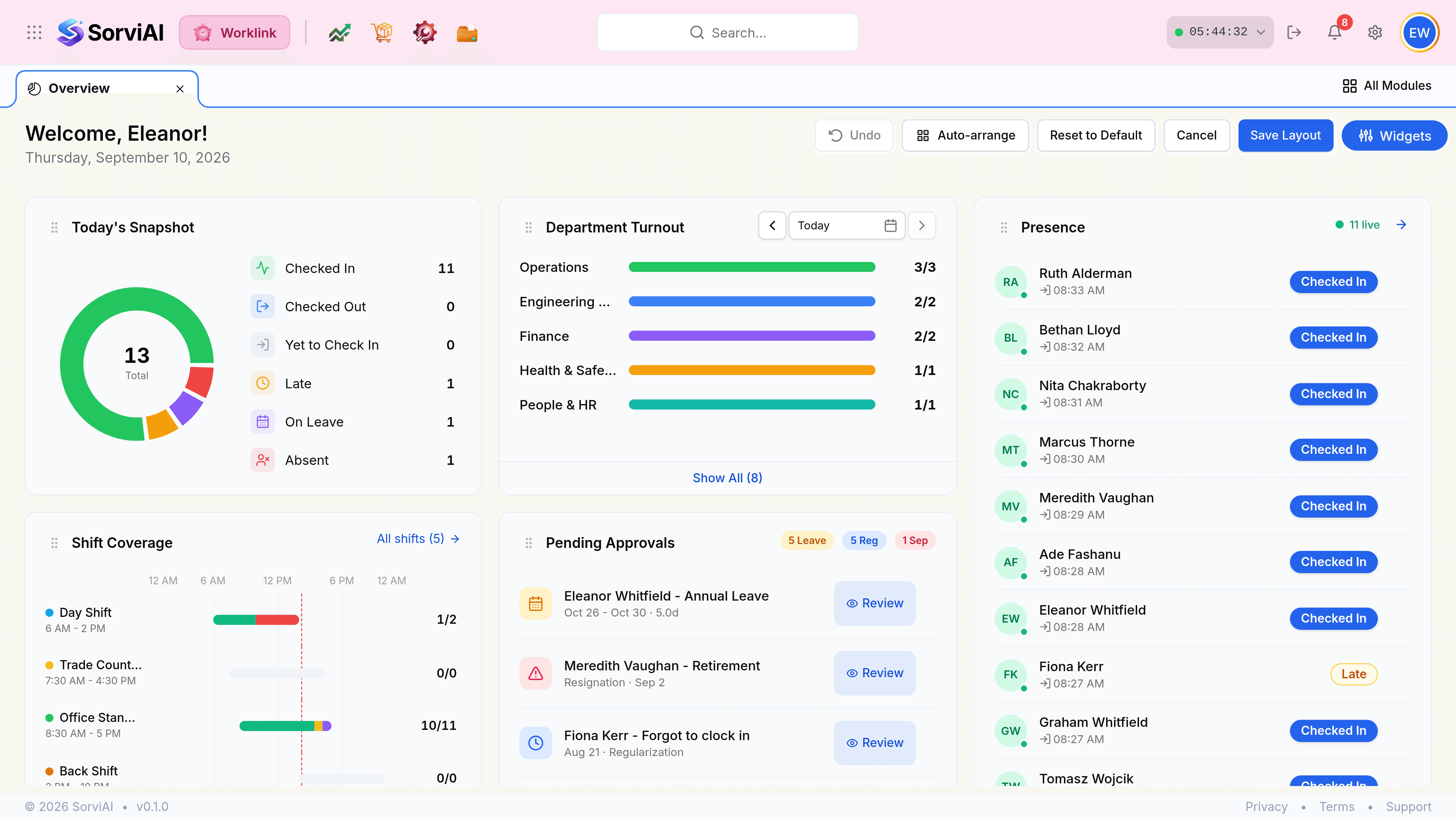
Drag widgets by their handles to reorder them, and resize them at their edges.
Select Save Layout, or Cancel to leave it as it was.
| Field | What it does |
|---|---|
| Undo | Steps back through moves made in this session. Greyed until you have made one. |
| Auto-arrange | Packs the widgets into the grid without gaps. Quicker than nudging them by hand. |
| Reset to Default | Returns the layout to how Worklink ships it. It asks first. |
| Cancel | Leaves edit mode and discards everything since you entered it. |
| Save Layout | Keeps the arrangement, for you, on this dashboard. |