
What team folders are
A team folder belongs to a team rather than a person. Every member holds a role, and the role decides what they can do inside it.
A team folder is the shared shelf of a department or a project. It doesn't belong to whoever happens to upload the most: it has members, each member has a role, and the role says what that person may do, from reading the files to managing who else is let in.

What a team folder gives you
- Create a team folderA home for a department's or a project's files.
- Add membersBring colleagues in, each with a role.
- Change a roleGive someone more say, or less.
- Remove a memberTake someone out, and their access goes with them.
- Know the four rolesAdmin, Organizer, Editor and Viewer, side by side.
- Build your own rolePick exactly the permissions a job needs.
Owners, members and roles
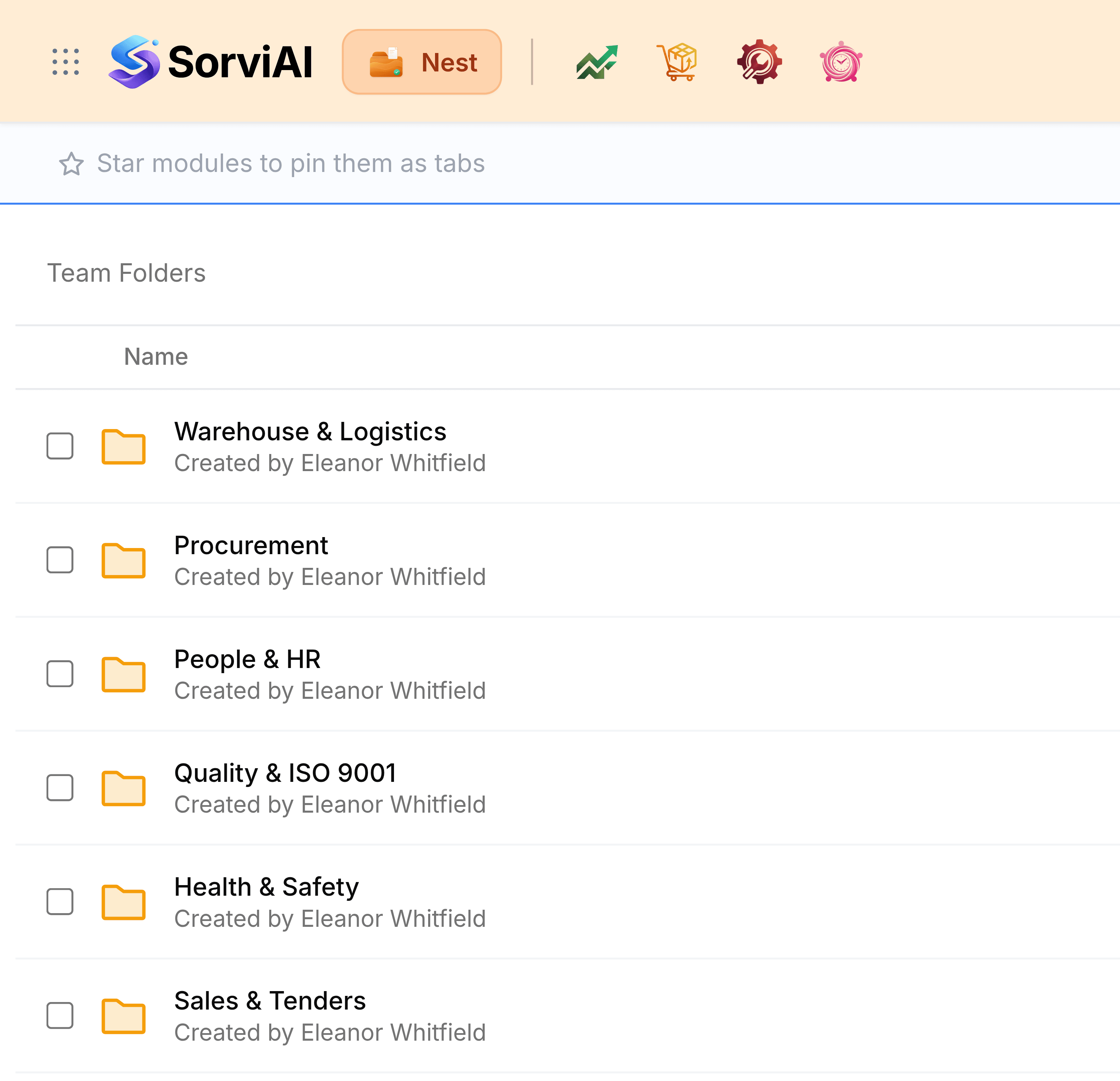
Three ideas make a team folder work. The owner is the person who created it: they always have every permission and can't be removed. Members are everybody else let in, and Team Folders lists only the folders you're a member of. A role is the set of permissions a member holds, chosen from four ready-made roles or one the team builds itself.
Membership is set once, on the team folder itself, and every folder inside it follows. Someone added to Quality & ISO 9001 can open Procedures and Calibration Certificates inside it with the same role.
Working with the files inside is the same as in your own folders. What My Folders are covers uploading, moving and the rest.
Get a team started
- Create a team folderSet up a shared folder from the New button on Team Folders.
- Add and remove membersBring colleagues in with a role, change it, or take them out.
Running a team folder well
- Start people as ViewersIt's easier to give someone more later than to undo what a wider role let them do.
- Keep two people able to manageIf only the owner can add members, the team stalls whenever they're away.
- Name custom roles for the jobAuditor or Field Engineer says what someone does, not just what they can press.
- Take people out when they move onRemoving a member is instant, and nothing they uploaded is lost.