
A file is missing from Recent Files
Why a file you expected is not in Recent Files, or has not moved to the top, and the quickest way to find it instead.
Recent Files is built from what you did, not from what exists, so most gaps have a simple cause. Each heading below is something you might notice, followed by why it happens and what to do.
A file I worked on last week isn't there
Why: the list shows only the fifty files you opened most recently. A busy week pushes older ones off the bottom.
What to do: search for it by name, or star it next time so it stays in Favorites.
A file a colleague sent me isn't there
Why: a file shared with you is not yours until you open it. Sharing puts it in Shared with Me, and Recent Files only picks it up once you've opened or downloaded it.
What to do: open it from Shared with Me once, and from then on it's here too.
I renamed or labelled a file and it didn't move to the top
Why: only uploading, opening and downloading count. Renaming, labelling, starring and sharing change the file without opening it.
What to do: nothing needs fixing. Download the file if you want it back at the top.
A file has vanished from the list
Why: the file has been moved to Trash, by you or by a colleague who works in the same folder.
What to do: look in Trash. Restoring the file puts it back in its folder and back in this list.
The page says No recently accessed files
Why: you haven't uploaded, opened or downloaded a file in Nest yet, so there is nothing to remember.
What to do: open any file from My Folders or Team Folders, and it becomes the first row.
Find it with the search bar instead
Whatever the reason, the search bar at the top of the screen reaches every file you're allowed to see, whether or not you've opened it.
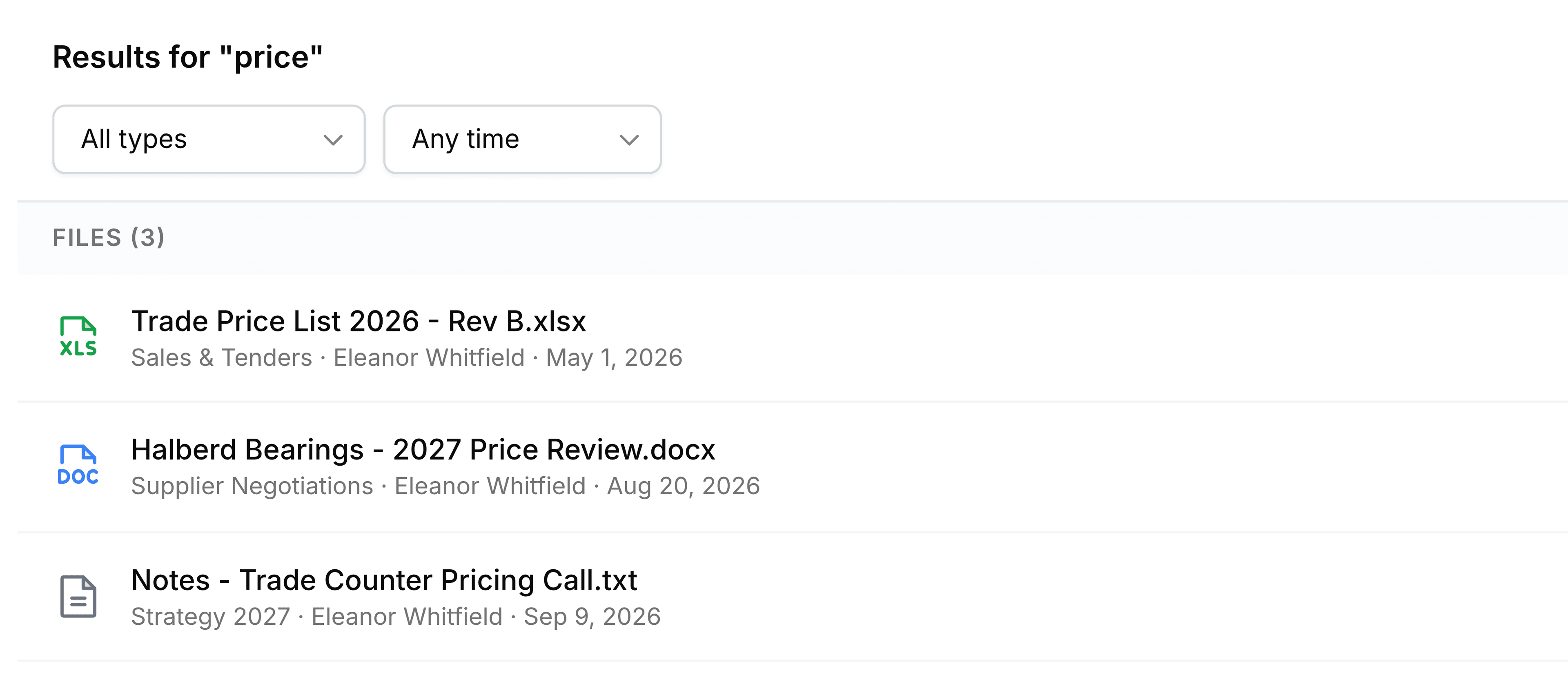
Enter at least two letters of the name, then narrow the results by type of file or by when it was added.