
Share a file or folder
Share one of your files or folders with a colleague by name, from the item's menu, and choose the permission it carries.
Sharing starts from the item, not from Shared with Me. Open the menu on the file or folder you want to share, and the Share panel lists who already has it and lets you add someone new.
Go to the item in My Folders, Team Folders or Recent Files, point at its row and select the three dots at its right-hand end.
Select Share.
Enter part of a colleague's name or email address in Search people, then select them from the matches.
Choose Can view, Can edit or Can download, then select Share.
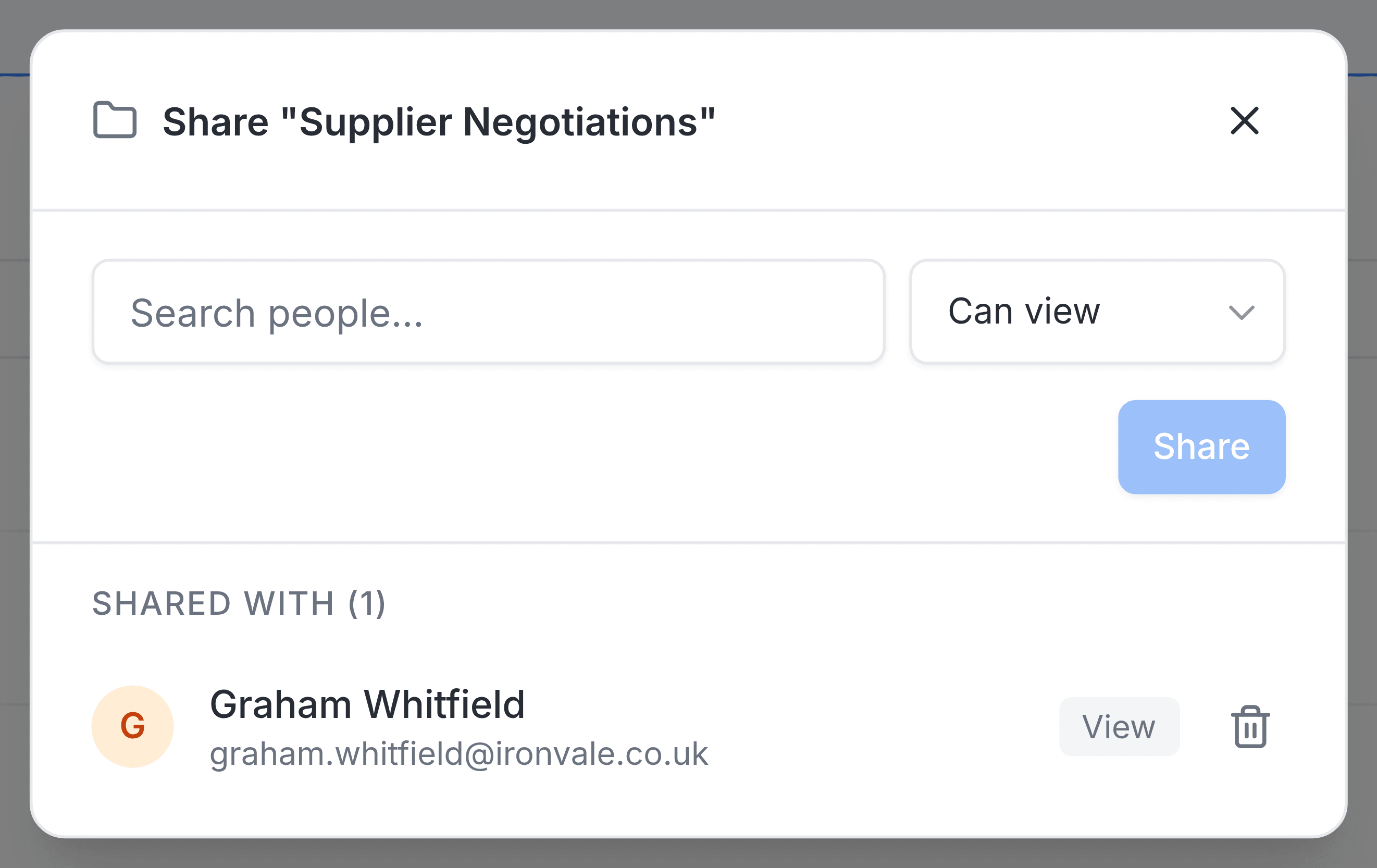
The colleague joins the Shared with list in the panel, and the item appears in their Shared with Me under your name, carrying the permission you chose as its tag.
Files and folders share differently
- A shared file
- Your colleague can download it straight away from their Shared with Me.
- A shared folder
- It appears in their Shared with Me, but it opens with its contents only if they can already reach that folder, for example as a member of its team folder. For anyone else it opens empty.
- Public links
- Files only. A folder's Share panel has no Public Link tab, as the panel above shows.