
Access Nest
How Nest is switched on for you, what decides which folders you can see once you're in, and what to do when something is missing.
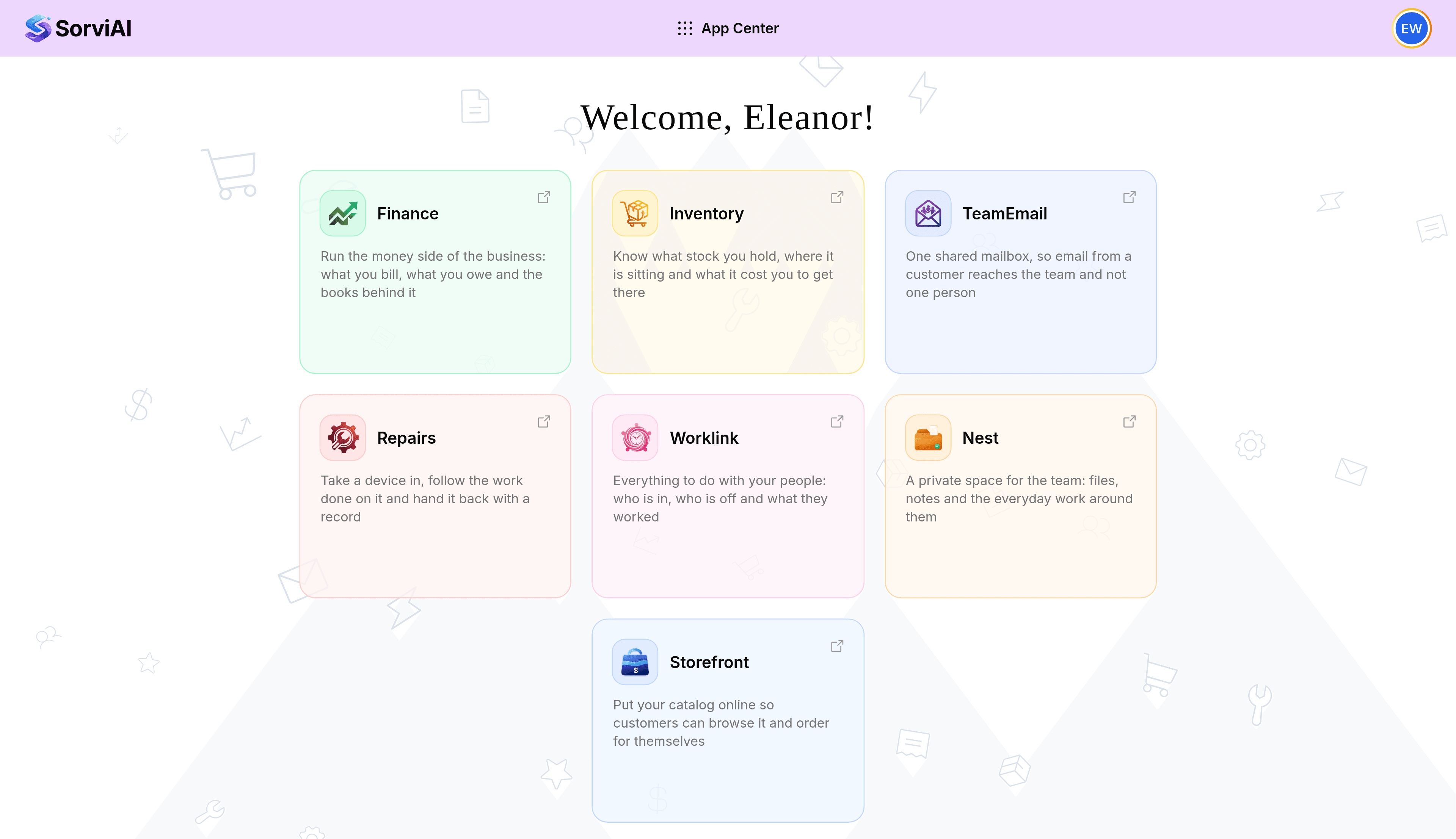
Signing in to SorviAI lands you on the App Center, and Nest is one of the tiles on it. Getting into Nest and seeing a particular folder in it are two separate questions, and it helps to keep them apart.
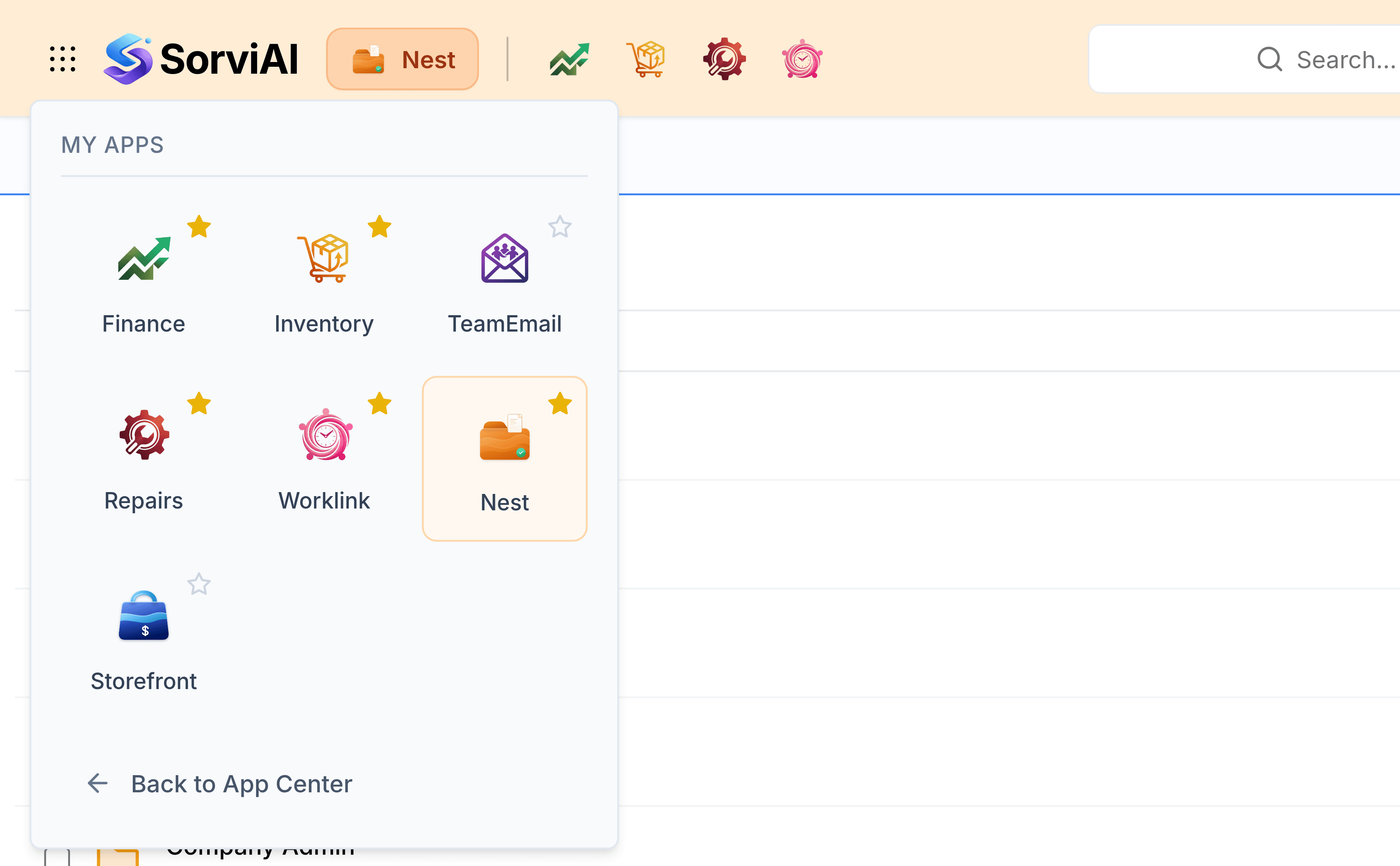
From inside another app, the grid of dots at the far left of the header opens the same set without going back.
What gets you in
- The app, granted to your organisation
- An administrator turns Nest on for the company. Without it, no account here has it.
- The app, granted to you
- Access is given per person, alongside the other apps in the suite. If Nest is missing from the App Center, this is almost always why.
Once you're in, nothing inside Nest is hidden behind a menu permission. Everybody gets the same screens: My Folders, Team Folders, Shared with Me and the rest. What changes from person to person is what those screens hold.
What decides which folders you see
- Ownership
- My Folders shows the folders you created and nobody else's.
- Membership
- Team Folders shows only the team folders you're a member of. A folder you're not in does not appear at all, rather than appearing locked.
- Sharing
- Shared with Me shows what colleagues have shared with you directly, each with the permission they chose.
- Your role in the folder
- Inside a team folder, your role decides which actions you're offered. A Viewer's menu has no Rename, Move or Delete, because a Viewer cannot do those things there.
What an administrator adds
Somebody who administers Nest, or the whole organisation, gets two things nobody else does by default.
- Creating team folders
- Only administrators can create a team folder, unless the setting that lets everybody do it has been turned on.
- Nest settings
- Storage limits, the file types Nest accepts, how long Trash keeps things, and the defaults new team folders start with.
When something is missing
| What you see | What it usually means |
|---|---|
| No Nest on the App Center | The app has not been granted to your account. An administrator adds it. |
| A team folder a colleague can see and you cannot | You're not a member of it. Anybody who manages that folder's members can add you. |
| Rename, Move or Delete missing from a file's menu | Your role in that team folder does not allow it. |
| A new team folder is refused | Only administrators can create one, unless the setting that lets everybody do it is on. |
| An upload is refused | The file is larger than Nest allows, or its type is not on the accepted list. |