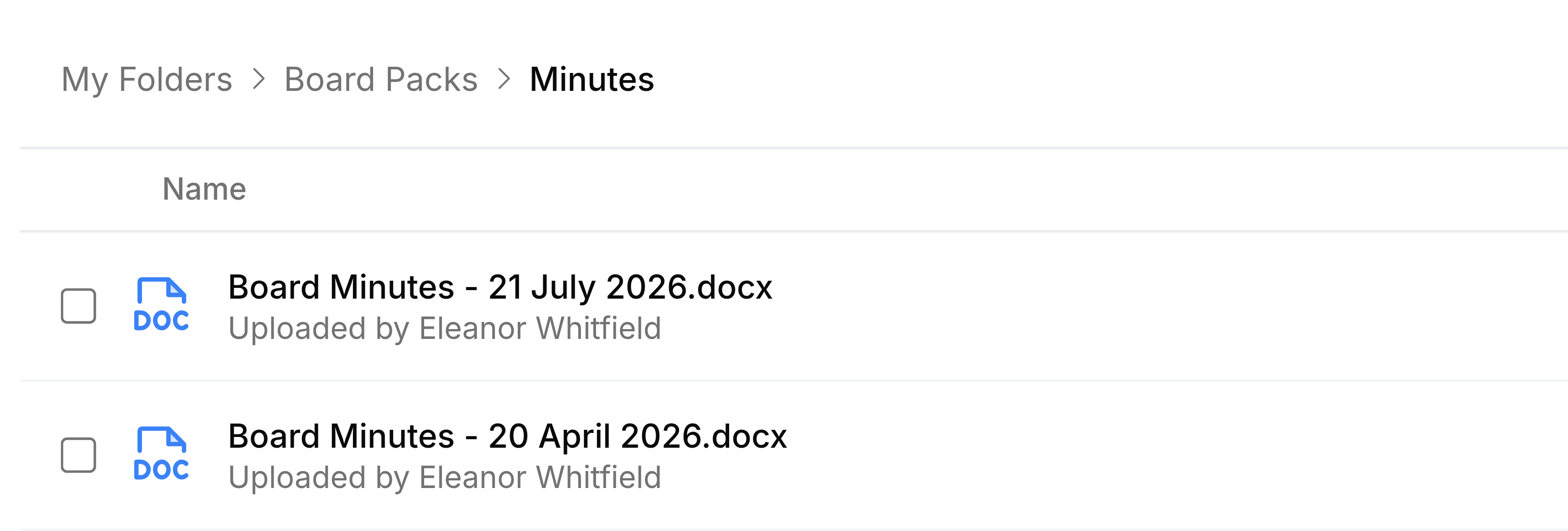
Open or download a file
Open a folder, download a file, or follow a saved link, and find your way back up through the path.
Selecting a row does the obvious thing for what's on it. A folder opens, a file downloads, and a link takes you to its page.
- A folder
- Opens in place, with its contents listed and its name added to the path at the top.
- A file
- Downloads to wherever your browser keeps downloads, ready to open in whatever program handles it. The file also goes to the top of your Recent Files.
- A link
- Opens its web page in a new browser tab. Nest stays where it was in the tab you left.
Download from the menu
Every file's menu also has Download, which does the same as selecting the row. It's the safer choice when you only mean to point at a row, because a stray select on a file starts a download.
Point at the file's row and select the three dots at its right-hand end, or right-click the row.
Select Download.
Find your way back
The path above the list shows every folder between My Folders and where you are. Select any step in it to go straight back to that level.