
Share a recent file
Give a colleague access to a file from Recent Files, or create a public link for somebody without a SorviAI account.
Sharing from Recent Files opens the same panel as sharing from the file's folder, with two tabs: People, for colleagues in your organisation, and Public Link, for anyone else.
Share with a colleague
Point at the file's row, select the three dots at its right-hand end, and select Share.
On the People tab, enter part of a colleague's name or email address, then select them from the matches.
Choose Can view, Can edit or Can download from the list beside the name.
Select Share. The colleague joins the Shared with list, and the file appears in their Shared with Me.

To take access away, select the bin at the end of that person's row in the same list. It ends at once.
Create a public link
A public link lets somebody outside SorviAI open this one file, with no account. Links are for files only.
In the Share panel, select the Public Link tab, then select Create Link.
Enter a label that says who the link is for, so you can tell your links apart later.
Add a password and the number of days before the link expires, if you want either. Leave them blank for a link that needs no password and never expires.
Clear Allow download if the person should be able to view the file but not keep a copy.
Select Create Link, then select the copy icon on the new link's card and send the address to the person who needs it.
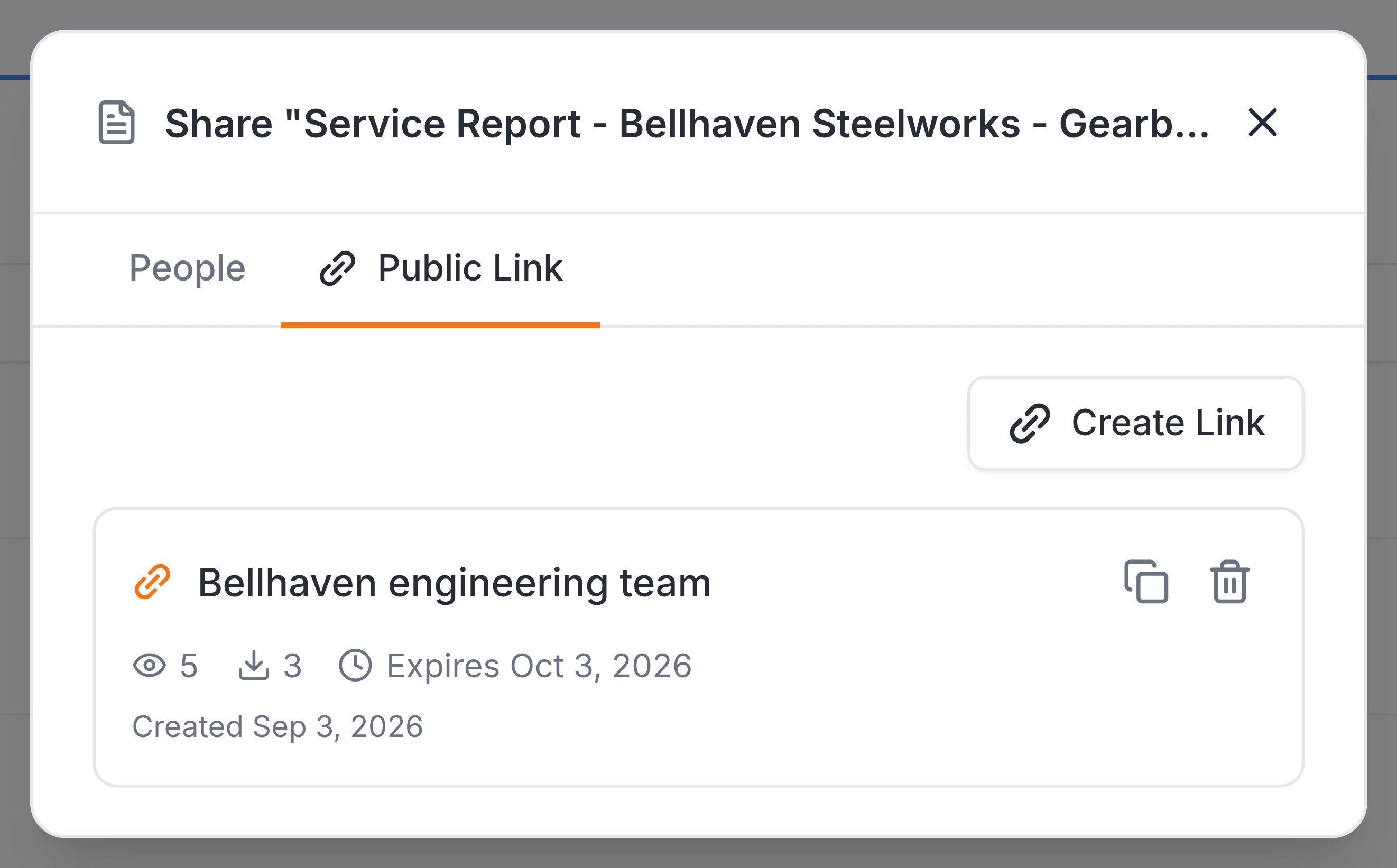
Each link card counts its own views and downloads, and shows its expiry date once one is set. Select the bin on the card to delete the link; anybody holding the address loses access straight away.