Navigating Nest
A guided tour of the Nest screen: the header, the tab bar, the All Modules menu, the folder toolbar, the three views and the two layouts.
Nest is reached from two strips at the top of the window: a header that stays the same wherever you are, and a tab bar that changes with you. Below them, every folder opens the same way, with a toolbar across the top and its contents underneath. Here is what each piece does.

- App switcher
- The grid of dots at the far left. Opens the other SorviAI apps you have access to.
- Nest
- The pill naming the app you're in, with your starred apps as icons beside it for a one-press hop between them.
- Search
- The box in the middle. In Nest it looks through every file and folder you can reach, not only the folder you have open.
- Notifications
- The bell, carrying a count when something is waiting on you.
- Settings
- The cog, which opens Nest's own settings rather than the suite's.
- Your profile
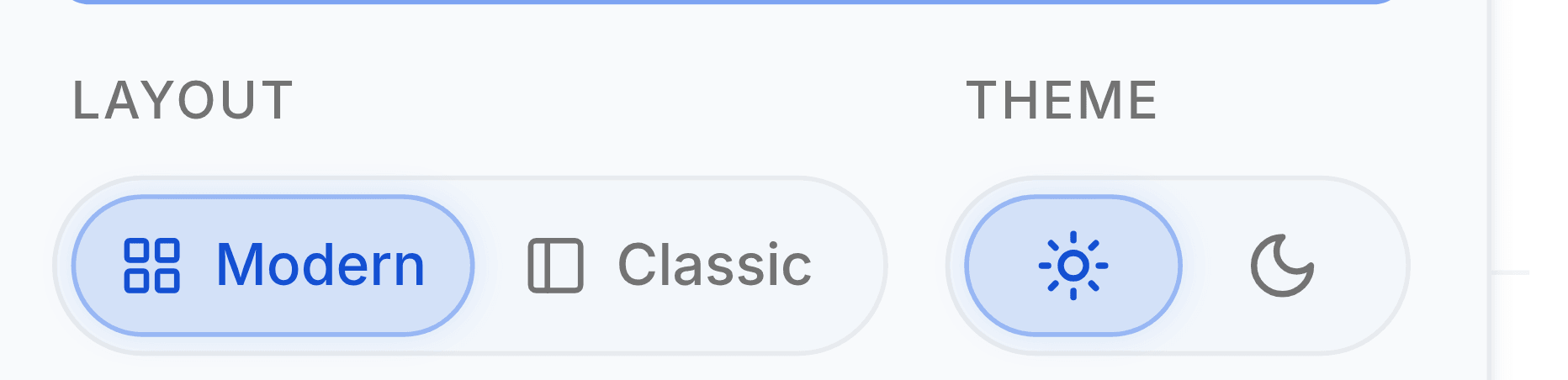
- The avatar at the far right: the light and dark theme switch, the layout switch, your own profile and the way out.
- Tab bar
- Under the header. Your starred screens live here permanently, and anything else you open joins them until you close it.
- All Modules
- At the right of the tab bar. Every Nest screen in one menu.
- Folder toolbar
- The path to the folder you're in on the left, and the view switch and the New button on the right.
- Contents
- The folders first, then the files, each row showing who added it, when it last changed, and its size.
All Modules
All Modules opens the whole Nest menu. Star a screen there and it becomes a tab you can return to in one press.
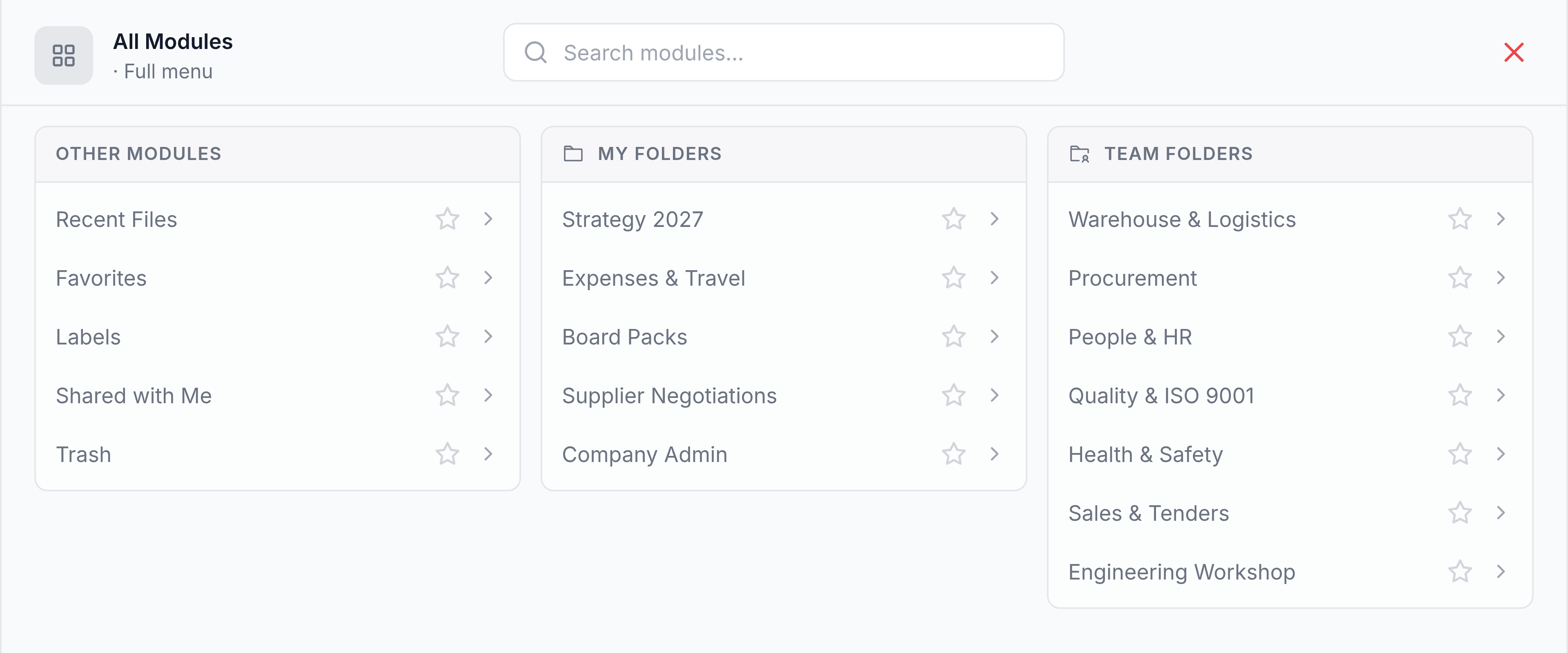
Your folders are in the menu too, so a folder you use daily is two presses away, or one once it's starred.
| Screen | What it lists |
|---|---|
| Recent Files | The files you opened most recently |
| Favorites | Everything you starred |
| Labels | Your labels, and the files carrying each one |
| Shared with Me | Files and folders colleagues have shared with you |
| My Folders | Your own folders and files |
| Team Folders | The team folders you're a member of |
| Trash | Deleted items that can still be restored |
Unlike most SorviAI apps, everybody gets the same menu here. What differs from person to person is what each screen holds, which Access Nest explains.
Inside a folder
Every folder, yours or a team's, opens with the same toolbar.

- The path
- Where you are, from My Folders or Team Folders down to the folder you have open. Select any step in it to go back up.
- The view switch
- Details, Grid or Compact. The same contents, laid out three ways.
- Manage
- Inside a team folder only. Opens the folder's members and roles in a panel on the right.
- New
- Creates a folder, uploads files or adds a link to a web page, inside the folder you have open.
Each file and folder carries its own menu of actions: the three dots at the end of its row, which appear as you point at it. Right-click the row and the same menu opens where you clicked. It holds only what you're allowed to do there, so a shorter menu in a team folder is your role, not a fault.
Three views
| View | Best for |
|---|---|
| Details | Reading: one row per item, with who added it, when it changed and its size |
| Grid | Recognising: a card per item with a large icon, for folders you know by sight |
| Compact | Scanning: dense single-line rows, so a long folder fits on one screen |

The search bar
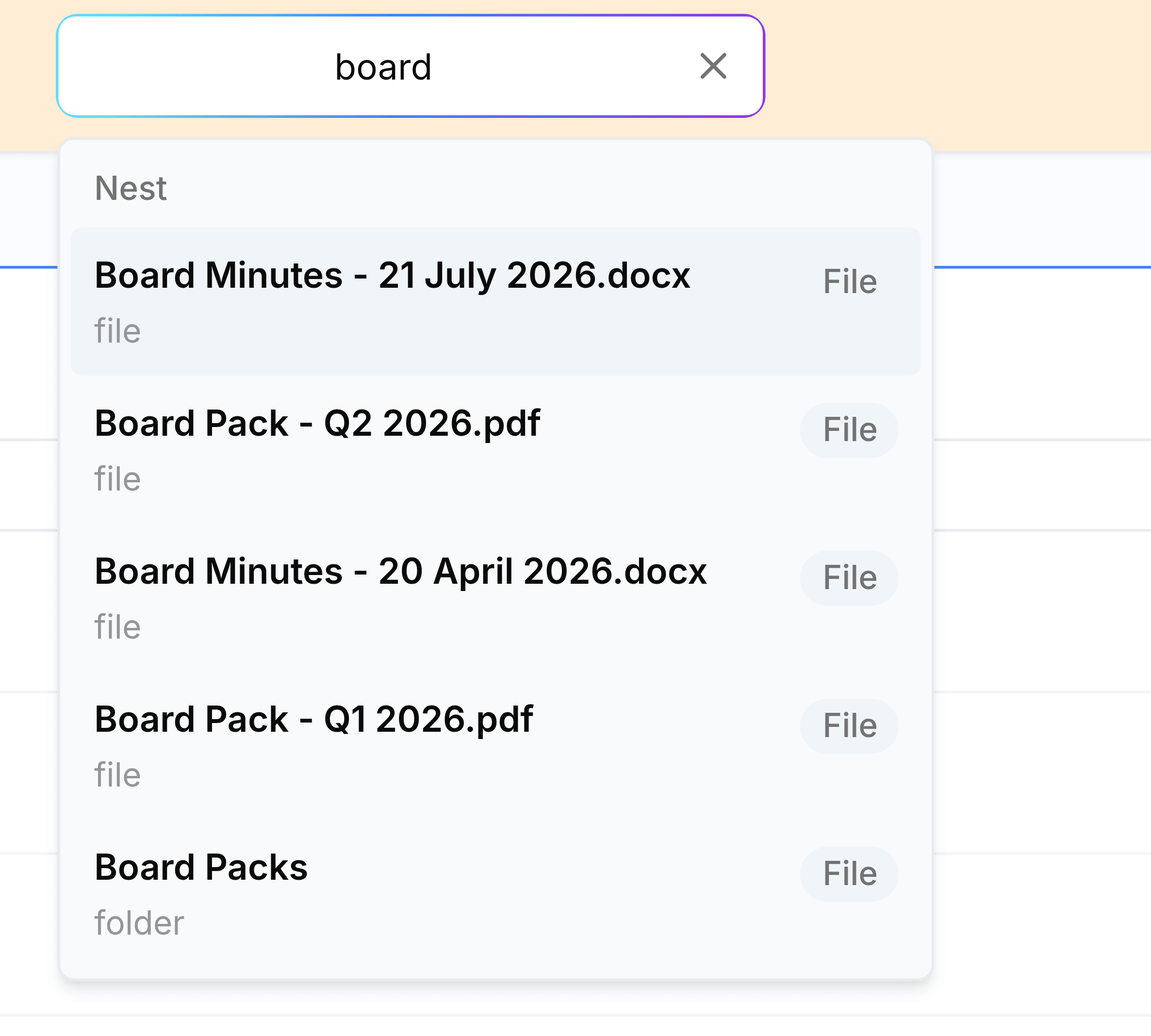
Enter at least two letters of a name in the search bar and the matches drop down beneath it. Choose one and the full results open on their own page, folders and files listed separately, where two filters narrow them further: the type of file (PDF, images, documents, spreadsheets, video or audio) and when it was added (today, this week or this month).
Two layouts
Nest ships the two navigation shapes every SorviAI app does, and remembers which you chose. Both reach the same screens.
Modern
the default
- YesA tab bar across the top
- YesAll Modules for the full menu
- YesStarred screens become tabs
- NoYour folders listed on screen at all times
Classic
- YesA left sidebar listing every screen
- YesMy Folders and Team Folders expand to show the folders in them
- NoAn All Modules button, because the sidebar is the menu
- NoTabs across the top
Both live under your avatar at the top right, beside the light and dark theme switch.